LED TV
SERVICE MANUAL
CHASSIS : UJ55D/UT55D
MODEL : 65NANO80ASA
MODEL : 65NANO80ATA
CAUTION
BEFORE SERVICING THE CHASSIS, READ THE SAFETY PRECAUTIONS IN THIS MANUAL.
P/NO : MFL05787804 (2501-REV00)
Any reproduction, duplication, distribution (including by way of email, facsimile or other electronic means),
publication, modification, copying or transmission of this Service Manual is STRICTLY PROHIBITED unless you
have obtained the prior written consent of the LG Electronics entity from which you received this Service Manual.
The material covered by this prohibition includes, without limitation, any text, graphics or logos in this Service
Manual.
Copyright © 2025 LG Electronics Inc. All rights reserved. Only training and service purposes.
CONTENTS
CONTENTS ............................................................................................... 2
SAFETY PRECAUTIONS ......................................................................... 3
SERVICING PRECAUTIONS .................................................................... 4
SPECIFICATION ........................................................................................ 6
SOFTWARE UPDATE .............................................................................. 9
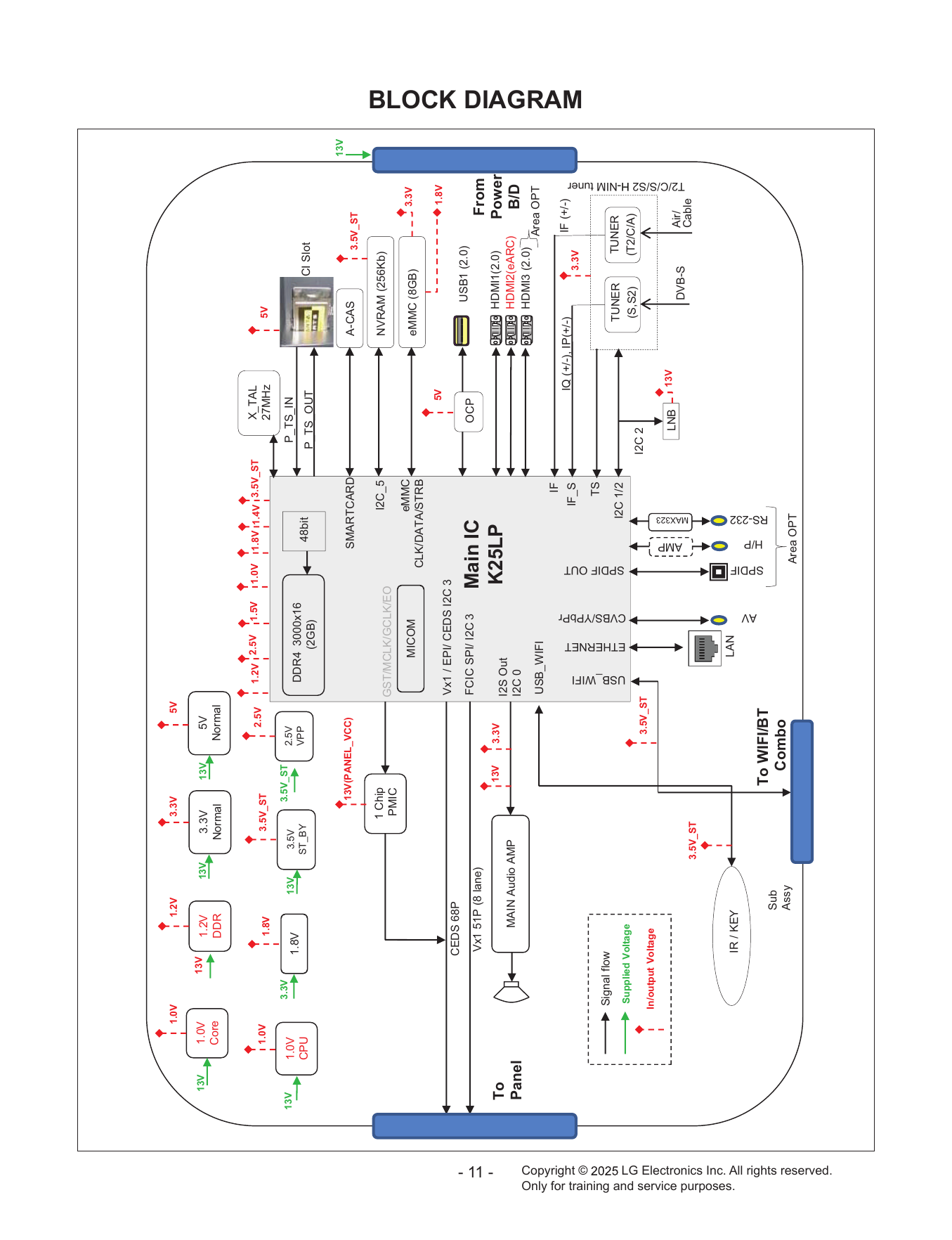
BLOCK DIAGRAM .................................................................................. 11
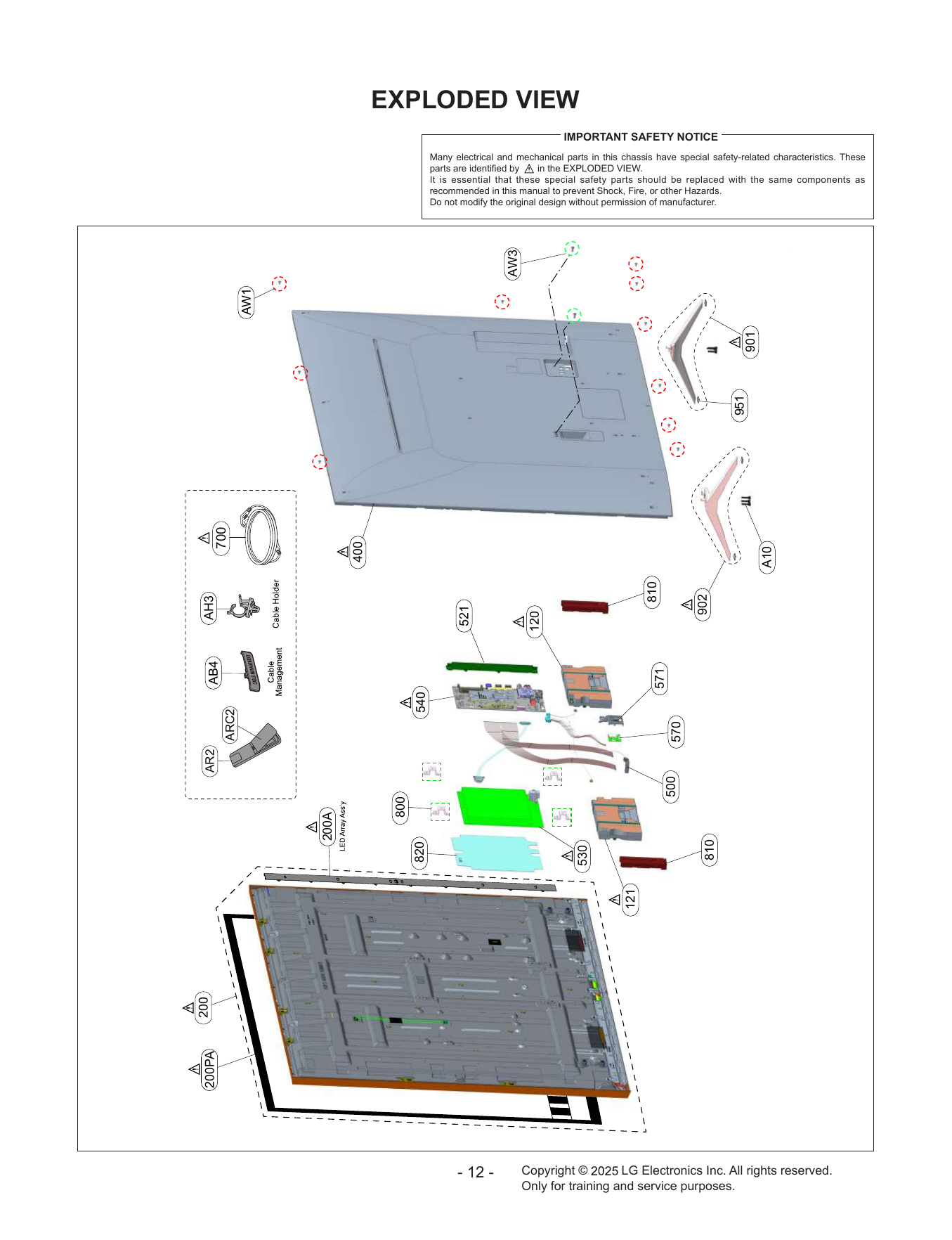
EXPLODED VIEW ................................................................................... 12
WIRING DIAGRAM ................................................................................. 13
DISASSEMBLY / ASSEMBLY GUIDE ................................................... 14
TROUBLE SHOOTING GUIDE ................................................. APPENDIX
-2- Copyright © LG Electronics Inc. All rights reserved.
Only for training and service purposes.
SAFETY PRECAUTIONS
IMPORTANT SAFETY NOTICE
Many electrical and mechanical parts in this chassis have special safety-related characteristics. These parts are identified by in the
Exploded View.
It is essential that these special safety parts should be replaced with the same components as recommended in this manual to prevent
Shock, Fire, or other Hazards.
Do not modify the original design without permission of manufacturer.
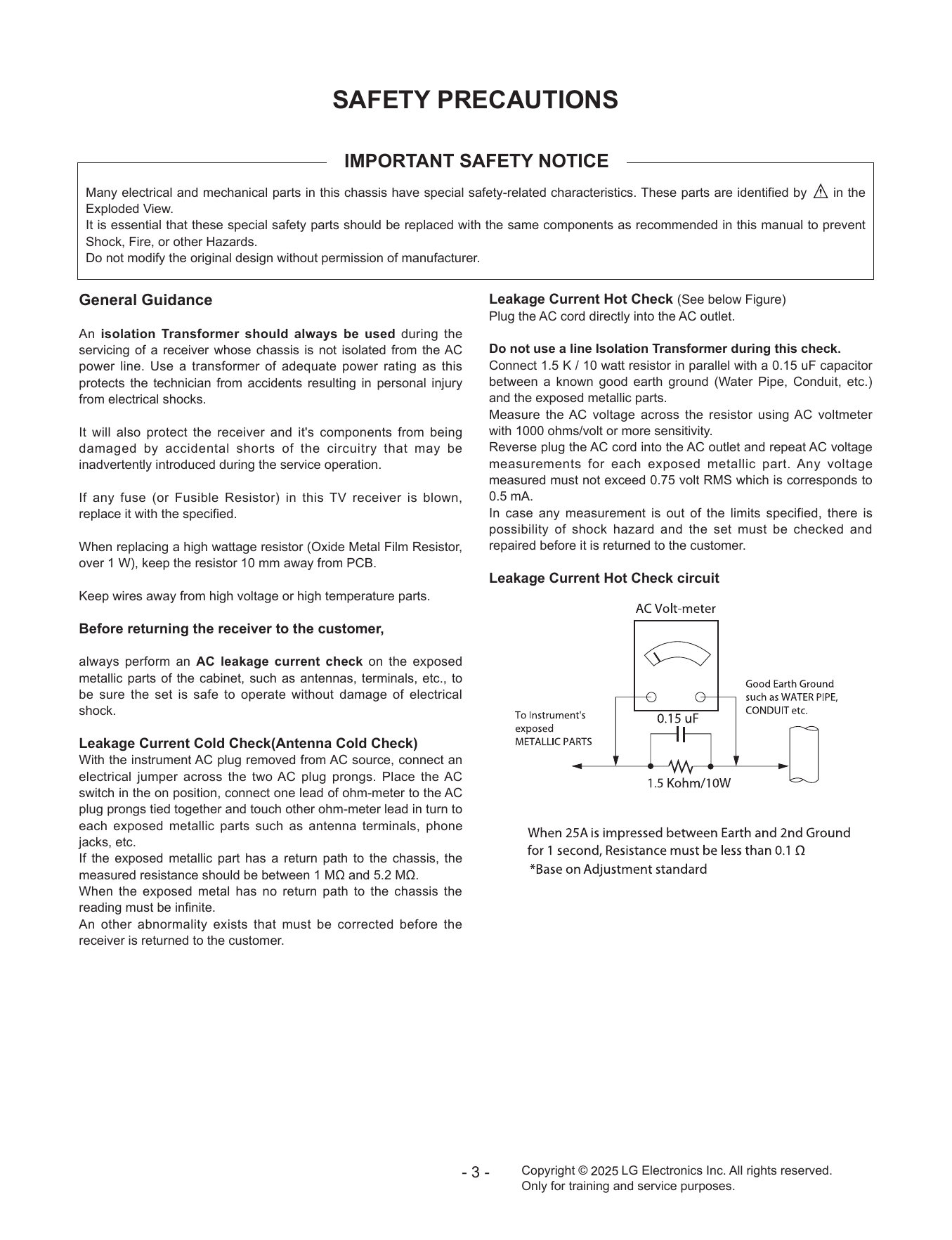
General Guidance Leakage Current Hot Check (See below Figure)
Plug the AC cord directly into the AC outlet.
An isolation Transformer should always be used during the
servicing of a receiver whose chassis is not isolated from the AC Do not use a line Isolation Transformer during this check.
power line. Use a transformer of adequate power rating as this Connect 1.5 K / 10 watt resistor in parallel with a 0.15 uF capacitor
protects the technician from accidents resulting in personal injury between a known good earth ground (Water Pipe, Conduit, etc.)
from electrical shocks. and the exposed metallic parts.
Measure the AC voltage across the resistor using AC voltmeter
It will also protect the receiver and it's components from being with 1000 ohms/volt or more sensitivity.
damaged by accidental shorts of the circuitry that may be Reverse plug the AC cord into the AC outlet and repeat AC voltage
inadvertently introduced during the service operation. measurements for each exposed metallic part. Any voltage
measured must not exceed 0.75 volt RMS which is corresponds to
If any fuse (or Fusible Resistor) in this TV receiver is blown, 0.5 mA.
replace it with the specified. In case any measurement is out of the limits specified, there is
possibility of shock hazard and the set must be checked and
When replacing a high wattage resistor (Oxide Metal Film Resistor, repaired before it is returned to the customer.
over 1 W), keep the resistor 10 mm away from PCB.
Leakage Current Hot Check circuit
Keep wires away from high voltage or high temperature parts.
Before returning the receiver to the customer,
always perform an AC leakage current check on the exposed
metallic parts of the cabinet, such as antennas, terminals, etc., to
be sure the set is safe to operate without damage of electrical
shock.
Leakage Current Cold Check(Antenna Cold Check)
With the instrument AC plug removed from AC source, connect an
electrical jumper across the two AC plug prongs. Place the AC
switch in the on position, connect one lead of ohm-meter to the AC
plug prongs tied together and touch other ohm-meter lead in turn to
each exposed metallic parts such as antenna terminals, phone
jacks, etc.
If the exposed metallic part has a return path to the chassis, the
measured resistance should be between 1 MΩ and 5.2 MΩ.
When the exposed metal has no return path to the chassis the
reading must be infinite.
An other abnormality exists that must be corrected before the
receiver is returned to the customer.
-3- Copyright © LG Electronics Inc. All rights reserved.
Only for training and service purposes.
SERVICING PRECAUTIONS
CAUTION: Before servicing receivers covered by this service 2. After removing an electrical assembly equipped with ES
manual and its supplements and addenda, read and follow the devices, place the assembly on a conductive surface such as
SAFETY PRECAUTIONS on page 3 of this publication. aluminum foil, to prevent electrostatic charge buildup or expo-
NOTE: If unforeseen circumstances create conflict between the sure of the assembly.
following servicing precautions and any of the safety precautions 3. Use only a grounded-tip soldering iron to solder or unsolder
on page 3 of this publication, always follow the safety precau- ES devices.
tions. Remember: Safety First. 4. Use only an anti-static type solder removal device. Some sol-
der removal devices not classified as “anti-static” can generate
General Servicing Precautions electrical charges sufficient to damage ES devices.
1. Always unplug the receiver AC power cord from the AC power 5. Do not use freon-propelled chemicals. These can generate
source before; electrical charges sufficient to damage ES devices.
a. Removing or reinstalling any component, circuit board 6. Do not remove a replacement ES device from its protective
module or any other receiver assembly. package until immediately before you are ready to install it.
b. Disconnecting or reconnecting any receiver electrical plug (Most replacement ES devices are packaged with leads elec-
or other electrical connection. trically shorted together by conductive foam, aluminum foil or
c. Connecting a test substitute in parallel with an electrolytic comparable conductive material).
capacitor in the receiver. 7. Immediately before removing the protective material from the
CAUTION: A wrong part substitution or incorrect polarity leads of a replacement ES device, touch the protective mate-
installation of electrolytic capacitors may result in an explo- rial to the chassis or circuit assembly into which the device will
sion hazard. be installed.
2. Test high voltage only by measuring it with an appropriate high CAUTION: Be sure no power is applied to the chassis or cir-
voltage meter or other voltage measuring device (DVM, FET- cuit, and observe all other safety precautions.
VOM, etc) equipped with a suitable high voltage probe. 8. Minimize bodily motions when handling unpackaged replace-
Do not test high voltage by "drawing an arc". ment ES devices. (Otherwise harmless motion such as the
3. Do not spray chemicals on or near this receiver or any of its brushing together of your clothes fabric or the lifting of your
assemblies. foot from a carpeted floor can generate static electricity suf-
4. Unless specified otherwise in this service manual, clean ficient to damage an ES device.)
electrical contacts only by applying the following mixture to the
contacts with a pipe cleaner, cotton-tipped stick or comparable General Soldering Guidelines
non-abrasive applicator; 10 % (by volume) Acetone and 90 % 1. Use a grounded-tip, low-wattage soldering iron and appropri-
(by volume) isopropyl alcohol (90 % - 99 % strength) ate tip size and shape that will maintain tip temperature within
CAUTION: This is a flammable mixture. the range or 500 °F to 600 °F.
Unless specified otherwise in this service manual, lubrication 2. Use an appropriate gauge of RMA resin-core solder composed
of contacts in not required. of 60 parts tin/40 parts lead.
5. Do not defeat any plug/socket B+ voltage interlocks with which 3. Keep the soldering iron tip clean and well tinned.
receivers covered by this service manual might be equipped. 4. Thoroughly clean the surfaces to be soldered. Use a mall wire-
6. Do not apply AC power to this instrument and/or any of its bristle (0.5 inch, or 1.25 cm) brush with a metal handle.
electrical assemblies unless all solid-state device heat sinks Do not use freon-propelled spray-on cleaners.
are correctly installed. 5. Use the following unsoldering technique
7. Always connect the test receiver ground lead to the receiver a. Allow the soldering iron tip to reach normal temperature.
chassis ground before connecting the test receiver positive (500 °F to 600 °F)
lead. b. Heat the component lead until the solder melts.
Always remove the test receiver ground lead last. c. Quickly draw the melted solder with an anti-static, suction-
8. Use with this receiver only the test fixtures specified in this type solder removal device or with solder braid.
service manual. CAUTION: Work quickly to avoid overheating the circuit
CAUTION: Do not connect the test fixture ground strap to any board printed foil.
heat sink in this receiver. 6. Use the following soldering technique.
a. Allow the soldering iron tip to reach a normal temperature
Electrostatically Sensitive (ES) Devices (500 °F to 600 °F)
Some semiconductor (solid-state) devices can be damaged eas- b. First, hold the soldering iron tip and solder the strand
ily by static electricity. Such components commonly are called against the component lead until the solder melts.
Electrostatically Sensitive (ES) Devices. Examples of typical ES c. Quickly move the soldering iron tip to the junction of the
devices are integrated circuits and some field-effect transistors component lead and the printed circuit foil, and hold it there
and semiconductor “chip” components. The following techniques only until the solder flows onto and around both the compo-
should be used to help reduce the incidence of component dam- nent lead and the foil.
age caused by static by static electricity. CAUTION: Work quickly to avoid overheating the circuit
1. Immediately before handling any semiconductor component or board printed foil.
semiconductor-equipped assembly, drain off any electrostatic d. Closely inspect the solder area and remove any excess or
charge on your body by touching a known earth ground. Alter- splashed solder with a small wire-bristle brush.
natively, obtain and wear a commercially available discharg-
ing wrist strap device, which should be removed to prevent
potential shock reasons prior to applying power to the unit
under test.
-4- Copyright © LG Electronics Inc. All rights reserved.
Only for training and service purposes.
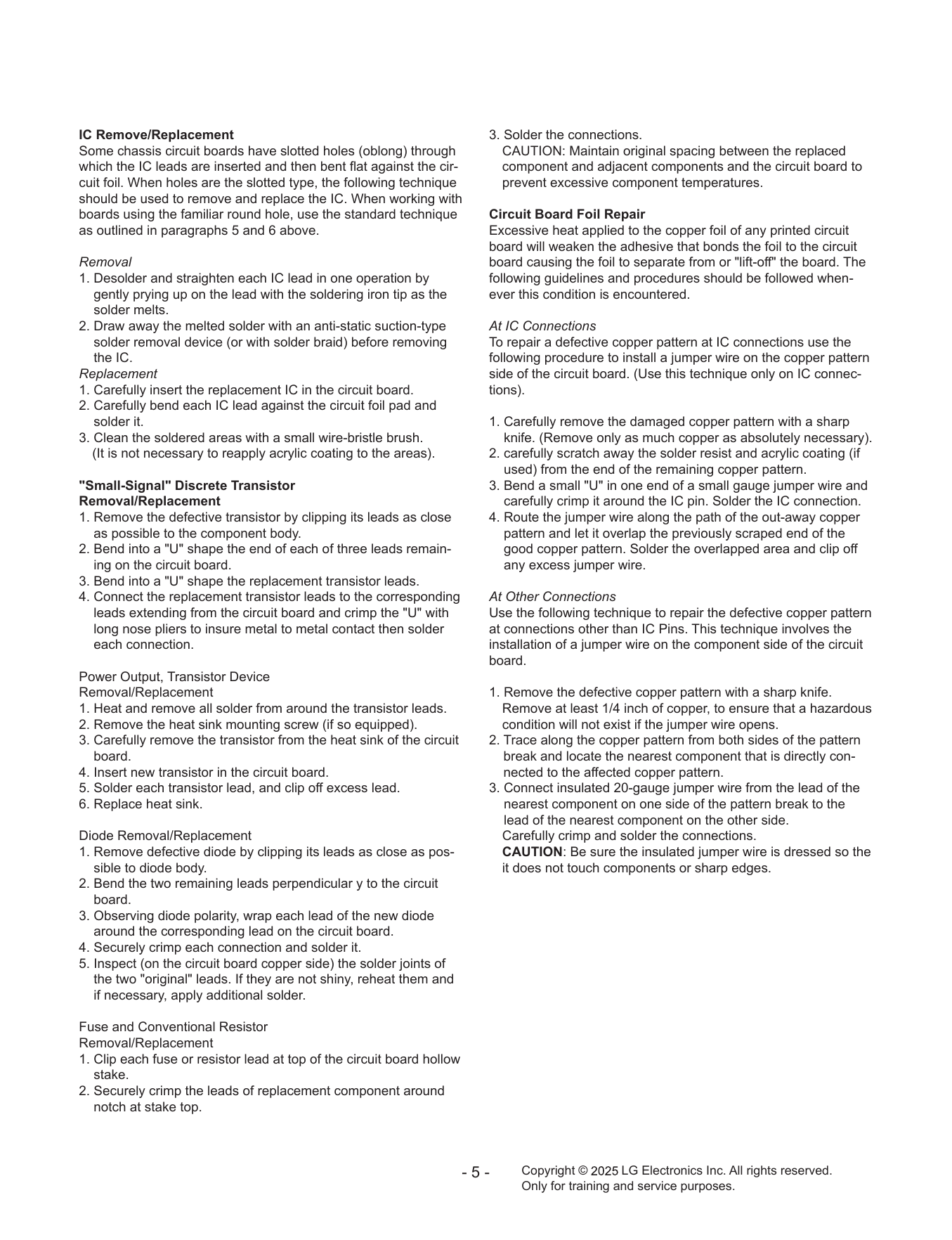
IC Remove/Replacement 3. Solder the connections.
Some chassis circuit boards have slotted holes (oblong) through CAUTION: Maintain original spacing between the replaced
which the IC leads are inserted and then bent flat against the cir- component and adjacent components and the circuit board to
cuit foil. When holes are the slotted type, the following technique prevent excessive component temperatures.
should be used to remove and replace the IC. When working with
boards using the familiar round hole, use the standard technique Circuit Board Foil Repair
as outlined in paragraphs 5 and 6 above. Excessive heat applied to the copper foil of any printed circuit
board will weaken the adhesive that bonds the foil to the circuit
Removal board causing the foil to separate from or "lift-off" the board. The
1. Desolder and straighten each IC lead in one operation by following guidelines and procedures should be followed when-
gently prying up on the lead with the soldering iron tip as the ever this condition is encountered.
solder melts.
2. Draw away the melted solder with an anti-static suction-type At IC Connections
solder removal device (or with solder braid) before removing To repair a defective copper pattern at IC connections use the
the IC. following procedure to install a jumper wire on the copper pattern
Replacement side of the circuit board. (Use this technique only on IC connec-
1. Carefully insert the replacement IC in the circuit board. tions).
2. Carefully bend each IC lead against the circuit foil pad and
solder it. 1. Carefully remove the damaged copper pattern with a sharp
3. Clean the soldered areas with a small wire-bristle brush. knife. (Remove only as much copper as absolutely necessary).
(It is not necessary to reapply acrylic coating to the areas). 2. carefully scratch away the solder resist and acrylic coating (if
used) from the end of the remaining copper pattern.
"Small-Signal" Discrete Transistor 3. Bend a small "U" in one end of a small gauge jumper wire and
Removal/Replacement carefully crimp it around the IC pin. Solder the IC connection.
1. Remove the defective transistor by clipping its leads as close 4. Route the jumper wire along the path of the out-away copper
as possible to the component body. pattern and let it overlap the previously scraped end of the
2. Bend into a "U" shape the end of each of three leads remain- good copper pattern. Solder the overlapped area and clip off
ing on the circuit board. any excess jumper wire.
3. Bend into a "U" shape the replacement transistor leads.
4. Connect the replacement transistor leads to the corresponding At Other Connections
leads extending from the circuit board and crimp the "U" with Use the following technique to repair the defective copper pattern
long nose pliers to insure metal to metal contact then solder at connections other than IC Pins. This technique involves the
each connection. installation of a jumper wire on the component side of the circuit
board.
Power Output, Transistor Device
Removal/Replacement 1. Remove the defective copper pattern with a sharp knife.
1. Heat and remove all solder from around the transistor leads. Remove at least 1/4 inch of copper, to ensure that a hazardous
2. Remove the heat sink mounting screw (if so equipped). condition will not exist if the jumper wire opens.
3. Carefully remove the transistor from the heat sink of the circuit 2. Trace along the copper pattern from both sides of the pattern
board. break and locate the nearest component that is directly con-
4. Insert new transistor in the circuit board. nected to the affected copper pattern.
5. Solder each transistor lead, and clip off excess lead. 3. Connect insulated 20-gauge jumper wire from the lead of the
6. Replace heat sink. nearest component on one side of the pattern break to the
lead of the nearest component on the other side.
Diode Removal/Replacement Carefully crimp and solder the connections.
1. Remove defective diode by clipping its leads as close as pos- CAUTION: Be sure the insulated jumper wire is dressed so the
sible to diode body. it does not touch components or sharp edges.
2. Bend the two remaining leads perpendicular y to the circuit
board.
3. Observing diode polarity, wrap each lead of the new diode
around the corresponding lead on the circuit board.
4. Securely crimp each connection and solder it.
5. Inspect (on the circuit board copper side) the solder joints of
the two "original" leads. If they are not shiny, reheat them and
if necessary, apply additional solder.
Fuse and Conventional Resistor
Removal/Replacement
1. Clip each fuse or resistor lead at top of the circuit board hollow
stake.
2. Securely crimp the leads of replacement component around
notch at stake top.
-5- Copyright © LG Electronics Inc. All rights reserved.
Only for training and service purposes.
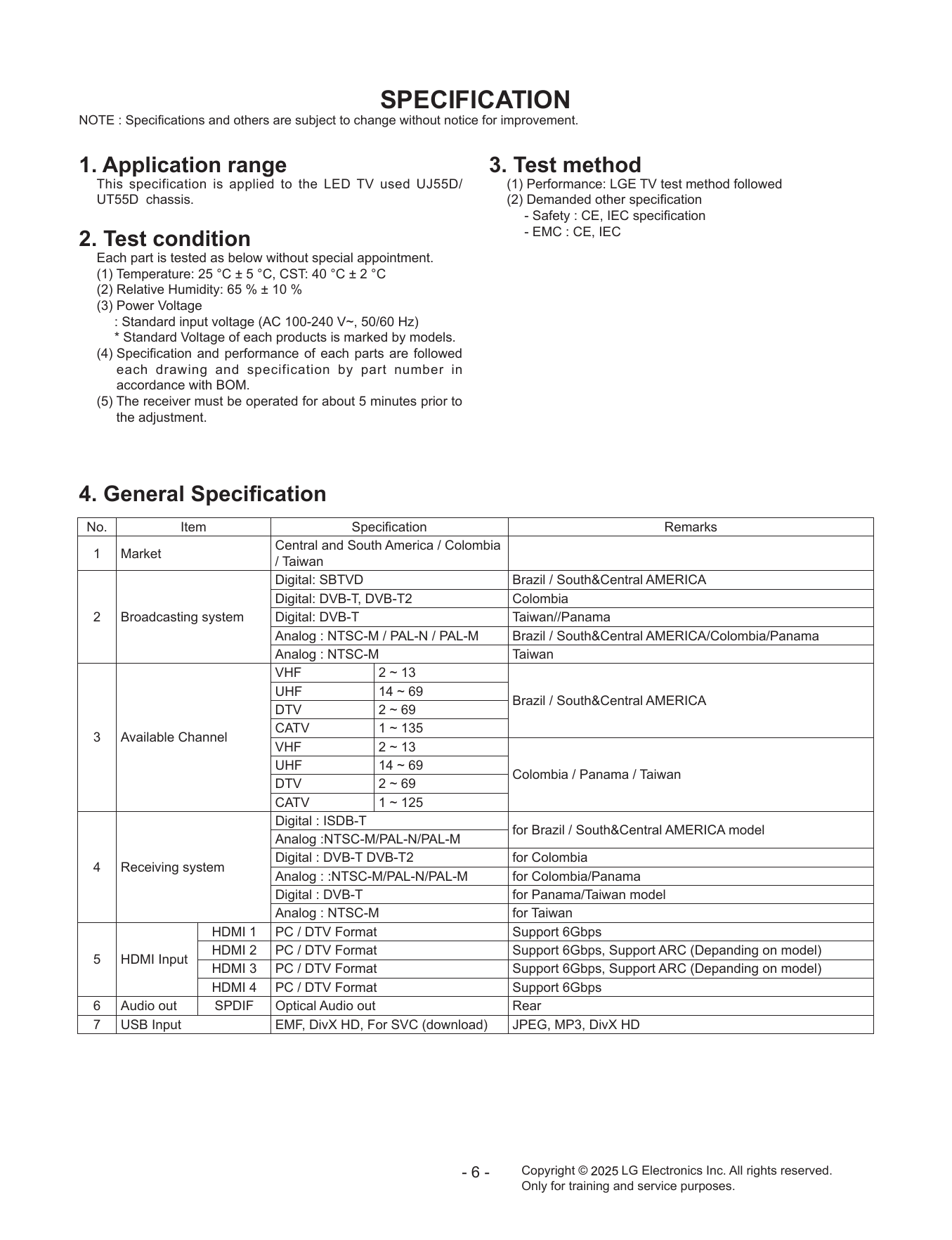
SPECIFICATION
NOTE : Specifications and others are subject to change without notice for improvement.
1. Application range 3. Test method
This specification is applied to the LED TV used UJ55D/ (1) Performance: LGE TV test method followed
UT55D chassis. (2) Demanded other specification
- Safety : CE, IEC specification
- EMC : CE, IEC
2. Test condition
Each part is tested as below without special appointment.
(1) Temperature: 25 °C ± 5 °C, CST: 40 °C ± 2 °C
(2) Relative Humidity: 65 % ± 10 %
(3) Power Voltage
: Standard input voltage (AC 100-240 V~, 50/60 Hz)
* Standard Voltage of each products is marked by models.
(4) Specification and performance of each parts are followed
each drawing and specification by part number in
accordance with BOM.
(5) The receiver must be operated for about 5 minutes prior to
the adjustment.
4. General Specification
No. Item Specification Remarks
Central and South America / Colombia
1 Market
/ Taiwan
Digital: SBTVD Brazil / South&Central AMERICA
Digital: DVB-T, DVB-T2 Colombia
2 Broadcasting system Digital: DVB-T Taiwan//Panama
Analog : NTSC-M / PAL-N / PAL-M Brazil / South&Central AMERICA/Colombia/Panama
Analog : NTSC-M Taiwan
VHF 2 ~ 13
UHF 14 ~ 69
Brazil / South&Central AMERICA
DTV 2 ~ 69
CATV 1 ~ 135
3 Available Channel
VHF 2 ~ 13
UHF 14 ~ 69
Colombia / Panama / Taiwan
DTV 2 ~ 69
CATV 1 ~ 125
Digital : ISDB-T
for Brazil / South&Central AMERICA model
Analog :NTSC-M/PAL-N/PAL-M
Digital : DVB-T DVB-T2 for Colombia
4 Receiving system
Analog : :NTSC-M/PAL-N/PAL-M for Colombia/Panama
Digital : DVB-T for Panama/Taiwan model
Analog : NTSC-M for Taiwan
HDMI 1 PC / DTV Format Support 6Gbps
HDMI 2 PC / DTV Format Support 6Gbps, Support ARC (Depanding on model)
5 HDMI Input
HDMI 3 PC / DTV Format Support 6Gbps, Support ARC (Depanding on model)
HDMI 4 PC / DTV Format Support 6Gbps
6 Audio out SPDIF Optical Audio out Rear
7 USB Input EMF, DivX HD, For SVC (download) JPEG, MP3, DivX HD
-6- Copyright © LG Electronics Inc. All rights reserved.
Only for training and service purposes.
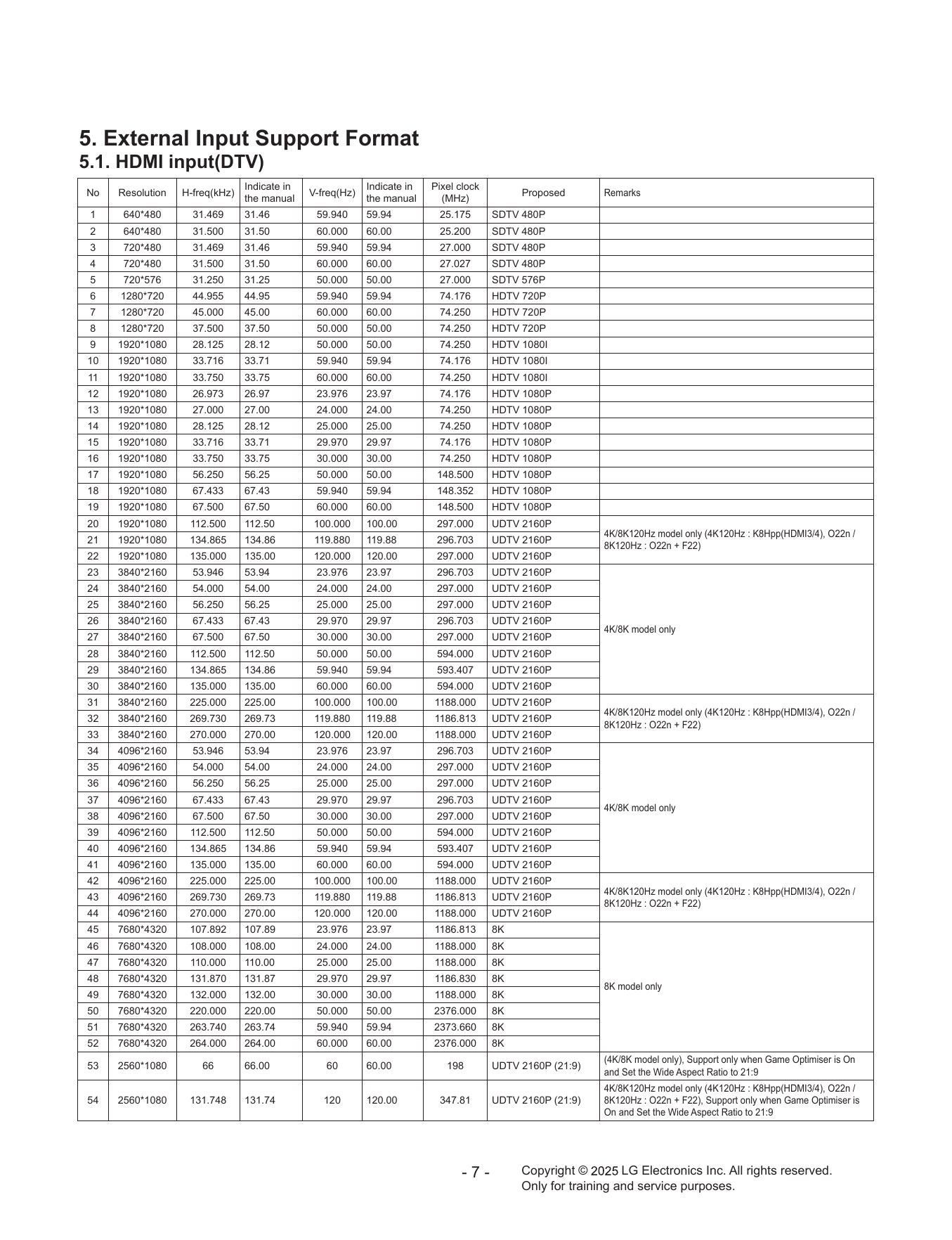
5. External Input Support Format
5.1. HDMI input(DTV)
Indicate in Indicate in Pixel clock
No Resolution H-freq(kHz) V-freq(Hz) Proposed Remarks
the manual the manual (MHz)
1 640*480 31.469 31.46 59.940 59.94 25.175 SDTV 480P
2 640*480 31.500 31.50 60.000 60.00 25.200 SDTV 480P
3 720*480 31.469 31.46 59.940 59.94 27.000 SDTV 480P
4 720*480 31.500 31.50 60.000 60.00 27.027 SDTV 480P
5 720*576 31.250 31.25 50.000 50.00 27.000 SDTV 576P
6 1280*720 44.955 44.95 59.940 59.94 74.176 HDTV 720P
7 1280*720 45.000 45.00 60.000 60.00 74.250 HDTV 720P
8 1280*720 37.500 37.50 50.000 50.00 74.250 HDTV 720P
9 1920*1080 28.125 28.12 50.000 50.00 74.250 HDTV 1080I
10 1920*1080 33.716 33.71 59.940 59.94 74.176 HDTV 1080I
11 1920*1080 33.750 33.75 60.000 60.00 74.250 HDTV 1080I
12 1920*1080 26.973 26.97 23.976 23.97 74.176 HDTV 1080P
13 1920*1080 27.000 27.00 24.000 24.00 74.250 HDTV 1080P
14 1920*1080 28.125 28.12 25.000 25.00 74.250 HDTV 1080P
15 1920*1080 33.716 33.71 29.970 29.97 74.176 HDTV 1080P
16 1920*1080 33.750 33.75 30.000 30.00 74.250 HDTV 1080P
17 1920*1080 56.250 56.25 50.000 50.00 148.500 HDTV 1080P
18 1920*1080 67.433 67.43 59.940 59.94 148.352 HDTV 1080P
19 1920*1080 67.500 67.50 60.000 60.00 148.500 HDTV 1080P
20 1920*1080 112.500 112.50 100.000 100.00 297.000 UDTV 2160P
4K/8K120Hz model only (4K120Hz : K8Hpp(HDMI3/4), O22n /
21 1920*1080 134.865 134.86 119.880 119.88 296.703 UDTV 2160P
8K120Hz : O22n + F22)
22 1920*1080 135.000 135.00 120.000 120.00 297.000 UDTV 2160P
23 3840*2160 53.946 53.94 23.976 23.97 296.703 UDTV 2160P
24 3840*2160 54.000 54.00 24.000 24.00 297.000 UDTV 2160P
25 3840*2160 56.250 56.25 25.000 25.00 297.000 UDTV 2160P
26 3840*2160 67.433 67.43 29.970 29.97 296.703 UDTV 2160P
4K/8K model only
27 3840*2160 67.500 67.50 30.000 30.00 297.000 UDTV 2160P
28 3840*2160 112.500 112.50 50.000 50.00 594.000 UDTV 2160P
29 3840*2160 134.865 134.86 59.940 59.94 593.407 UDTV 2160P
30 3840*2160 135.000 135.00 60.000 60.00 594.000 UDTV 2160P
31 3840*2160 225.000 225.00 100.000 100.00 1188.000 UDTV 2160P
4K/8K120Hz model only (4K120Hz : K8Hpp(HDMI3/4), O22n /
32 3840*2160 269.730 269.73 119.880 119.88 1186.813 UDTV 2160P
8K120Hz : O22n + F22)
33 3840*2160 270.000 270.00 120.000 120.00 1188.000 UDTV 2160P
34 4096*2160 53.946 53.94 23.976 23.97 296.703 UDTV 2160P
35 4096*2160 54.000 54.00 24.000 24.00 297.000 UDTV 2160P
36 4096*2160 56.250 56.25 25.000 25.00 297.000 UDTV 2160P
37 4096*2160 67.433 67.43 29.970 29.97 296.703 UDTV 2160P
4K/8K model only
38 4096*2160 67.500 67.50 30.000 30.00 297.000 UDTV 2160P
39 4096*2160 112.500 112.50 50.000 50.00 594.000 UDTV 2160P
40 4096*2160 134.865 134.86 59.940 59.94 593.407 UDTV 2160P
41 4096*2160 135.000 135.00 60.000 60.00 594.000 UDTV 2160P
42 4096*2160 225.000 225.00 100.000 100.00 1188.000 UDTV 2160P
4K/8K120Hz model only (4K120Hz : K8Hpp(HDMI3/4), O22n /
43 4096*2160 269.730 269.73 119.880 119.88 1186.813 UDTV 2160P
8K120Hz : O22n + F22)
44 4096*2160 270.000 270.00 120.000 120.00 1188.000 UDTV 2160P
45 7680*4320 107.892 107.89 23.976 23.97 1186.813 8K
46 7680*4320 108.000 108.00 24.000 24.00 1188.000 8K
47 7680*4320 110.000 110.00 25.000 25.00 1188.000 8K
48 7680*4320 131.870 131.87 29.970 29.97 1186.830 8K
8K model only
49 7680*4320 132.000 132.00 30.000 30.00 1188.000 8K
50 7680*4320 220.000 220.00 50.000 50.00 2376.000 8K
51 7680*4320 263.740 263.74 59.940 59.94 2373.660 8K
52 7680*4320 264.000 264.00 60.000 60.00 2376.000 8K
(4K/8K model only), Support only when Game Optimiser is On
53 2560*1080 66 66.00 60 60.00 198 UDTV 2160P (21:9)
and Set the Wide Aspect Ratio to 21:9
4K/8K120Hz model only (4K120Hz : K8Hpp(HDMI3/4), O22n /
54 2560*1080 131.748 131.74 120 120.00 347.81 UDTV 2160P (21:9) 8K120Hz : O22n + F22), Support only when Game Optimiser is
On and Set the Wide Aspect Ratio to 21:9
-7- Copyright © LG Electronics Inc. All rights reserved.
Only for training and service purposes.
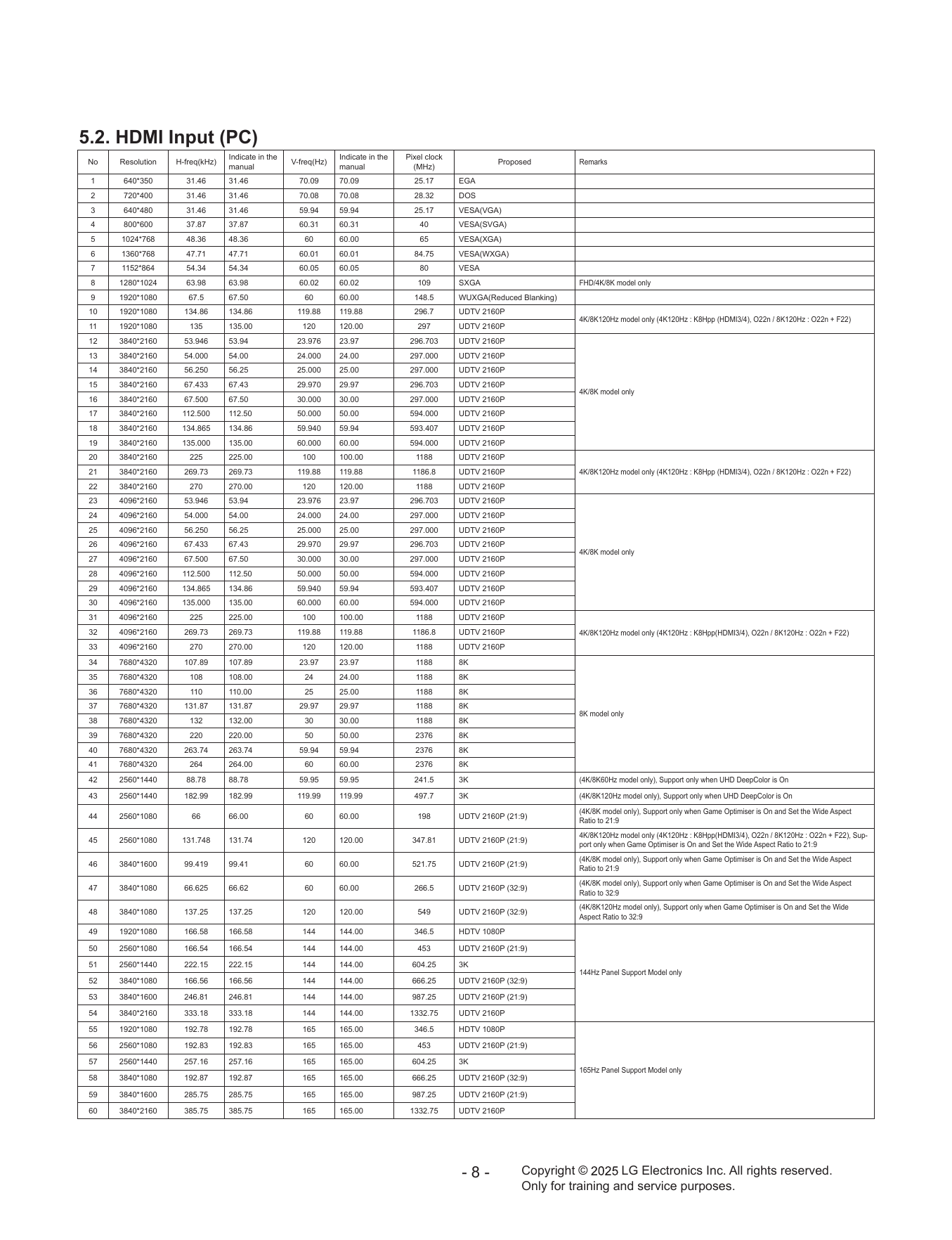
5.2. HDMI Input (PC)
Indicate in the Indicate in the Pixel clock
No Resolution H-freq(kHz) V-freq(Hz) Proposed Remarks
manual manual (MHz)
1 640*350 31.46 31.46 70.09 70.09 25.17 EGA
2 720*400 31.46 31.46 70.08 70.08 28.32 DOS
3 640*480 31.46 31.46 59.94 59.94 25.17 VESA(VGA)
4 800*600 37.87 37.87 60.31 60.31 40 VESA(SVGA)
5 1024*768 48.36 48.36 60 60.00 65 VESA(XGA)
6 1360*768 47.71 47.71 60.01 60.01 84.75 VESA(WXGA)
7 1152*864 54.34 54.34 60.05 60.05 80 VESA
8 1280*1024 63.98 63.98 60.02 60.02 109 SXGA FHD/4K/8K model only
9 1920*1080 67.5 67.50 60 60.00 148.5 WUXGA(Reduced Blanking)
10 1920*1080 134.86 134.86 119.88 119.88 296.7 UDTV 2160P
4K/8K120Hz model only (4K120Hz : K8Hpp (HDMI3/4), O22n / 8K120Hz : O22n + F22)
11 1920*1080 135 135.00 120 120.00 297 UDTV 2160P
12 3840*2160 53.946 53.94 23.976 23.97 296.703 UDTV 2160P
13 3840*2160 54.000 54.00 24.000 24.00 297.000 UDTV 2160P
14 3840*2160 56.250 56.25 25.000 25.00 297.000 UDTV 2160P
15 3840*2160 67.433 67.43 29.970 29.97 296.703 UDTV 2160P
4K/8K model only
16 3840*2160 67.500 67.50 30.000 30.00 297.000 UDTV 2160P
17 3840*2160 112.500 112.50 50.000 50.00 594.000 UDTV 2160P
18 3840*2160 134.865 134.86 59.940 59.94 593.407 UDTV 2160P
19 3840*2160 135.000 135.00 60.000 60.00 594.000 UDTV 2160P
20 3840*2160 225 225.00 100 100.00 1188 UDTV 2160P
21 3840*2160 269.73 269.73 119.88 119.88 1186.8 UDTV 2160P 4K/8K120Hz model only (4K120Hz : K8Hpp (HDMI3/4), O22n / 8K120Hz : O22n + F22)
22 3840*2160 270 270.00 120 120.00 1188 UDTV 2160P
23 4096*2160 53.946 53.94 23.976 23.97 296.703 UDTV 2160P
24 4096*2160 54.000 54.00 24.000 24.00 297.000 UDTV 2160P
25 4096*2160 56.250 56.25 25.000 25.00 297.000 UDTV 2160P
26 4096*2160 67.433 67.43 29.970 29.97 296.703 UDTV 2160P
4K/8K model only
27 4096*2160 67.500 67.50 30.000 30.00 297.000 UDTV 2160P
28 4096*2160 112.500 112.50 50.000 50.00 594.000 UDTV 2160P
29 4096*2160 134.865 134.86 59.940 59.94 593.407 UDTV 2160P
30 4096*2160 135.000 135.00 60.000 60.00 594.000 UDTV 2160P
31 4096*2160 225 225.00 100 100.00 1188 UDTV 2160P
32 4096*2160 269.73 269.73 119.88 119.88 1186.8 UDTV 2160P 4K/8K120Hz model only (4K120Hz : K8Hpp(HDMI3/4), O22n / 8K120Hz : O22n + F22)
33 4096*2160 270 270.00 120 120.00 1188 UDTV 2160P
34 7680*4320 107.89 107.89 23.97 23.97 1188 8K
35 7680*4320 108 108.00 24 24.00 1188 8K
36 7680*4320 110 110.00 25 25.00 1188 8K
37 7680*4320 131.87 131.87 29.97 29.97 1188 8K
8K model only
38 7680*4320 132 132.00 30 30.00 1188 8K
39 7680*4320 220 220.00 50 50.00 2376 8K
40 7680*4320 263.74 263.74 59.94 59.94 2376 8K
41 7680*4320 264 264.00 60 60.00 2376 8K
42 2560*1440 88.78 88.78 59.95 59.95 241.5 3K (4K/8K60Hz model only), Support only when UHD DeepColor is On
43 2560*1440 182.99 182.99 119.99 119.99 497.7 3K (4K/8K120Hz model only), Support only when UHD DeepColor is On
(4K/8K model only), Support only when Game Optimiser is On and Set the Wide Aspect
44 2560*1080 66 66.00 60 60.00 198 UDTV 2160P (21:9)
Ratio to 21:9
4K/8K120Hz model only (4K120Hz : K8Hpp(HDMI3/4), O22n / 8K120Hz : O22n + F22), Sup-
45 2560*1080 131.748 131.74 120 120.00 347.81 UDTV 2160P (21:9)
port only when Game Optimiser is On and Set the Wide Aspect Ratio to 21:9
(4K/8K model only), Support only when Game Optimiser is On and Set the Wide Aspect
46 3840*1600 99.419 99.41 60 60.00 521.75 UDTV 2160P (21:9)
Ratio to 21:9
(4K/8K model only), Support only when Game Optimiser is On and Set the Wide Aspect
47 3840*1080 66.625 66.62 60 60.00 266.5 UDTV 2160P (32:9)
Ratio to 32:9
(4K/8K120Hz model only), Support only when Game Optimiser is On and Set the Wide
48 3840*1080 137.25 137.25 120 120.00 549 UDTV 2160P (32:9)
Aspect Ratio to 32:9
49 1920*1080 166.58 166.58 144 144.00 346.5 HDTV 1080P
50 2560*1080 166.54 166.54 144 144.00 453 UDTV 2160P (21:9)
51 2560*1440 222.15 222.15 144 144.00 604.25 3K
144Hz Panel Support Model only
52 3840*1080 166.56 166.56 144 144.00 666.25 UDTV 2160P (32:9)
53 3840*1600 246.81 246.81 144 144.00 987.25 UDTV 2160P (21:9)
54 3840*2160 333.18 333.18 144 144.00 1332.75 UDTV 2160P
55 1920*1080 192.78 192.78 165 165.00 346.5 HDTV 1080P
56 2560*1080 192.83 192.83 165 165.00 453 UDTV 2160P (21:9)
57 2560*1440 257.16 257.16 165 165.00 604.25 3K
165Hz Panel Support Model only
58 3840*1080 192.87 192.87 165 165.00 666.25 UDTV 2160P (32:9)
59 3840*1600 285.75 285.75 165 165.00 987.25 UDTV 2160P (21:9)
60 3840*2160 385.75 385.75 165 165.00 1332.75 UDTV 2160P
-8- Copyright © LG Electronics Inc. All rights reserved.
Only for training and service purposes.
SOFTWARE UPDATE
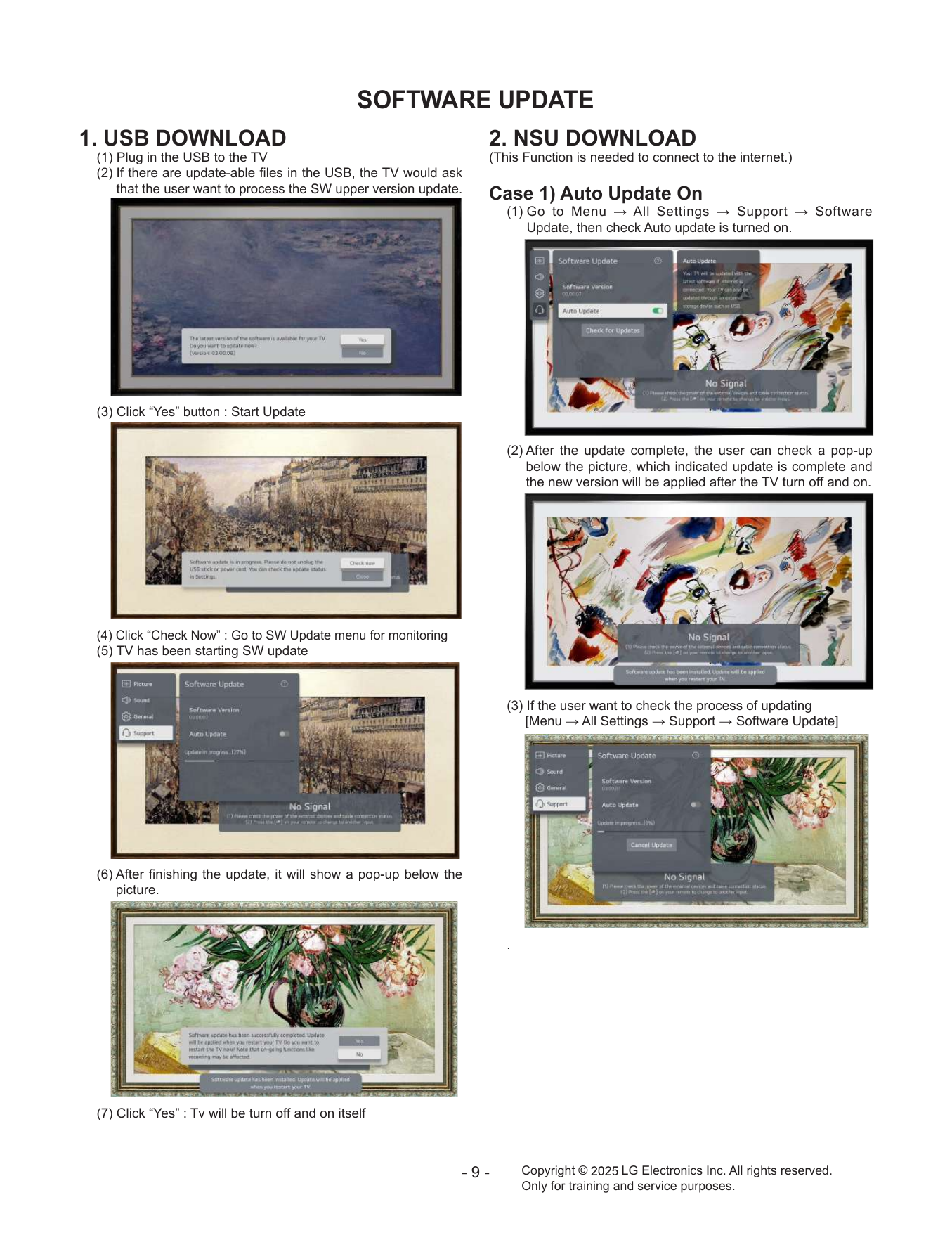
1. USB DOWNLOAD 2. NSU DOWNLOAD
(1) Plug in the USB to the TV (This Function is needed to connect to the internet.)
(2) If there are update-able files in the USB, the TV would ask
that the user want to process the SW upper version update. Case 1) Auto Update On
(1) G o to Menu → All Settings → Support → Software
Update, then check Auto update is turned on.
(3) Click “Yes” button : Start Update
(2) After the update complete, the user can check a pop-up
below the picture, which indicated update is complete and
the new version will be applied after the TV turn off and on.
(4) Click “Check Now” : Go to SW Update menu for monitoring
(5) TV has been starting SW update
(3) If the user want to check the process of updating
[Menu → All Settings → Support → Software Update]
(6) After finishing the update, it will show a pop-up below the
picture.
.
(7) Click “Yes” : Tv will be turn off and on itself
-9- Copyright © LG Electronics Inc. All rights reserved.
Only for training and service purposes.
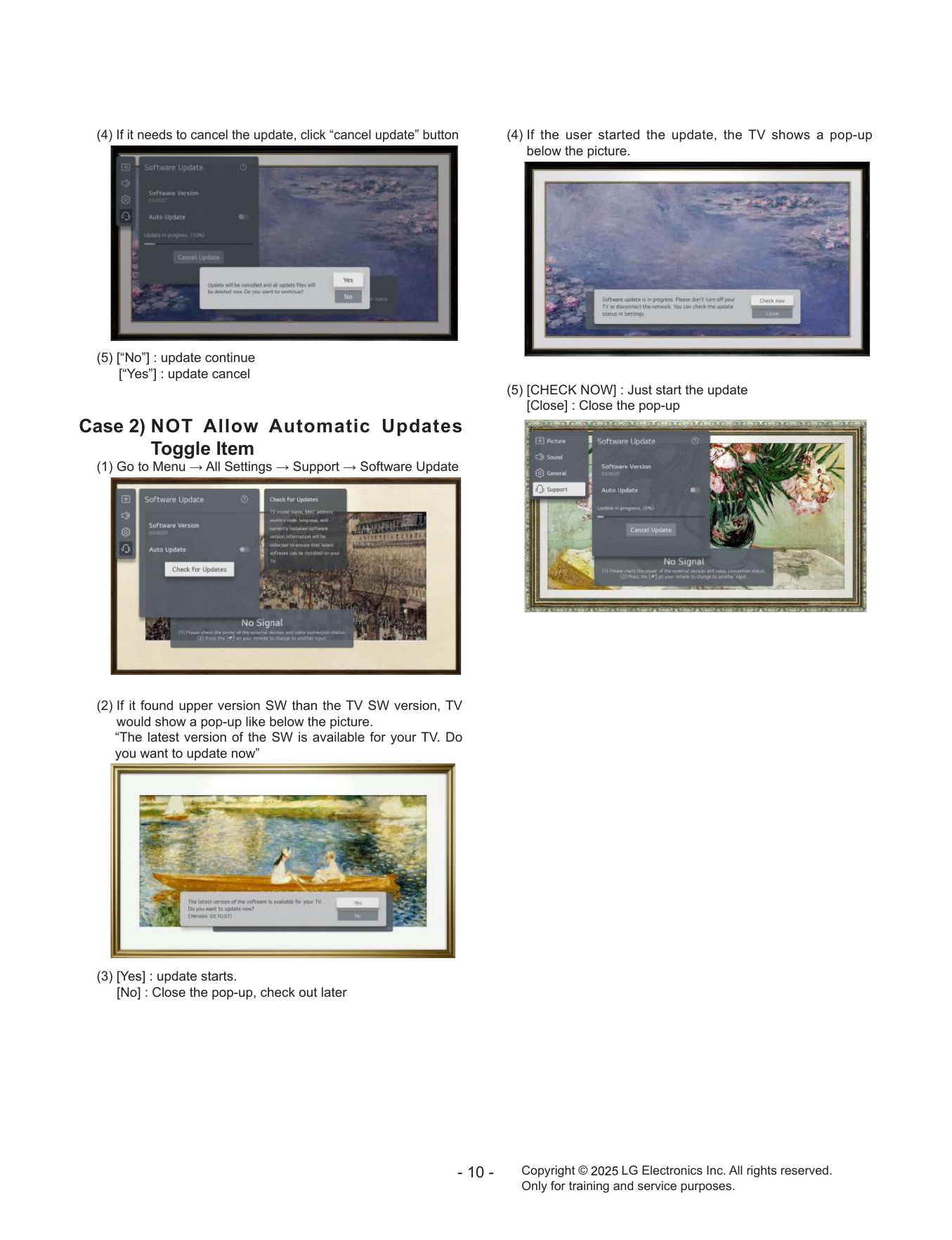
(4) If it needs to cancel the update, click “cancel update” button (4) If the user started the update, the TV shows a pop-up
below the picture.
(5) [“No”] : update continue
[“Yes”] : update cancel
(5) [CHECK NOW] : Just start the update
[Close] : Close the pop-up
Case 2) N
OT Allow Automatic Updates
Toggle Item
(1) Go to Menu → All Settings → Support → Software Update
(2) If it found upper version SW than the TV SW version, TV
would show a pop-up like below the picture.
“The latest version of the SW is available for your TV. Do
you want to update now”
(3) [Yes] : update starts.
[No] : Close the pop-up, check out later
- 10 - Copyright © LG Electronics Inc. All rights reserved.
Only for training and service purposes.
1.0V 1.2V 3.3V 5V
13V 1.0V 13V 13V 13V 5V
1.2V 3.3V
Core DDR Normal Normal
2.5V 1.2V 2.5V 1.5V 1.0V 1.8V 1.4V 3.5V_ST X_TAL
1.0V 1.8V 3.5V_ST 27MHz 5V
13V 3.3V 3.5V_ST 2.5V
1.0V 13V 3.5V P_TS_IN
1.8V VPP DDR4 3000x16
CPU ST_BY 48bit CI Slot
(2GB) P_TS_OUT
13V
13V(PANEL_VCC) SMARTCARD A-CAS 3.5V_ST
1 Chip I2C_5 NVRAM (256Kb)
PMIC GST/MCLK/GCLK/EO
MICOM eMMC 3.3V
eMMC (8GB)
CLK/DATA/STRB
5V 1.8V
Vx1 / EPI/ CEDS I2C 3
CEDS 68P
USB1 (2.0)
FCIC SPI/ I2C 3 OCP
Vx1 51P (8 lane) Main IC From
- 11 -
13V 3.3V HDMI1(2.0) Power
To I2S Out K25LP
MAIN Audio AMP HDMI2(eARC)
Panel I2C 0 B/D
HDMI3 (2.0)
USB_WIFI Area OPT
IF
IQ (+/-), IP(+/-) IF (+/-)
IF_S 3.3V
BLOCK DIAGRAM
Copyright ©
tuner
TS
Signal flow
TUNER TUNER
SPDIF OUT
USB_WIFI
ETHERNET
CVBS/YPbPr
I2C 1/2
H-
Supplied Voltage
(S,S2) (T2/C/A)
3.5V_ST I2C 2
In/output Voltage
LNB 13V
AMP
Air/
T2/C/S/S2 H-NIM
DVB-S
MAX323
3.5V_ST Cable
Only for training and service purposes.
IR / KEY LAN
AV
H/P
SPDIF
RS-232
To WIFI/BT
Sub
Assy Combo
Area OPT
LG Electronics Inc. All rights reserved.
EXPLODED VIEW
IMPORTANT SAFETY NOTICE
Many electrical and mechanical parts in this chassis have special safety-related characteristics. These
parts are identified by in the EXPLODED VIEW.
It is essential that these special safety parts should be replaced with the same components as
recommended in this manual to prevent Shock, Fire, or other Hazards.
Do not modify the original design without permission of manufacturer.
AW3
AW1
901
951
700
400
A10
810
902
AH3
521
120
AB4
571
540
ARC2
570
AR2
500
800
200A
810
820
530
121
200
200PA
- 12 - Copyright © LG Electronics Inc. All rights reserved.
Only for training and service purposes.
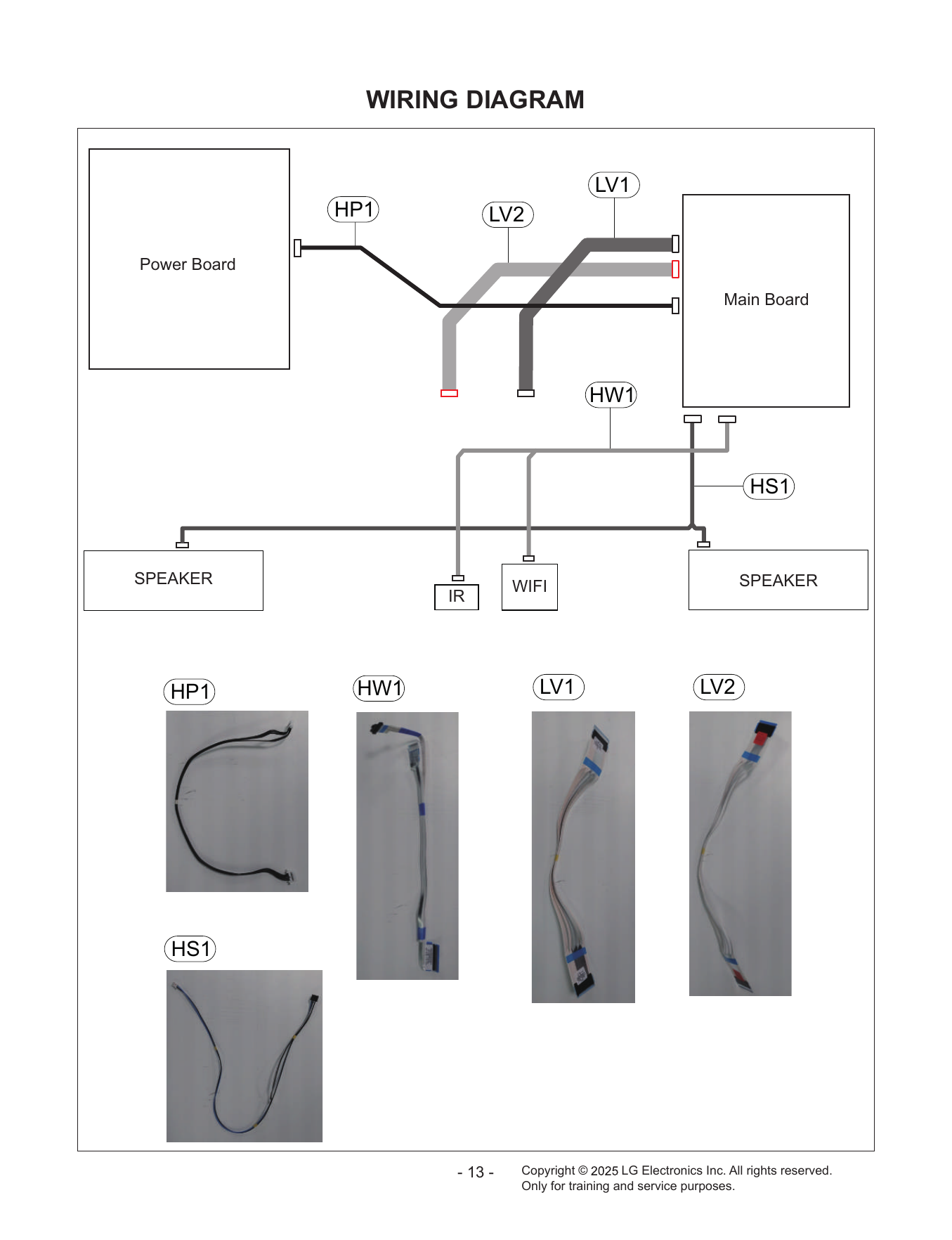
WIRING DIAGRAM
LV1
HP1 LV2
Power Board
Main Board
HW1
HS1
SPEAKER WIFI SPEAKER
IR
HP1 HW1 LV1 LV2
HS1
- 13 - Copyright © LG Electronics Inc. All rights reserved.
Only for training and service purposes.
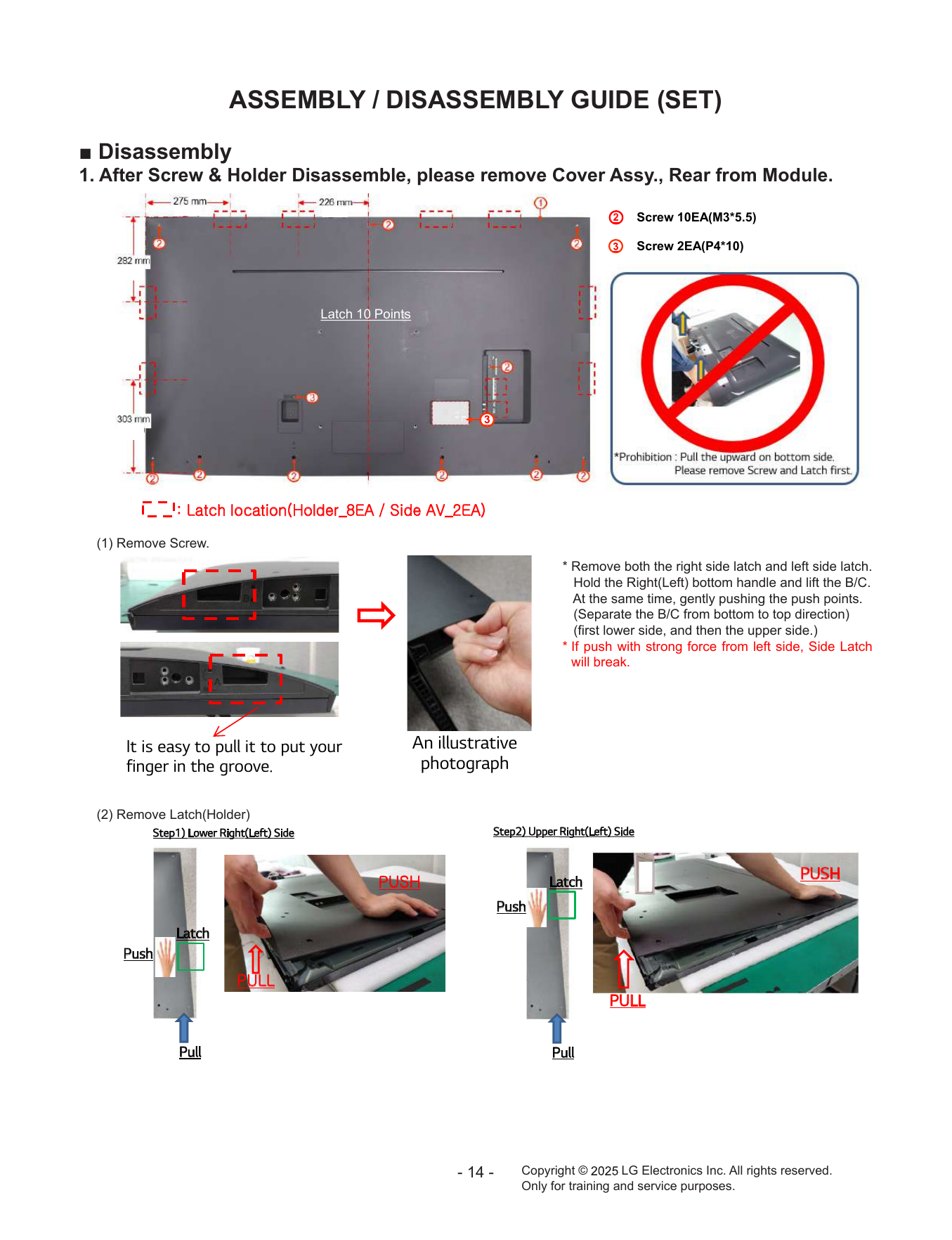
ASSEMBLY / DISASSEMBLY GUIDE (SET)
■ Disassembly
1. After Screw & Holder Disassemble, please remove Cover Assy., Rear from Module.
2 Screw 10EA(M3*5.5)
Screw 2EA(P4*10)
Latch
65UP80 10 Points
Latch 10 Points
3
3
: Latch location(Holder_8EA / Side AV_2EA)
(1) Remove Screw.
* Remove both the right side latch and left side latch.
Hold the Right(Left) bottom handle and lift the B/C.
At the same time, gently pushing the push points.
(Separate the B/C from bottom to top direction)
(first lower side, and then the upper side.)
* If push with strong force from left side, Side Latch
will break.
It is easy to pull it to put your An illustrative
finger in the groove. photograph
(2) Remove Latch(Holder)
Step1) Lower Right(Left) Side Step2) Upper Right(Left) Side
PUSH
PUSH Latch
Push
Latch
Push
PULL
PULL
Pull Pull
- 14 - Copyright © LG Electronics Inc. All rights reserved.
Only for training and service purposes.
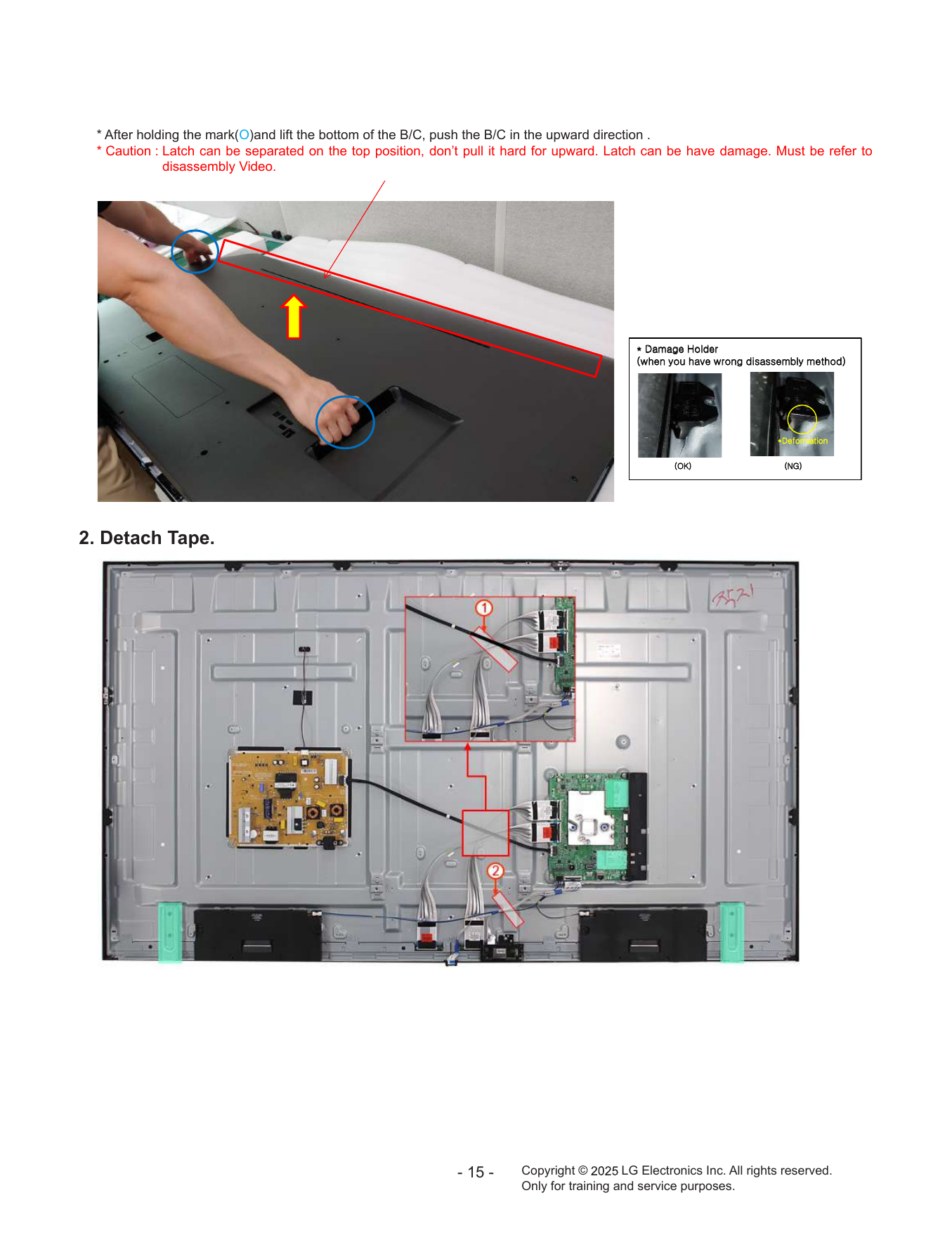
* After holding the mark(O)and lift the bottom of the B/C, push the B/C in the upward direction .
* Caution : Latch can be separated on the top position, don’t pull it hard for upward. Latch can be have damage. Must be refer to
disassembly Video.
* Damage Holder
(when you have wrong disassembly method)
*Deformation
(OK) (NG)
2. Detach Tape.
- 15 - Copyright © LG Electronics Inc. All rights reserved.
Only for training and service purposes.
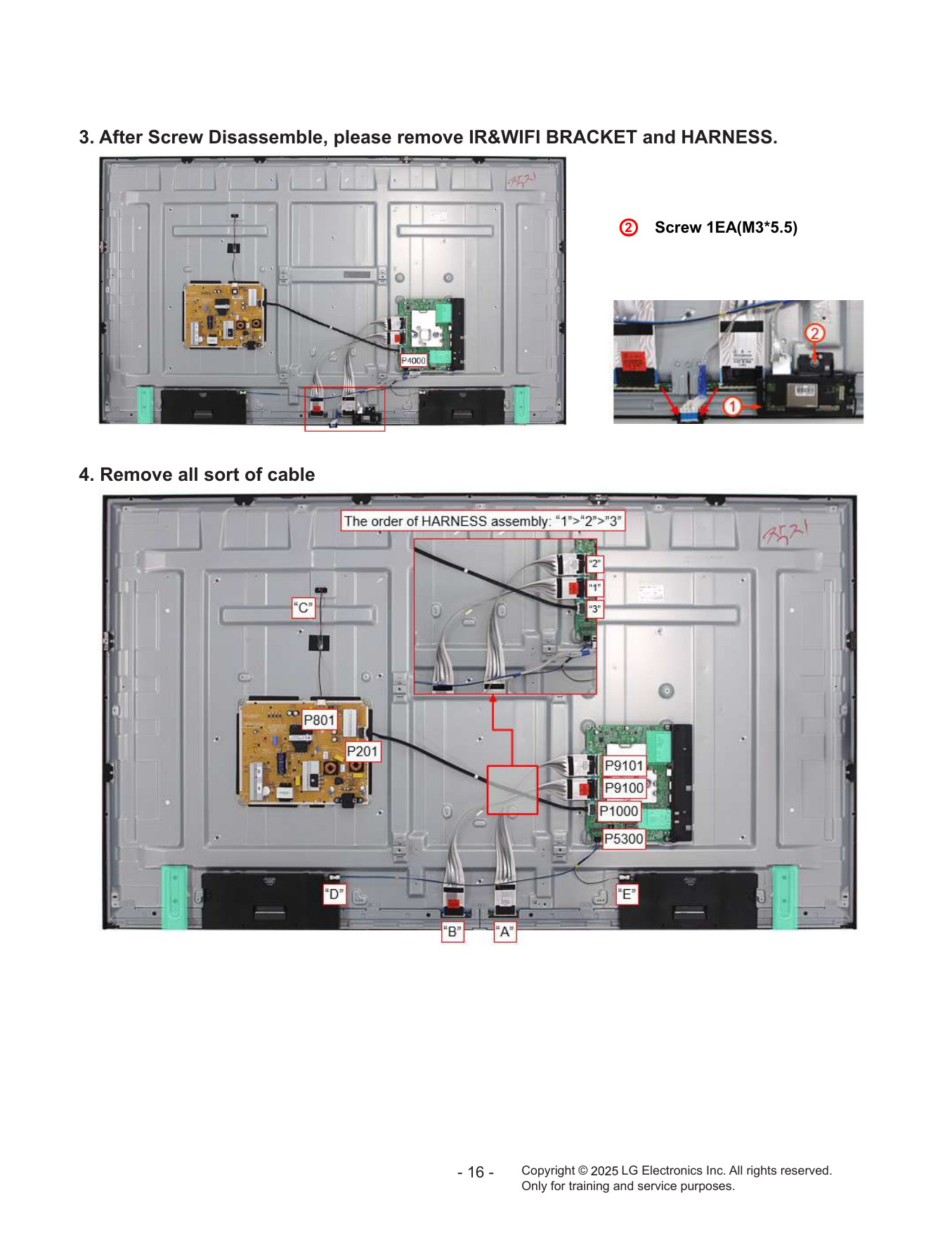
3. After Screw Disassemble, please remove IR&WIFI BRACKET and HARNESS.
2 Screw 1EA(M3*5.5)
4. Remove all sort of cable
- 16 - Copyright © LG Electronics Inc. All rights reserved.
Only for training and service purposes.
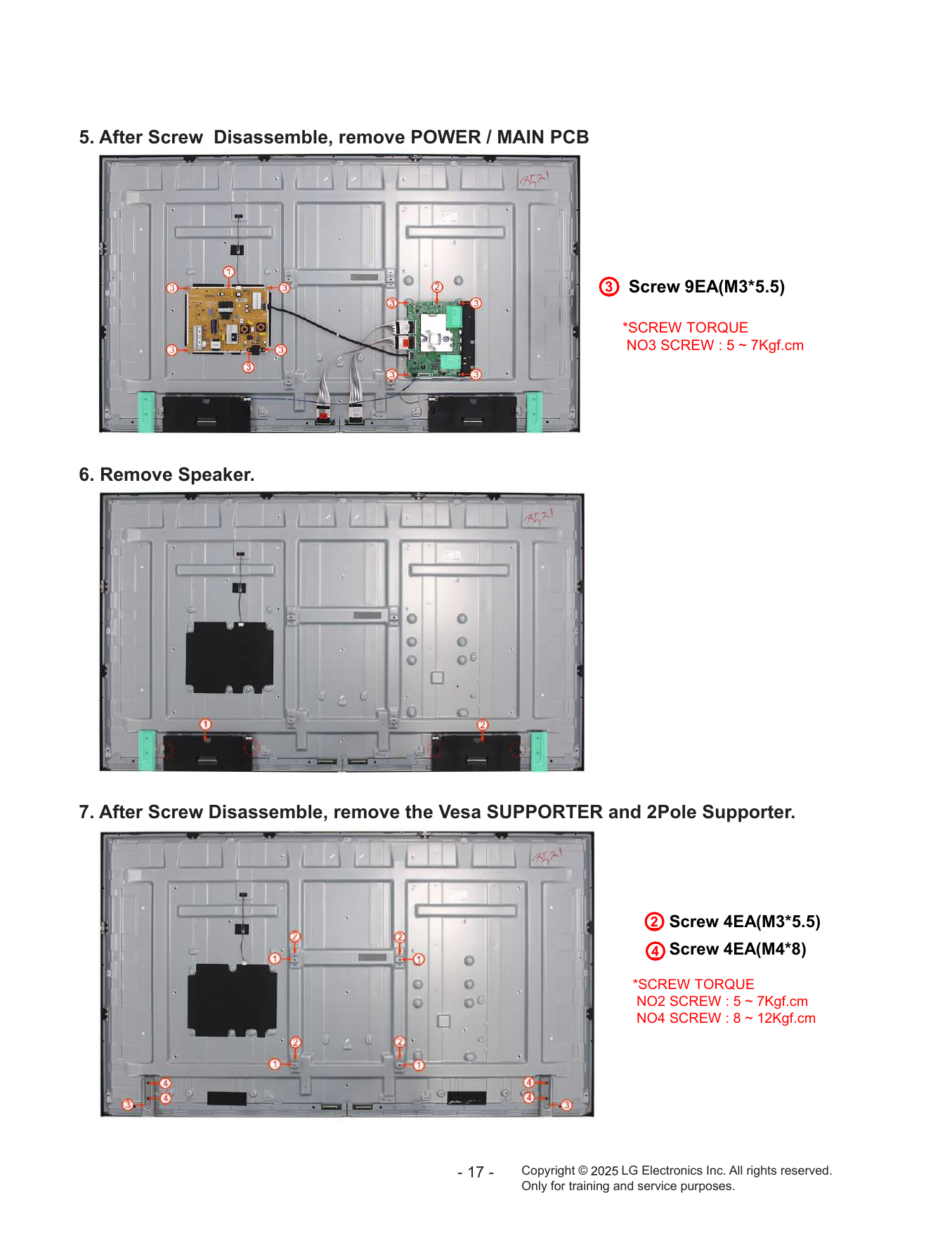
5. After Screw Disassemble, remove POWER / MAIN PCB
3 Screw 9EA(M3*5.5)
*SCREW TORQUE
NO3 SCREW : 5 ~ 7Kgf.cm
6. Remove Speaker.
7. After Screw Disassemble, remove the Vesa SUPPORTER and 2Pole Supporter.
2 Screw 4EA(M3*5.5)
4 Screw 4EA(M4*8)
*SCREW TORQUE
NO2 SCREW : 5 ~ 7Kgf.cm
NO4 SCREW : 8 ~ 12Kgf.cm
- 17 - Copyright © LG Electronics Inc. All rights reserved.
Only for training and service purposes.
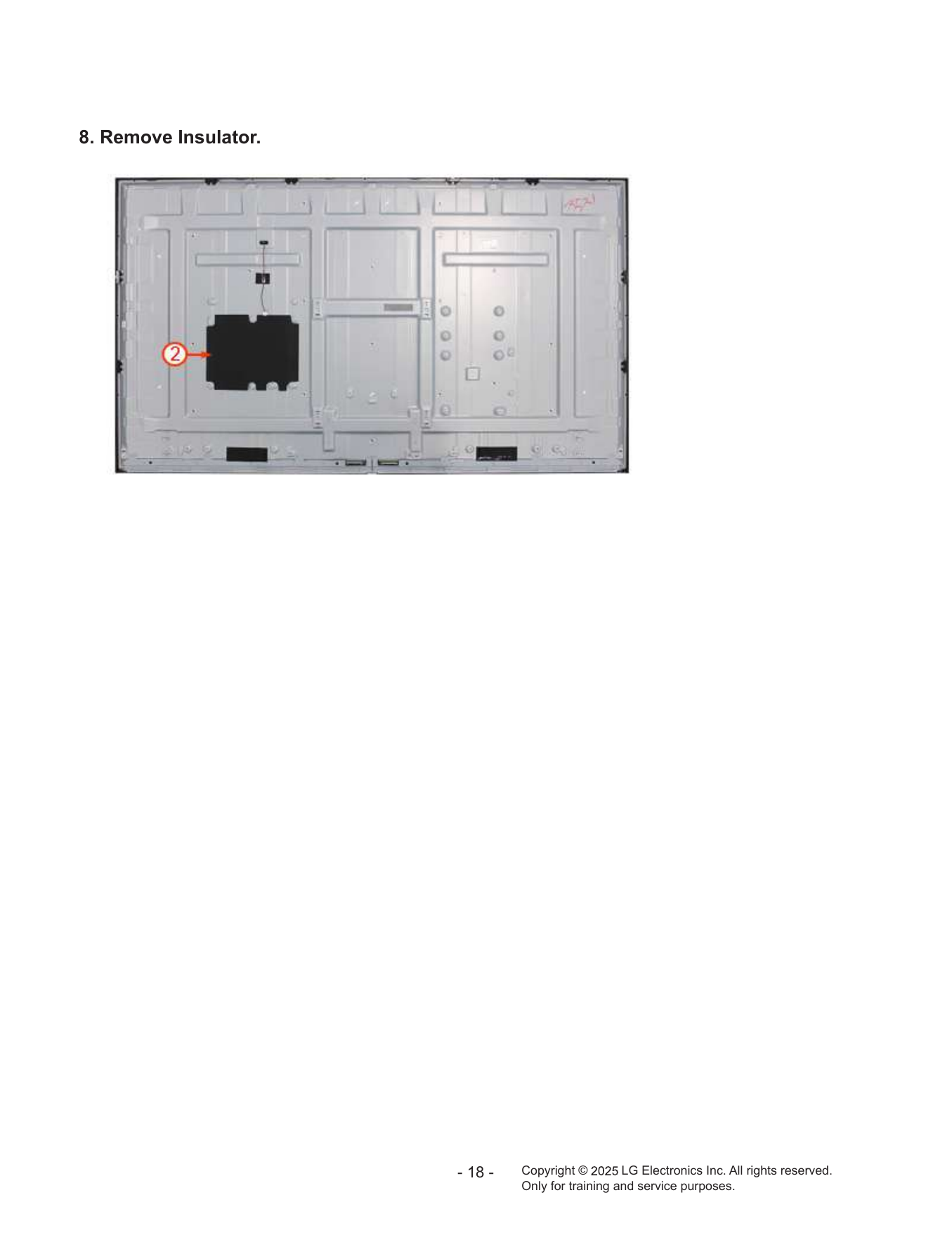
8. Remove Insulator.
- 18 - Copyright © LG Electronics Inc. All rights reserved.
Only for training and service purposes.
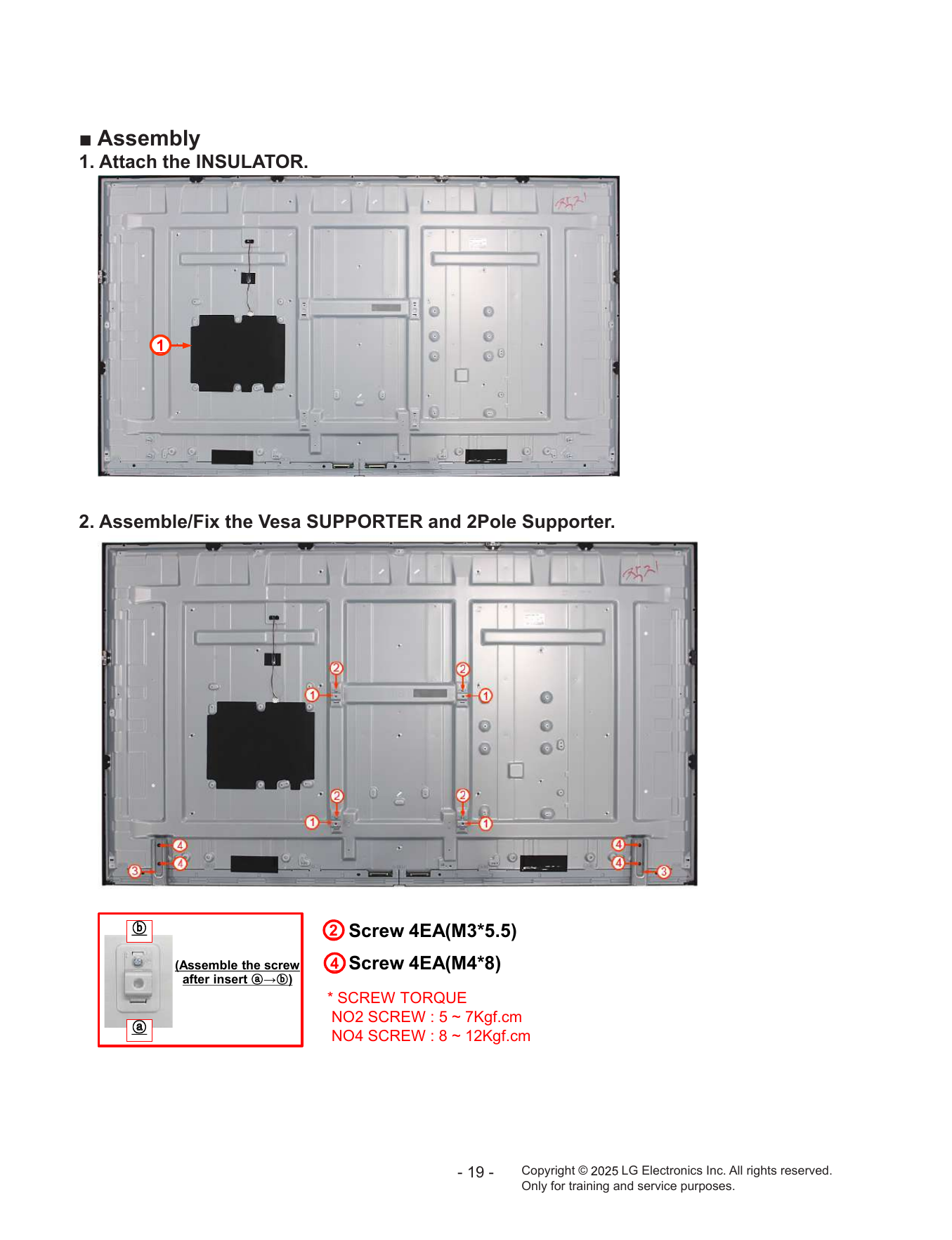
■ Assembly
1. Attach the INSULATOR.
1
2. Assemble/Fix the Vesa SUPPORTER and 2Pole Supporter.
ⓑ 2 Screw 4EA(M3*5.5)
(Assemble the screw 4 Screw 4EA(M4*8)
after insert ⓐ→ⓑ)
* SCREW TORQUE
NO2 SCREW : 5 ~ 7Kgf.cm
ⓐ
NO4 SCREW : 8 ~ 12Kgf.cm
- 19 - Copyright © LG Electronics Inc. All rights reserved.
Only for training and service purposes.
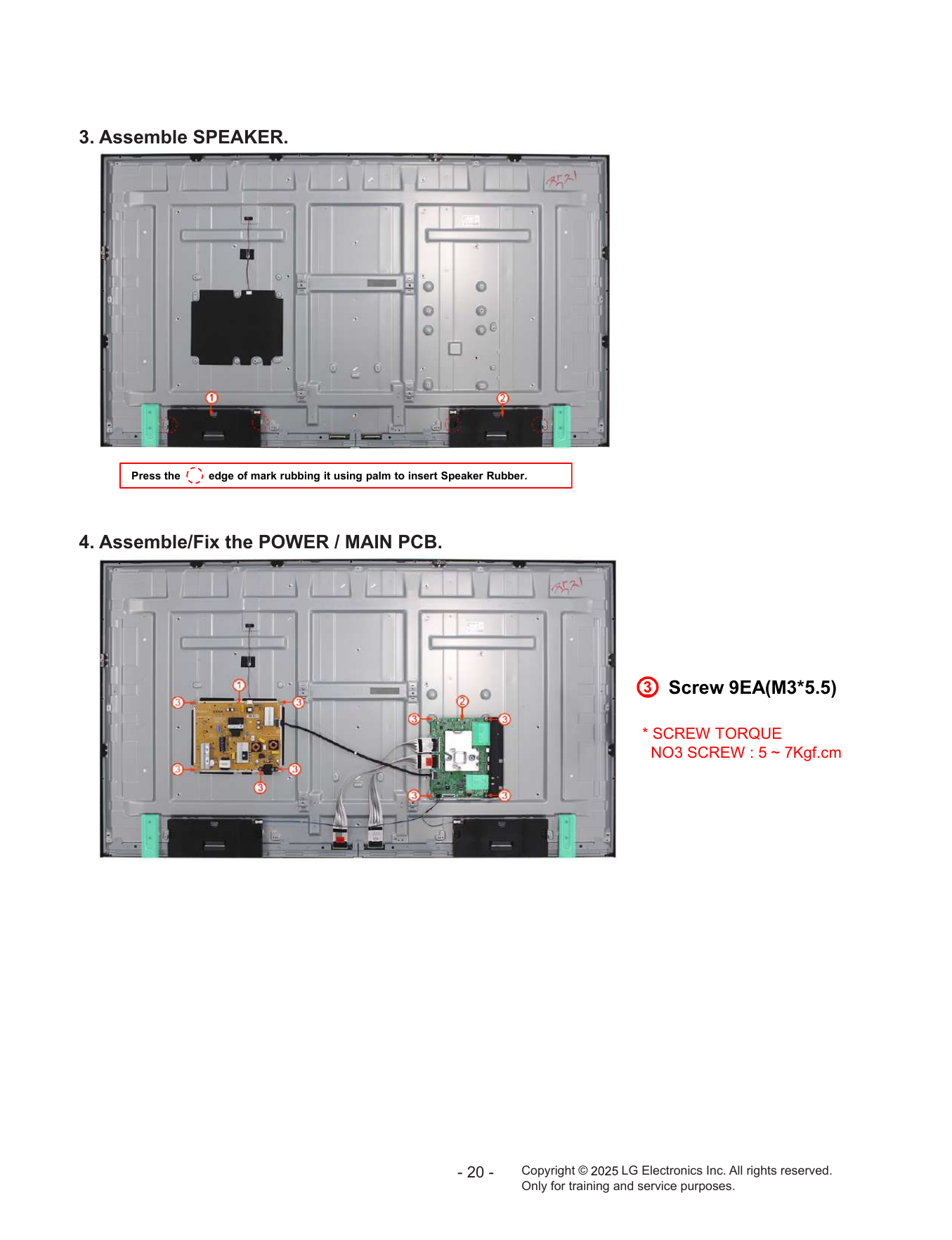
3. Assemble SPEAKER.
Press the edge of mark rubbing it using palm to insert Speaker Rubber.
4. Assemble/Fix the POWER / MAIN PCB.
3 Screw 9EA(M3*5.5)
* SCREW TORQUE
NO3 SCREW : 5 ~ 7Kgf.cm
- 20 - Copyright © LG Electronics Inc. All rights reserved.
Only for training and service purposes.
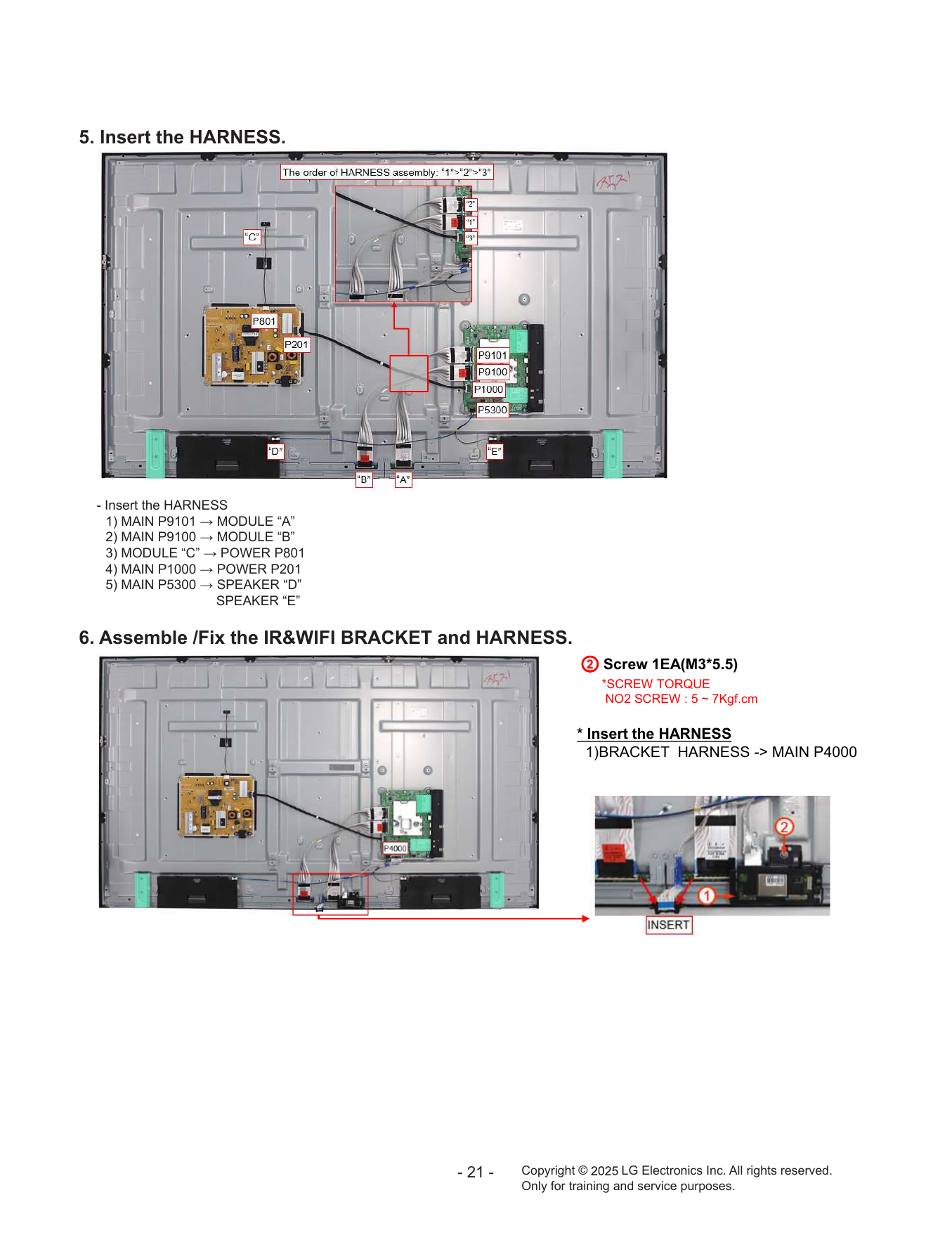
5. Insert the HARNESS.
- Insert the HARNESS
1) MAIN P9101 → MODULE “A”
2) MAIN P9100 → MODULE “B”
3) MODULE “C” → POWER P801
4) MAIN P1000 → POWER P201
5) MAIN P5300 → SPEAKER “D”
SPEAKER “E”
6. Assemble /Fix the IR&WIFI BRACKET and HARNESS.
2 Screw 1EA(M3*5.5)
*SCREW TORQUE
NO2 SCREW : 5 ~ 7Kgf.cm
* Insert the HARNESS
1)BRACKET HARNESS -> MAIN P4000
- 21 - Copyright © LG Electronics Inc. All rights reserved.
Only for training and service purposes.
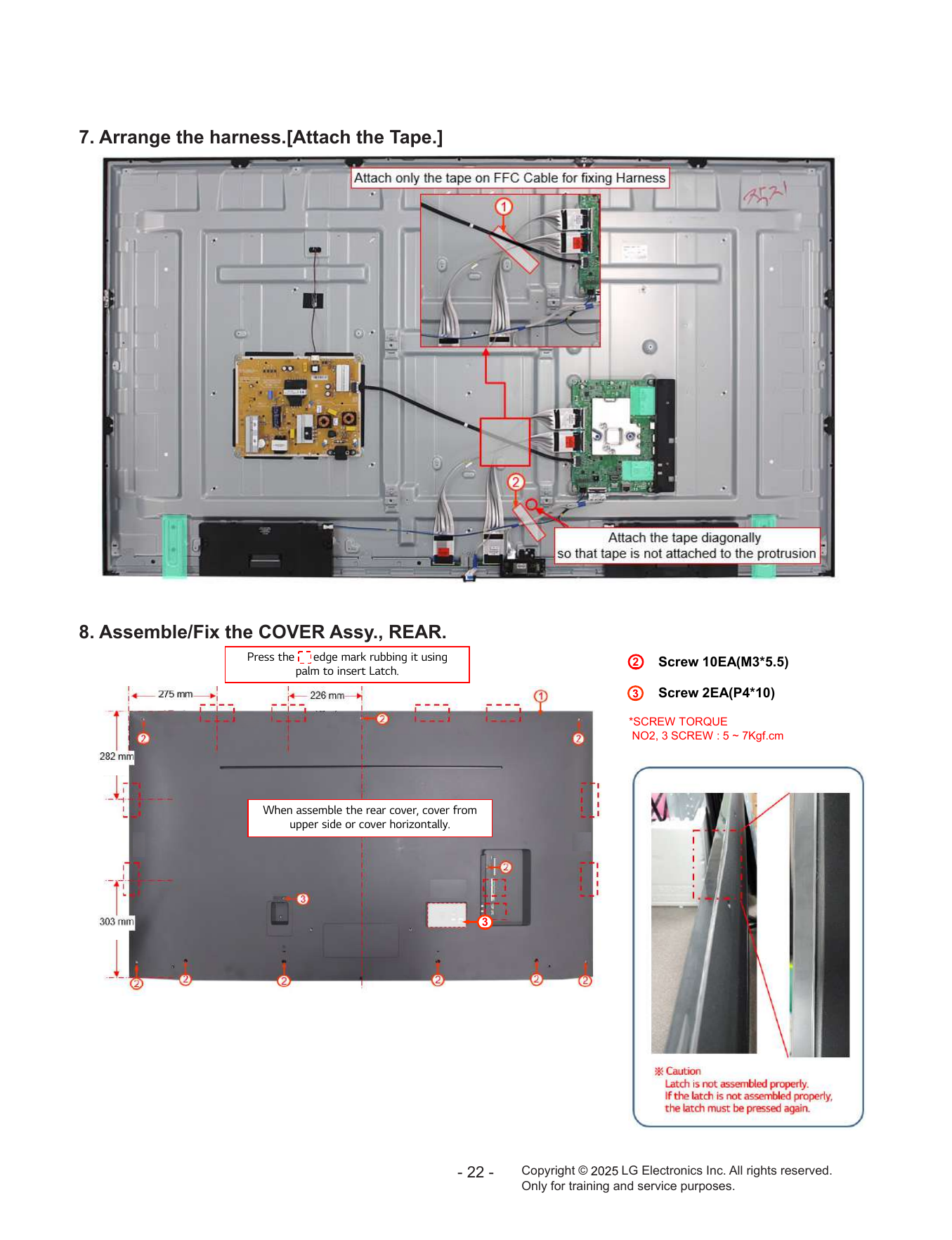
7. Arrange the harness.[Attach the Tape.]
8. Assemble/Fix the COVER Assy., REAR.
Press the edge mark rubbing it using 2 Screw 10EA(M3*5.5)
palm to insert Latch.
Screw 2EA(P4*10)
*SCREW TORQUE
NO2, 3 SCREW : 5 ~ 7Kgf.cm
When assemble the rear cover, cover from
upper side or cover horizontally.
3
- 22 - Copyright © LG Electronics Inc. All rights reserved.
Only for training and service purposes.
ASSEMBLY / DISASSEMBLY GUIDE (MODULE)
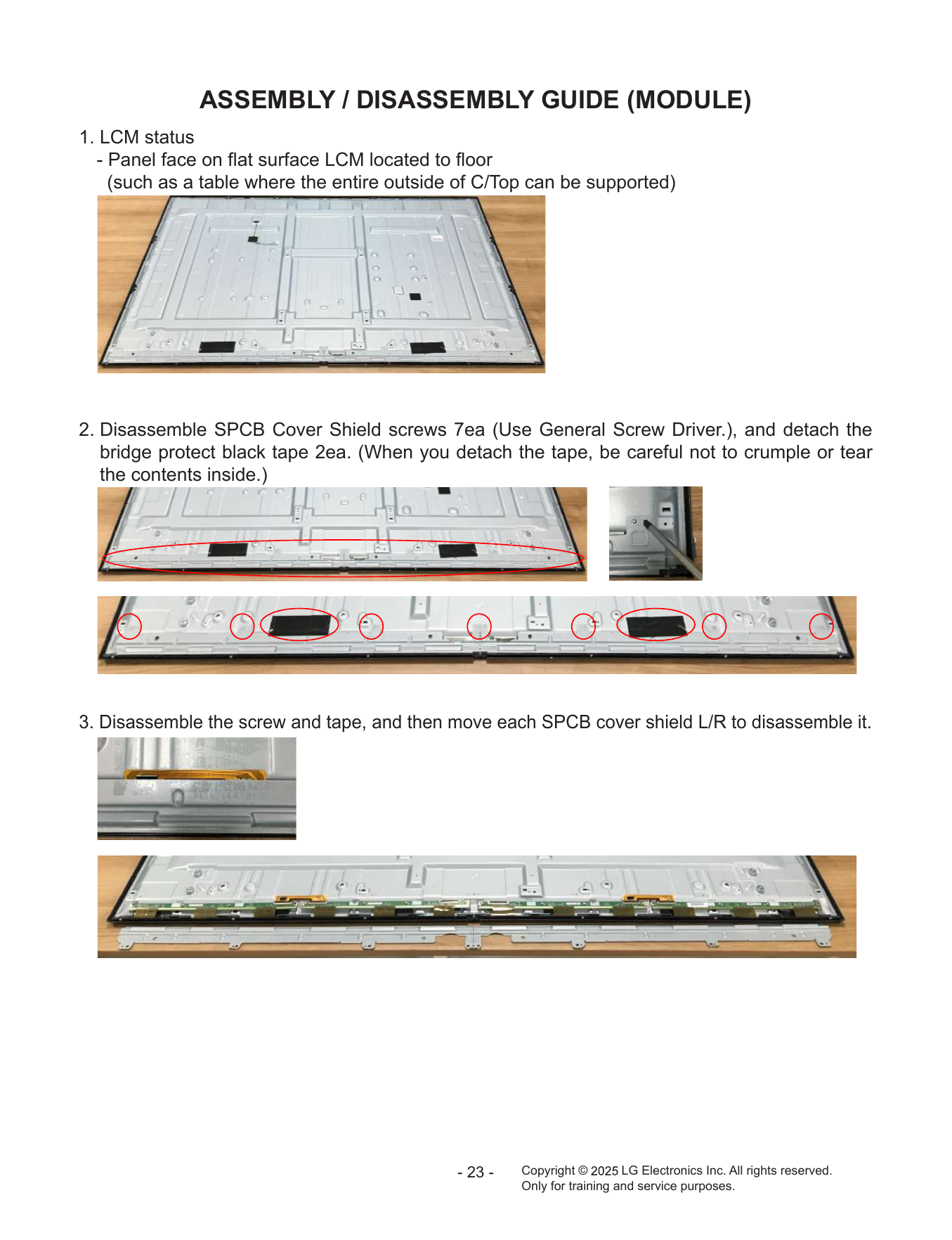
1. LCM status
- Panel face on flat surface LCM located to floor
(such as a table where the entire outside of C/Top can be supported)
2. Disassemble SPCB Cover Shield screws 7ea (Use General Screw Driver.), and detach the
bridge protect black tape 2ea. (When you detach the tape, be careful not to crumple or tear
the contents inside.)
3. Disassemble the screw and tape, and then move each SPCB cover shield L/R to disassemble it.
- 23 - Copyright © LG Electronics Inc. All rights reserved.
Only for training and service purposes.
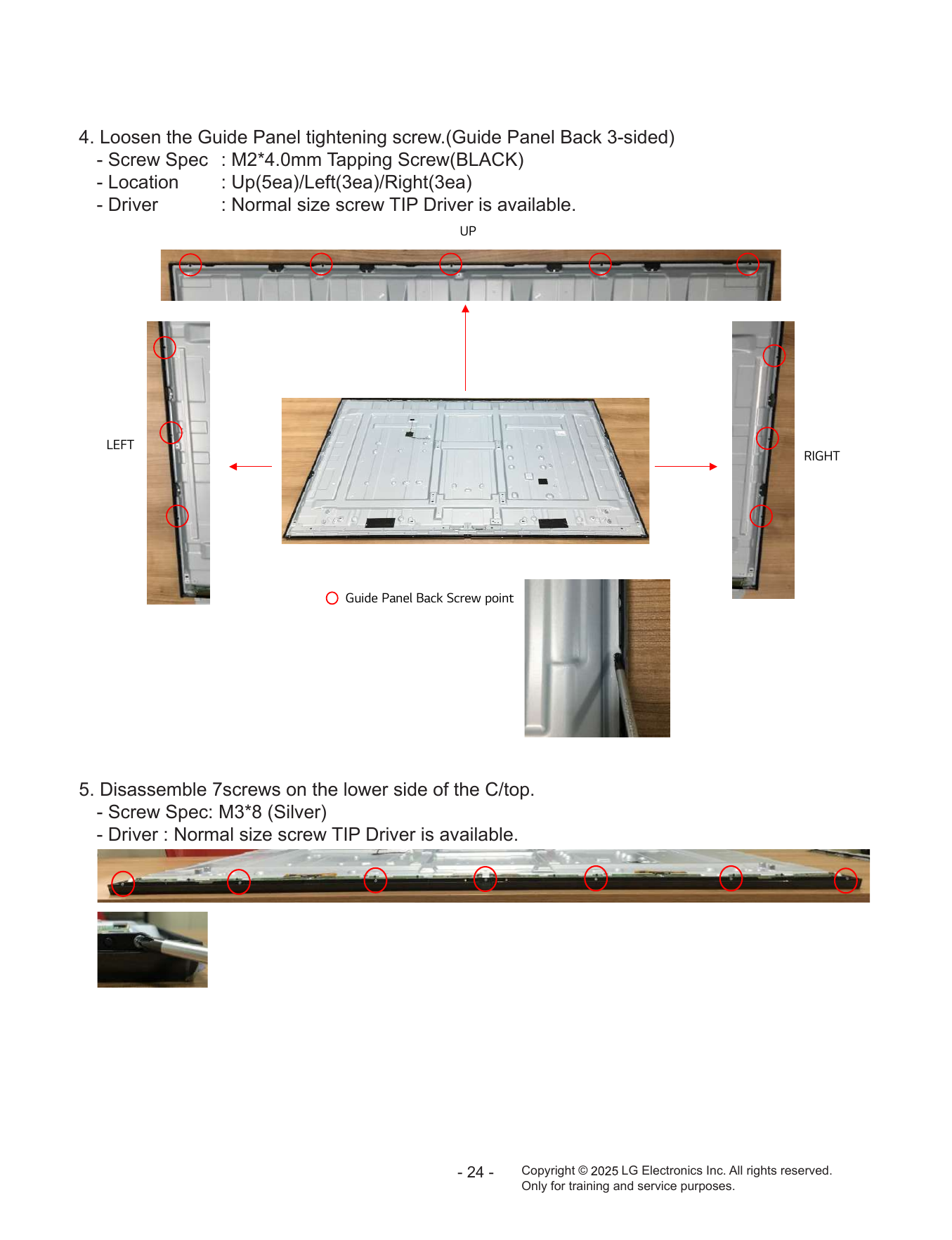
4. Loosen the Guide Panel tightening screw.(Guide Panel Back 3-sided)
- Screw Spec : M2*4.0mm Tapping Screw(BLACK)
- Location : Up(5ea)/Left(3ea)/Right(3ea)
- Driver : Normal size screw TIP Driver is available.
UP
LEFT
RIGHT
Guide Panel Back Screw point
5. Disassemble 7screws on the lower side of the C/top.
- Screw Spec: M3*8 (Silver)
- Driver : Normal size screw TIP Driver is available.
- 24 - Copyright © LG Electronics Inc. All rights reserved.
Only for training and service purposes.
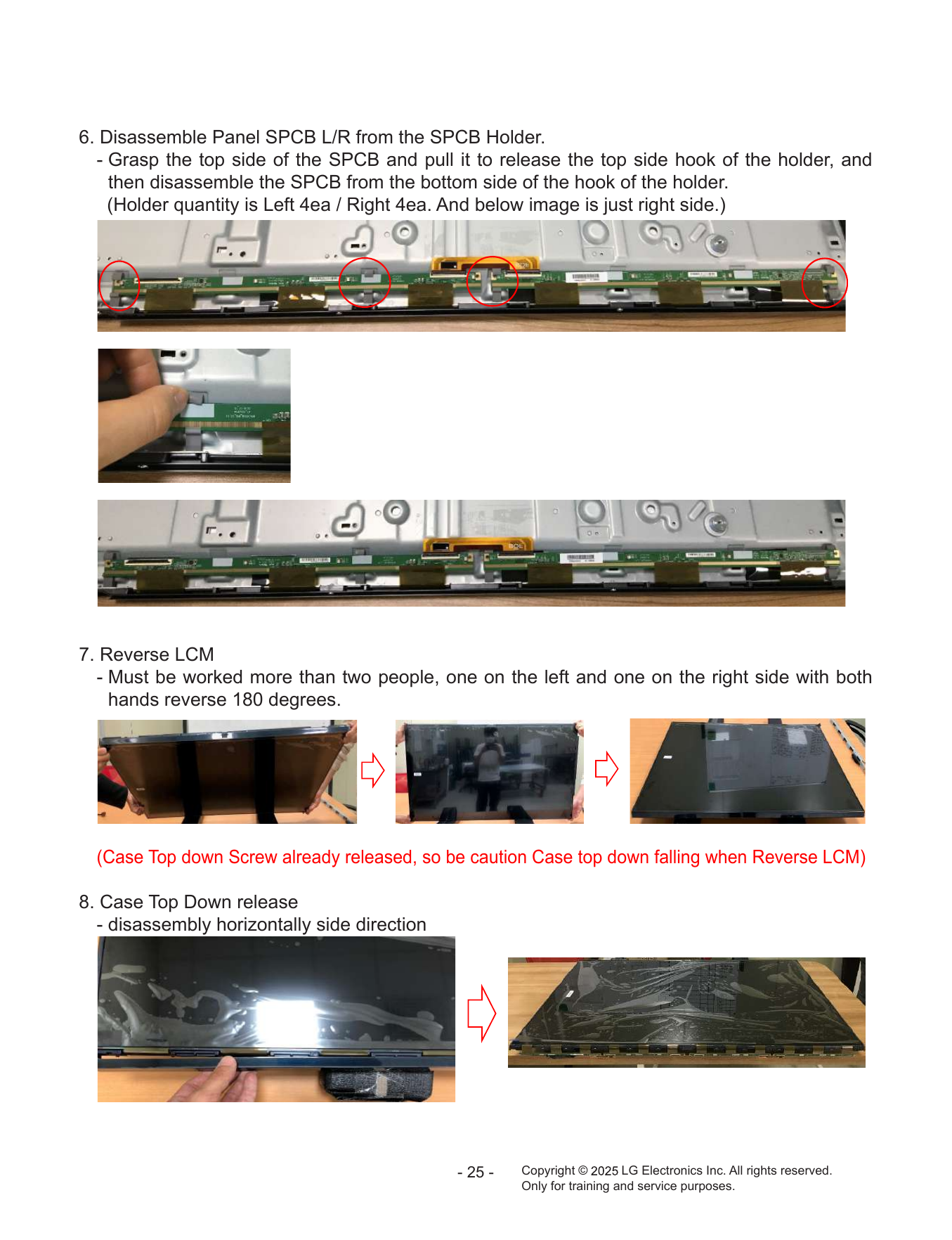
6. Disassemble Panel SPCB L/R from the SPCB Holder.
- Grasp the top side of the SPCB and pull it to release the top side hook of the holder, and
then disassemble the SPCB from the bottom side of the hook of the holder.
(Holder quantity is Left 4ea / Right 4ea. And below image is just right side.)
7. Reverse LCM
- Must be worked more than two people, one on the left and one on the right side with both
hands reverse 180 degrees.
(Case Top down Screw already released, so be caution Case top down falling when Reverse LCM)
8. Case Top Down release
- disassembly horizontally side direction
- 25 - Copyright © LG Electronics Inc. All rights reserved.
Only for training and service purposes.
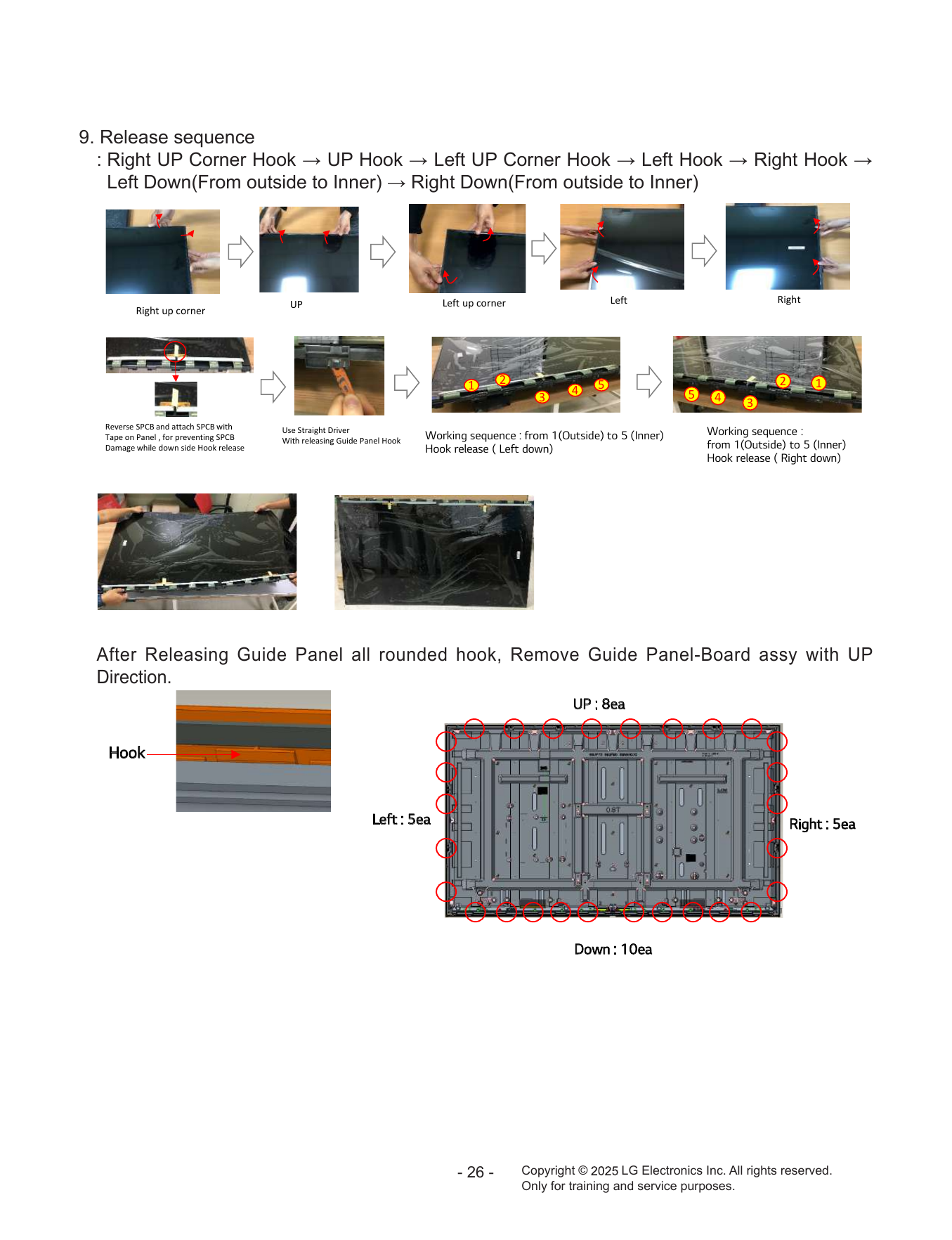
9. Release sequence
: Right UP Corner Hook → UP Hook → Left UP Corner Hook → Left Hook → Right Hook →
Left Down(From outside to Inner) → Right Down(From outside to Inner)
UP Left up corner Left Right
Right up corner
1 2 5 2 1
4 5
3 4 3
Reverse SPCB and attach SPCB with Use Straight Driver
Tape on Panel , for preventing SPCB Working sequence : from 1(Outside) to 5 (Inner) Working sequence :
With releasing Guide Panel Hook
Damage while down side Hook release Hook release ( Left down) from 1(Outside) to 5 (Inner)
Hook release ( Right down)
After Releasing Guide Panel all rounded hook, Remove Guide Panel-Board assy with UP
Direction.
UP : 8ea
Hook
Left : 5ea Right : 5ea
Down : 10ea
- 26 - Copyright © LG Electronics Inc. All rights reserved.
Only for training and service purposes.
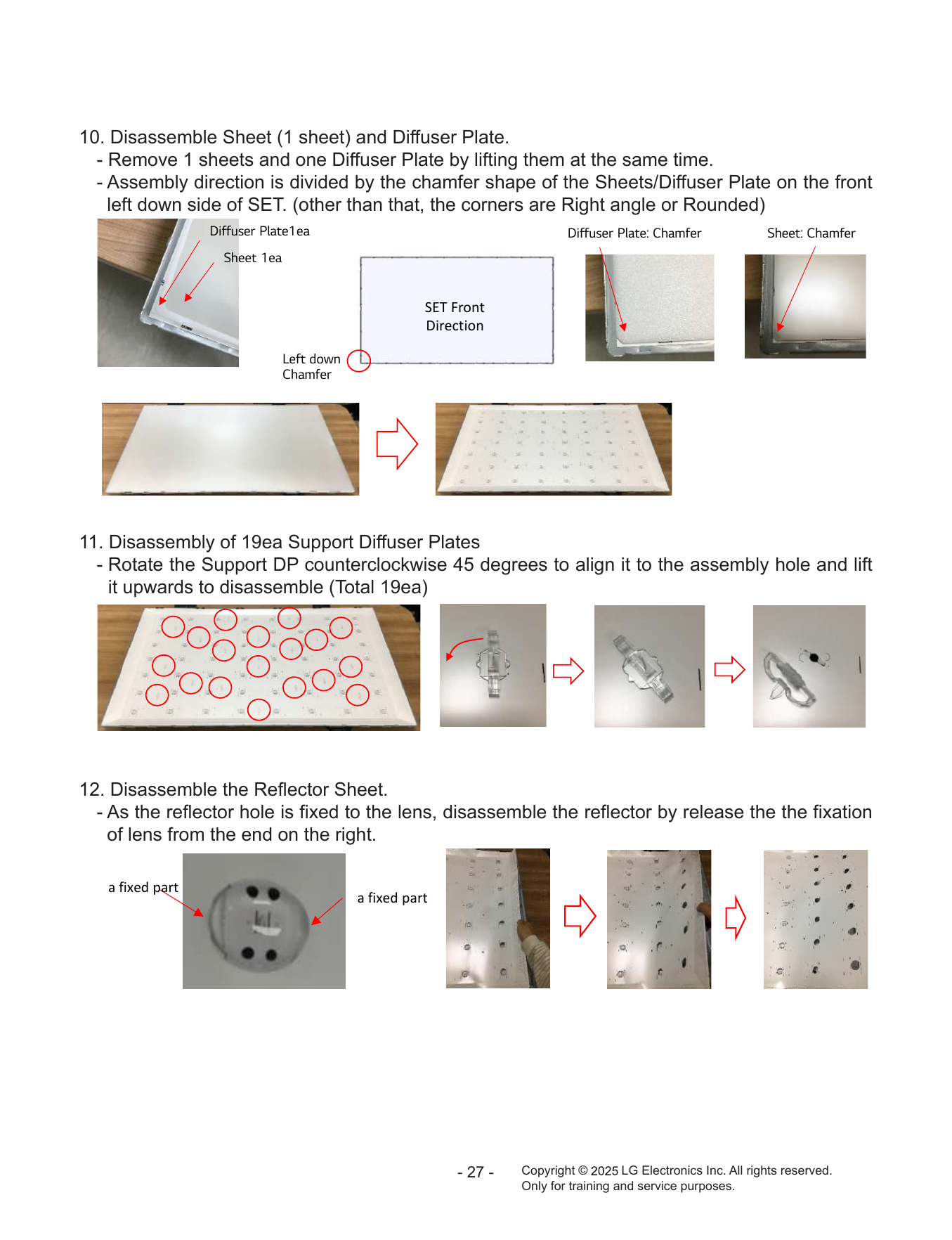
10. Disassemble Sheet (1 sheet) and Diffuser Plate.
- Remove 1 sheets and one Diffuser Plate by lifting them at the same time.
- Assembly direction is divided by the chamfer shape of the Sheets/Diffuser Plate on the front
left down side of SET. (other than that, the corners are Right angle or Rounded)
Diffuser Plate1ea Diffuser Plate: Chamfer Sheet: Chamfer
Sheet 1ea
SET Front
Direction
Left down
Chamfer
11. Disassembly of 19ea Support Diffuser Plates
- Rotate the Support DP counterclockwise 45 degrees to align it to the assembly hole and lift
it upwards to disassemble (Total 19ea)
12. Disassemble the Reflector Sheet.
- As the reflector hole is fixed to the lens, disassemble the reflector by release the the fixation
of lens from the end on the right.
a fixed part
a fixed part
- 27 - Copyright © LG Electronics Inc. All rights reserved.
Only for training and service purposes.
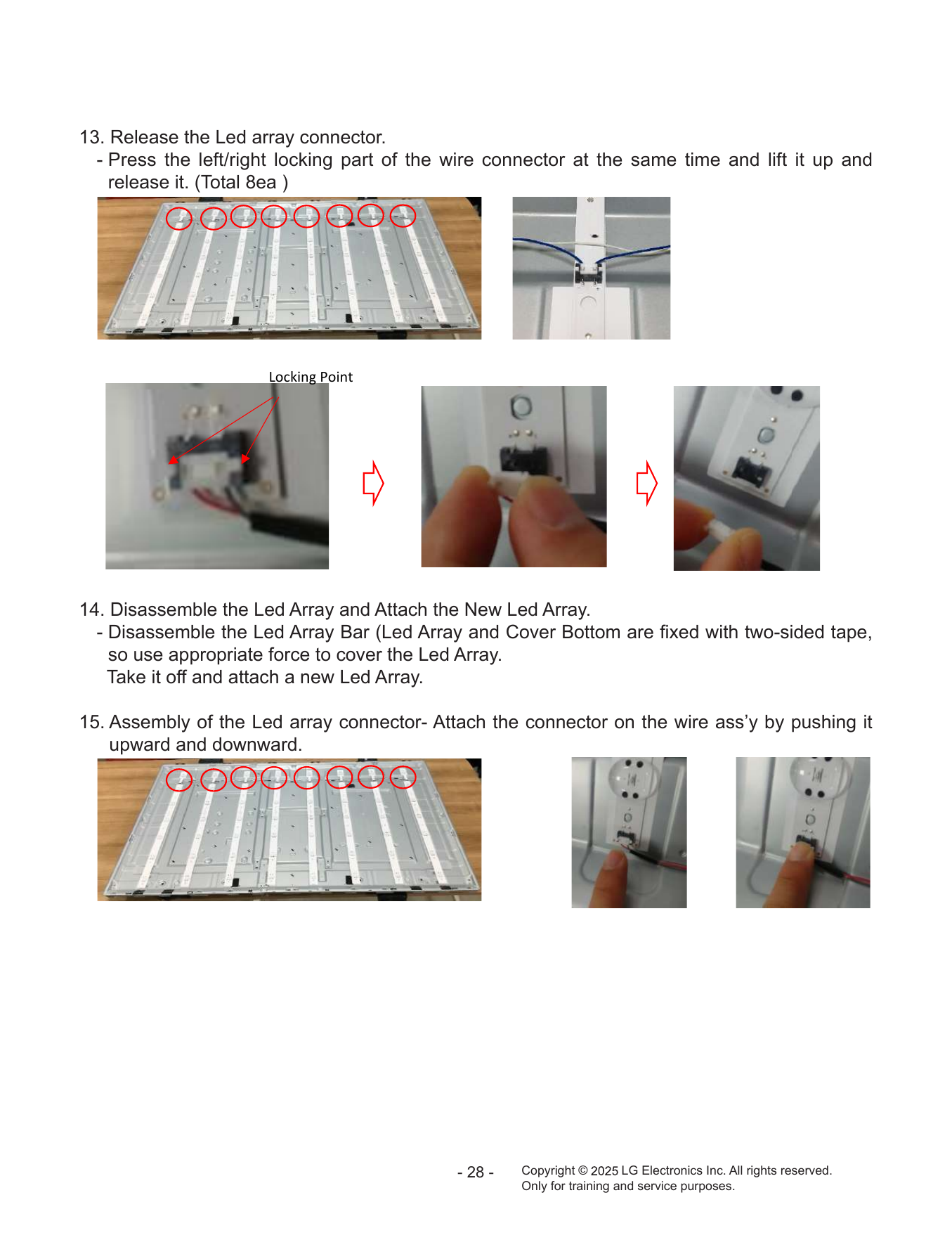
13. Release the Led array connector.
- Press the left/right locking part of the wire connector at the same time and lift it up and
release it. (Total 8ea )
Locking Point
14. Disassemble the Led Array and Attach the New Led Array.
- Disassemble the Led Array Bar (Led Array and Cover Bottom are fixed with two-sided tape,
so use appropriate force to cover the Led Array.
Take it off and attach a new Led Array.
15. Assembly of the Led array connector- Attach the connector on the wire ass’y by pushing it
upward and downward.
- 28 - Copyright © LG Electronics Inc. All rights reserved.
Only for training and service purposes.
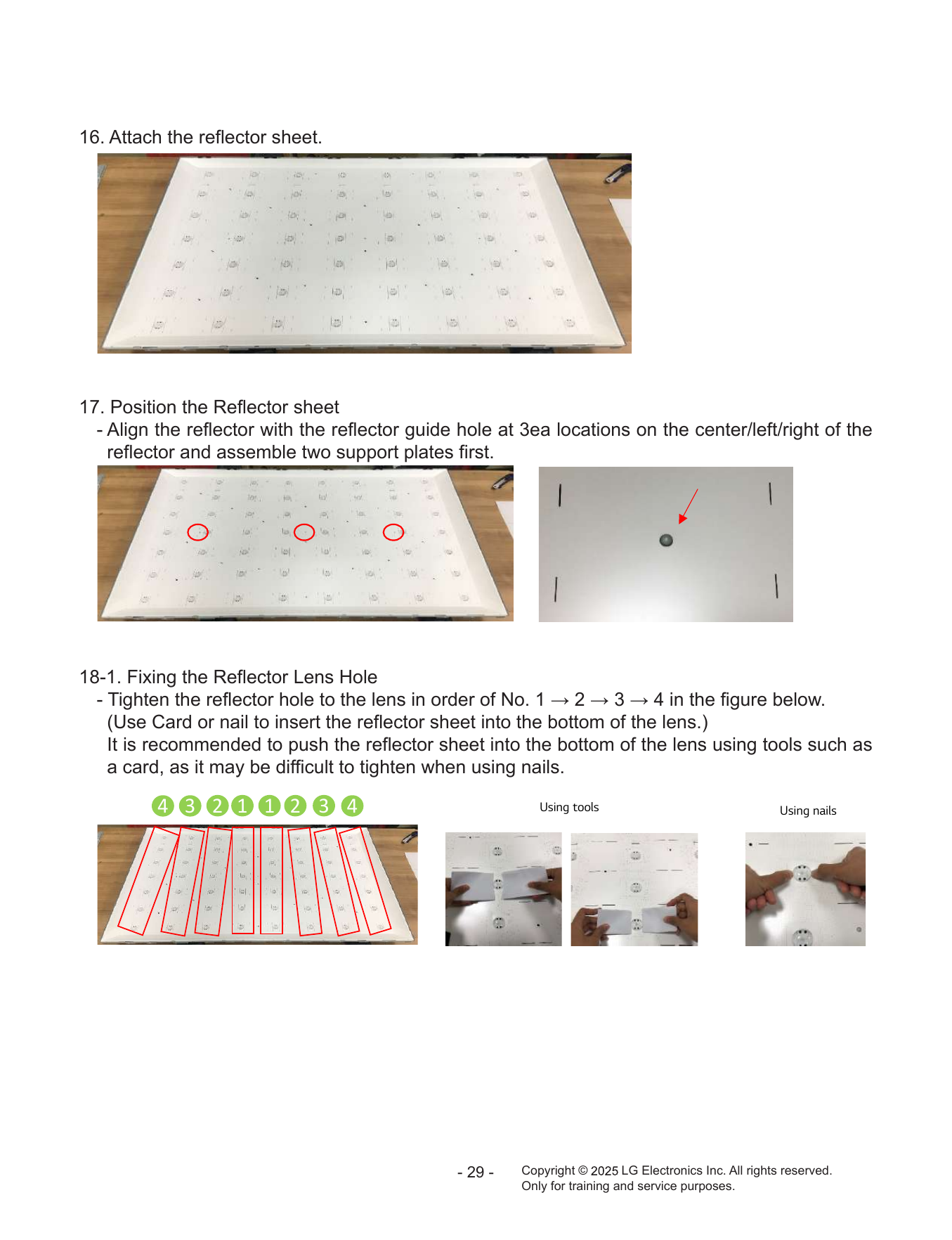
16. Attach the reflector sheet.
17. Position the Reflector sheet
- Align the reflector with the reflector guide hole at 3ea locations on the center/left/right of the
reflector and assemble two support plates first.
18-1. Fixing the Reflector Lens Hole
- Tighten the reflector hole to the lens in order of No. 1 → 2 → 3 → 4 in the figure below.
(Use Card or nail to insert the reflector sheet into the bottom of the lens.)
It is recommended to push the reflector sheet into the bottom of the lens using tools such as
a card, as it may be difficult to tighten when using nails.
4 3 2 1 1 2 3 4 Using tools Using nails
- 29 - Copyright © LG Electronics Inc. All rights reserved.
Only for training and service purposes.
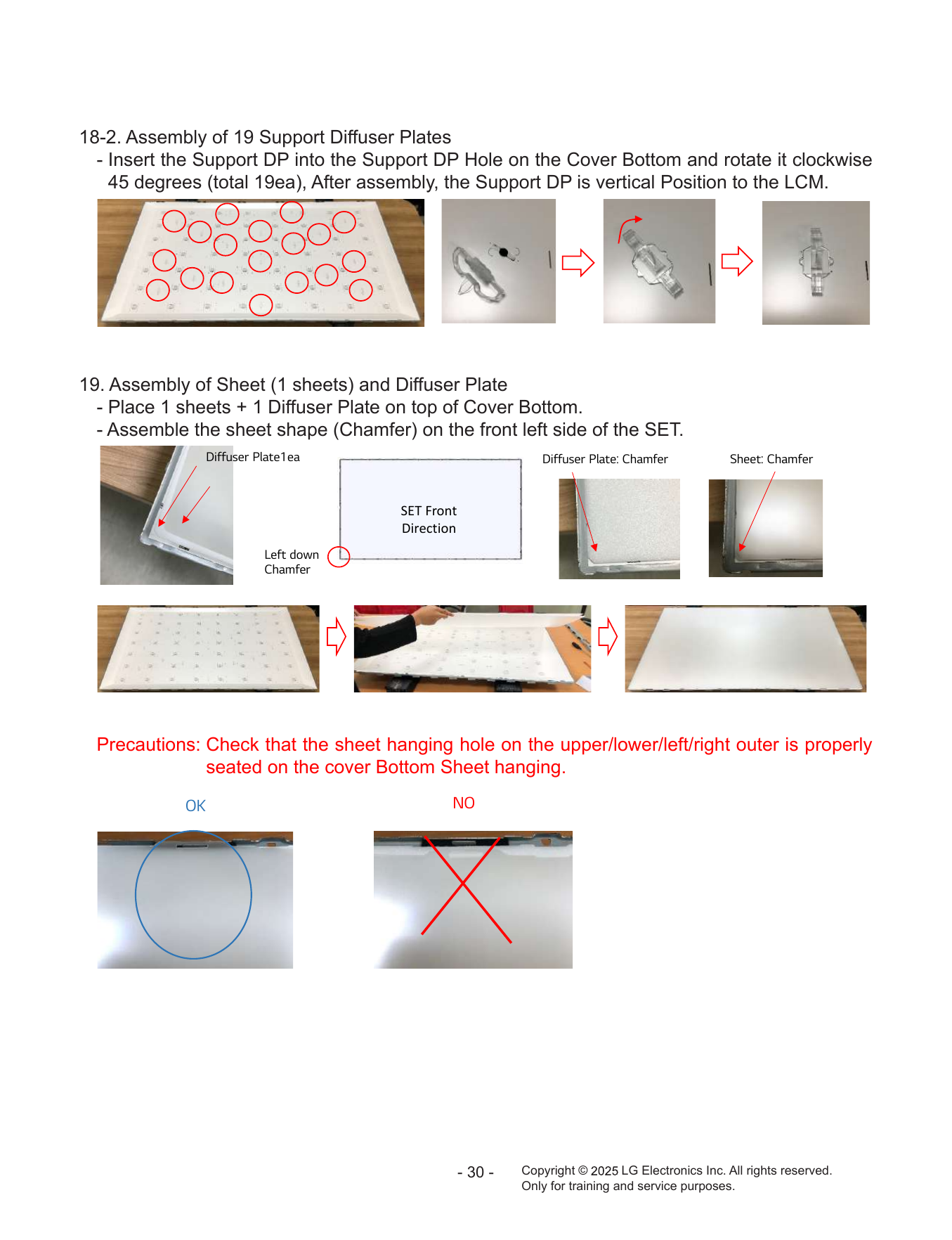
18-2. Assembly of 19 Support Diffuser Plates
- Insert the Support DP into the Support DP Hole on the Cover Bottom and rotate it clockwise
45 degrees (total 19ea), After assembly, the Support DP is vertical Position to the LCM.
19. Assembly of Sheet (1 sheets) and Diffuser Plate
- Place 1 sheets + 1 Diffuser Plate on top of Cover Bottom.
- Assemble the sheet shape (Chamfer) on the front left side of the SET.
Diffuser Plate1ea Diffuser Plate: Chamfer Sheet: Chamfer
SET Front
Direction
Left down
Chamfer
Precautions: Check that the sheet hanging hole on the upper/lower/left/right outer is properly
seated on the cover Bottom Sheet hanging.
OK NO
- 30 - Copyright © LG Electronics Inc. All rights reserved.
Only for training and service purposes.
20. Assemble the Guide Panel
- Press the guide panel 4 side down in the upper and lower direction in line with the cover
Bottom face to tighten it, and then tighten it in order of 2 and 3.
- Check Hook fastening. (Gap of Sheet and guide panel.)
1 4 1
3 3
1 2 1
21. Case Top Down assembly
- Insert Side direction
22. C/Top Lower side Screw 7ea assembly
- Screw Spec: M3*8 (Silver)
- Driver : M3 Screw Module Driver available.
* Caution : While Screw assembly, be care SPCB COF damage from driver Tip
- 31 - Copyright © LG Electronics Inc. All rights reserved.
Only for training and service purposes.
23. Reverse LCM.
- Must be worked more than 2 people, one on the left and one on the right side with both
hands reverse 180 degrees.
24. Assemble the Panel SPCB L/R to the SPCB Holder.
- First, enter the upper part of the holder and then press the lower part of the holder to tighten
the SPCB.
1
2
- 32 - Copyright © LG Electronics Inc. All rights reserved.
Only for training and service purposes.
25. Assemble the Guide Panel tightening screw.(Guide Panel Back 3-sided)
- Screw Spec : M2*4.0mm Tapping Screw(BLACK)
- Location : Up(5ea)/Left(3ea)/Right(3ea)
- Driver : Normal size screw TIP Driver is available.
UP
LEFT
RIGHT
Guide Panel Back Screw point
26. Assemble SPCB Cover shield to Cover Bottom.
- 33 - Copyright © LG Electronics Inc. All rights reserved.
Only for training and service purposes.
27. Assemble SPCB Cover shield screws 7ea (Use M3 Screw module Driver.) and attach the
bridge protect black tape 2ea.
(After attach the tape, bridge should not be seen.)
OK NO
FINISH
- 34 - Copyright © LG Electronics Inc. All rights reserved.
Only for training and service purposes.
TROUBLE SHOOTING GUIDE
Contents of Standard Repair Process
No. Error symptom (High category) Error symptom (Mid category) Page Remarks
1 No video/Normal audio 1
2 No video/No audio 2
3 Picture broken/ Freezing 3
A. Video error
4 Color error 4
Vertical/Horizontal bar, residual image, light spot,
5 5
external device color error
6 No power 6
7 B. Power error Off when on, off while viewing, power auto on/off 7
8 Off when on, off while viewing, power auto on/off 8
9 No audio/Normal video 9
C. Audio error
10 Wrecked audio/discontinuation/noise 10
11 Remote control & Local switch checking 11
12 Magic Remote control operating checking 12
13 D. Function error WiFi operating checking 13
14 External device recognition error 14
15 Voice Recognition Function Error 15
16 E. Noise Circuit noise, mechanical noise 16
17 F. Exterior error Exterior defect 17
First of all, Check whether there is SVC Bulletin in GSCS System for these model.
Standard Repair Process
Established
Error A. Video error date
symptom
No video/ Normal audio Revised date 1/17
First of all, Check whether all of cables between board is inserted properly or not.
(Main B/D↔ Power B/D, Each Cable for Panel, Speaker Cable, IR B/D Cable,,,)
☞A1 ☞A9
No video Normal Y Check Back Light Y Check Power board Y Replace T-con/Main
Normal
On
Normal audio audio On with naked eye 13.2.V etc. voltage Board or module
N N N
Move to No ☞A9 Check Power Board VLED output Repair Power
video/No audio Board or parts
Y LED Y
Normal Error Check LED Driver Replace LED
Driver B’D
voltage Board by LED indicator Driver BD
error
N N
Repair Power Replace Module End
End
Board or parts
※Precaution ☞A4 & A2
Always check & record S/W Version and White
Replace Main Board Re-enter White Balance value
Balance value before replacing the Main Board
Standard Repair Process
Established
Error A. Video error date
symptom
No video/ No audio Revised date 2/17
☞A9
Check various Y Check and
No Video/ Normal
voltages of Power replace
No audio voltage?
Board (13.2V…) MAIN B/D
N End
Replace Power
Board and repair
parts
Standard Repair Process
Established
Error A. Video error date
symptom
Picture broken/ Freezing Revised date 3/17
. By using Digital signal level meter
☞ A3
. By using Diagnostics menu on OSD
Check RF Signal level ( Advanced→ Channels→ Channel Tuning→ Manual Tuning → Check the Signal )
- Signal strength (Normal : over 50%)
- Signal Quality (Normal: over 50%)
Check whether other equipments have problem or not.
Normal Y
(By connecting RF Cable at other equipment)
Signal?
→ DVD Player ,Set-Top-Box, Different maker TV etc`
N
☞ A4
Check RF Cable
Normal Y Check SVC N Check Tuner Y
Connection Close
1. Reconnection Picture? S/W Version Bulletin? soldering
2. Install Booster
Y N
N
S/W Upgrade
Normal N Contact with signal distributor
Picture? or broadcaster (Cable or Air)
Normal N
Y Picture? Replace
Main B/D
Y
Close
Close
Standard Repair Process
Established
Error A. Video error date
symptom
Color error Revised date 4/17
☞ A7
☞A6 ※ Check and
replace Link
Check color by input Y Cable Y Y
Color Color Color
-External Input (EPI or Vx1 Replace Main B/D Replace module
error? error? error?
-HDMI Cable) and
N contact N N
condition
End
Check error
color input mode
☞A20
External Input/ Check external External Y
Check Test pattern Component device and device/Cable Replace Main/T-con B/D
error cable normal
N
Request repair
for external
device/cable
N
Check external External Y
HDMI
device and device/Cable Replace Main/T-con B/D
error
cable normal
Standard Repair Process
Established
Error A. Video error date
symptom Vertical / Horizontal bar, residual image,
light spot, external device color error Revised date 5/17
Vertical/Horizontal bar, residual image, light spot Replace
Module
☞A6
☞ A7 N
Check color condition
Check external Check and
by input Screen Y Y Screen N Screen
device connection Normal? replace Link Replace Main/T-con B/D
-External Input normal? normal? normal?
condition Cable
-HDMI For LGD panel
Y Y
N N
Replace Main B/D
☞A20 Replace Request repair End End
module for external For other panel
Check Test pattern device
External device screen error-Color error
Check screen
Check S/W Version N condition by input External Connect other external
Check
-External Input Input device and cable
version
-Component error (Check normal operation of N Replace
-HDMI/DVI Screen
External Input, Component, Main/T-con
Y normal?
RGB and HDMI/DVI by B/D
Component connecting Jig, pattern
error Y
S/W Upgrade Generator ,Set-top Box etc.
Request repair for
external device
Connect other external Y
Normal N
device and cable
screen? Replace
HDMI/ (Check normal operation of Screen N
External Input, Component, Main /T-con
Y DVI normal?
RGB and HDMI/DVI by B/D
connecting Jig, pattern
Generator ,Set-top Box etc.
End
Standard Repair Process
Established
Error B. Power error date
symptom
No power Revised date 6/17
☞A8 ☞A9
Y DC Power on N Y
Check front Power Normal Check Power Replace
by pressing Power Key OK?
Power Indicator LED On? operation? On ‘”High” Power B/D
On Remote control
. Stand-By: Red or Turn On
N Y N
. Operating: Turn Off
Check Power cord Replace Main B/D
was inserted properly ☞A9
Measure voltage of each
output of Power B/D
N
Normal?
Y Y
Normal Y
Replace Main B/D
voltage?
Normal
Close Check Power ST-BY 7.8V Y
voltage? N
☞A9 Replace Power B/D
N
Replace Power
B/D
Standard Repair Process
Established
Error B. Power error date
symptom
Off when on, off while viewing, power auto on/off Revised date 7/17
Check Power outlet
☞A11
N Check Power Off CPU Y
Check A/C cord Error? Replace Main B/D Normal? End
Mode Abnormal
N
Check for all 2- phase
Y NO_ Replace Power B/D
power out
POLLING
Fix A/C cord & Power
Outlet and check ☞A9
each 2 phase out (If Power Off mode
is not displayed) Normal Y
Replace Main B/D
Check Power B/D voltage?
voltage
N
※ Caution
Check and fix exterior Replace Power B/D
of Power B/D Part
Standard Repair Process
Established
Error B. Power error date
symptom
Off when on, off while viewing, power auto on/off Revised date 8/17
* Please refer to the all cases which can be displayed on power off mode.
Power off history Contents Explanation Action Details
00~09, 0A~0Z Normal operation Occurs during normal operation (Remote_Key, Local_Key etc) Normal Case
10~19, 1A~1Z Power environment Items required for power environment inspection (AC_DET etc) Power Inspection and replacement
Normal Case - Settop CEC Check the settings
External equipment/ Power operation by external equipment/network
20~29, 2A~2Z - TV HDMI Setting > Simple Link Menu check
Network (HDMI CEC, WiFi/Lan/BT etc)
- Check 'Turn on TV with mobile device' Menu on the TV
Normal Case
Records according to customer use (Timer setting, reservation - Check your TV's 'Reservation Time Settings'
30~39, 3A~3Z User Scene
setting, no operation/no signal condition, initialization etc) - Input signal check (Auto power off after 15 minutes in
case of no signal)
App button operation on the remote control (Netflix key, Disney key
40~49, 4A~4Z App/CP Normal Case
etc)
50~59, 5A~5Z SW Update S/Ware Update record Normal Case
SW latest version check and update Main check and
60~69, 6A~6Z System Error System malfunction (need to check Main PCBA /SW)
replacement
70~79, 7A~7Z AR/AOD Records left during AR/AOD operation Normal Case
Normal Case - Check your TV's 'Voice Recognition
80~89, 8A~8Z WOV Operation via Voice Settings'
* Turn off the function or change the sensitivity setting, etc
90~99, 9A~9Z Specific country Specific country only (satellite, disaster etc) N/A
B0~B9, BA~BZ OLED(BDP) OLED only (Panel defect) OLED Module check and replacement (BDP)
C0~C9, CA~CZ OLED OLED only (Compensatory action) OLED Module check and replacement (Except BDP)
Checking T-con and main connection cable
D0~D9, DA~DZ OLED(etc) OLED 모델 only (Fan, FPC cable error etc)
Checking Fan / Heatsink Connection Status
L0~L9, LA~LZ Life style Standby me model etc N/A
R0~R9, RA~RZ A+ Rollable model only N/A
M0~M9, MA~MZ Wireless model Wireless model only N/A
Process/SVC
F0~F9, FA~FZ Process/SVC Records (in-stop, Power Only etc) Normal Case - N/A
Records
XX Initial value Initial value not recorded yet Normal Case
Standard Repair Process
Established
Error C. Audio error date
symptom
No audio/ Normal video Revised date 9/17
☞A12
☞A13+A9
Check user N Y
No audio Check audio Normal
menu > Off
Screen normal 13.2V of Power voltage
Speaker off
Board
Y N
Cancel OFF Replace Power Board and repair parts
Check Speaker N
Disconnection Replace MAIN Board End
disconnection
Y
Replace Speaker
Standard Repair Process
Established
Error C. Audio error date
symptom
Wrecked audio/ discontinuation/noise Revised date 10/17
→ abnormal audio/discontinuation/noise is same after “Check input signal” compared to No audio
Wrecked audio/
☞A13+A9
Check and replace
Discontinuation/ Check audio
speaker and
Noise for B+ Voltage (13.2V)
connector
Check input all audio
signal Y
Signal
-RF
normal? Wrecked audio/ Y
-External Input Normal
signal Discontinuation/
N Replace Main B/D voltage?
Noise only
for D-TV
N
Wrecked audio/
Discontinuation/
Replace Power B/D
Noise only for
Analog
(When RF signal is not
received)
Request repair to external Wrecked audio/ Replace Main B/D End
cable/ANT provider Discontinuation/
Noise only for
External Input
(In case of N
External Input Connect and check Normal
signal error) other external audio?
Check and fix device
external device Y
Check and fix external device
Standard Repair Process
Established
Error D. Function error date
symptom
Remote control & Local switch checking Revised date 11/17
1. Remote control(R/C) operating error Replace
Main B/D
☞A14 ☞A14 ☞A14
Check & Repair N Y Y
Check R/C itself Normal Y Normal Check B+3.5V Normal Check IR Normal
operating? Cable connection operating? Voltage? Signal?
Operation On Main B/D Output signal
Connector solder
N
Y N N
☞A9
Check R/C Operating Check & Replace Check 3.5v on Power B/D Repair/Replace
Close
When turn off light Baterry of R/C Replace Power B/D or IR B/D
in room Replace Main B/D
(Power B/D don’t have problem)
If R/C operate, Normal Y
Explain the customer operating? Close
cause is interference
from light in room. N
Replace R/C
Standard Repair Process
Established
Error D. Function error date
symptom
Magic Remote control operating checking Revised date 12/17
2. Magic Remote control operating error
☞A4
N N Turn off/on the
Check the RF Receiver Check MR25 Normal Y Press the Is show ok
ver is “00.00”? operating? message? set and press
INSTART menu itself Operation wheel
the wheel
N Y
Y
☞A15
Check & Replace Close
Check & Repair Battery of MR25
RF assy
connection
Normal Y
☞A4 operating? Close
Is show ok N Press the back
RF Receiver ver N N message? key about 5sec
is “00.00”? Close
Y
Replace
Y MR25
Close
Down load the Firmware
* If you conduct the loop at 3times, change the MR25.
* INSTART MENU
14.RF Remote control Test
3. Firmware download
Standard Repair Process
Established
Error D. Function error date
symptom
WiFi operating checking Revised date 13/17
3. WiFi operating error
☞A4 ☞A15
Wi-Fi Mac N Check the WiFi wafer Replace
Check the Normal N
value
INSTART menu +3.5V_WiFi Voltage? Main B/D
is “NG”?
Y
☞A15 Y
Close
Check & Repair
Wifi cable
connection
☞A4
Wi-Fi Mac N
value Close
is “NG”?
Y
Change the Wifi
assy
Standard Repair Process
Established
Error D. Function error date
symptom
External device recognition error Revised date 14/17
Check technical
Check Y N External Input
Signal information Technical
input And Component Replace Main B/D
input? - Fix information information?
Recognition error
signal
- S/W Version
N Y
HDMI/
Check and fix DVI, Optical
Fix in Replace Main B/D
external device/cable Recognition
accordance
error
with technical
information
Standard Repair Process
Established
Error D. Function error date
symptom
Voice Recognition Function Error Revised date 15/17
☞A15
Check Voice Funcion Check
Network Y Y
Check network
Connected?
Recognition Function Is On In Sub Ass’y
in menu menu? Cable
N
N
Make the
Connect network function ‘on’
Close Close
Cable Change Voice
Connection Y Recognition Change Main B/D
Is OK? Ass’y
N
Re-connect Close
Cable Close
Close
Standard Repair Process
Established
Error E. Noise date
symptom
Circuit noise, mechanical noise Revised date 16/17
Identify Circuit Check location
Replace PSU
nose type noise of noise
Mechanical Check location
noise of noise
※ When the nose is severe, replace the module
※ Mechanical noise is a natural (For models with fix information, upgrade the
phenomenon, and apply the 1st level S/W or provide the description)
description. When the customer does not OR
agree, apply the process by stage. ※ If there is a “Tak Tak” noise from the
※ Describe the basis of the description in cabinet, refer to the KMS fix information and
“Part related to nose” in the Owner’s then proceed as shown in the solution manual
Manual. (For models without any fix information,
provide the description)
Standard Repair Process
Established
Error F. Exterior defect date
symptom
Exterior defect Revised date 17/17
Zoom part with Module
Replace module
exterior damage damage
Cabinet
Replace cabinet
damage
Remote
control Replace remote control
damage
Stand
Replace stand
dent
Contents of Standard Repair Process Detail Technical Manual
No. Error symptom Content Page Remarks
1 Check LCD back light with naked eye A1
A. Video error_ No video/Normal audio
2 Check White Balance value A2
TUNER input signal strength checking
3 A3
method
A. Video error_ video error /Video
4 lag/stop Version checking method A4
5 Tuner Checking Part A5
A. Video error _Vertical/Horizontal bar,
6 Connection diagram A6
residual image, light spot
Check Link Cable (Vx1/EPI) reconnection
7 A. Video error_ Color error A7
condition
A-1/11
8 Check Cable (1) ~ (2)
A-2/11
A-3/11 ~
9 Exchange Main Board (1) ~ (3)
A-5/11
Defected Type caused by T-Con/ A-6/11 ~
10 Exchange Module (1) ~ (3)
Inverter/ Module A-8/11
A-9/11 ~ Only using
11 Exchange T-Con (1) ~ (2)
A-10/11 T-con model
12 Exchange Power Board(PSU) A-11/11
Continue to the next page
Contents of Standard Repair Process Detail Technical Manual
Continued from previous page
No. Error symptom Content Page Remarks
13 Check front display LED A17
B. Power error_ No power
14 Check power input Voltage & ST-BY 7.8V A18
B. Power error_Off when on, off
15 POWER OFF MODE checking method A19
while viewing
Checking method in menu when there is no
16 A20
C. Audio error_ No audio/Normal audio
video Voltage and speaker checking method when
17 A21
there is no audio
18 Remote control operation checking method A22
D. Function error
19 Motion Remote operation checking method A23
20 How to use the Service remote control A24-A26
21 E. Etc Check items after Main B/D replacement A27
22 Adjustment Test pattern - ADJ Key A28
Standard Repair Process Detail Technical Manual
Error Established
symptom A. Video error_No video/Normal audio date
Revised
Content Check LCD back light with naked eye A1
date
65NANO80/81
After turning on the power and disassembling the case, check with the naked eye,
whether you can see light from locations.
A1
Standard Repair Process Detail Technical Manual
Error Established
symptom A. Video error_No video/Normal audio date
Revised
Content Check White Balance value A2
date
Entry method
1. Press the ADJ button on the remote control for adjustment.
2. Enter into White Balance.
3. After recording the R, G, B (GAIN, Cut) value of Color Temp( Cool/Medium/Warm),
re-enter the value after replacing the MAIN BOARD.
A2
Standard Repair Process Detail Technical Manual
Error Established
symptom A. Video error_Video error, video lag/stop date
Revised
Content TUNER input signal strength checking method date A3
All Setting General Programmes
Programme Tuning & Settings
Manual Tuning
When the signal is strong,
use the attenuator (-10dB,
-15dB, -20dB etc.)
A3
Standard Repair Process Detail Technical Manual
Error Established
symptom A. Video error_Video error, video lag/stop date
Revised
Content Version checking method A4
date
1. Checking method for remote control for adjustment
Version
Press the IN-START with the remote
control for adjustment
A4
Standard Repair Process Detail Technical Manual
Error Established
symptom A. Video error_Video error, video lag/stop date
Revised
Content TUNER checking part A5
date
Checking method:
1. Check the signal strength or check whether the screen is normal when the external device is connected.
2. After measuring each voltage from power supply, finally replace the MAIN BOARD.
A5
Standard Repair Process Detail Technical Manual
Error A. Video error _Vertical/Horizontal bar, Established
symptom residual image, light spot date
Content Revised
connection diagram A6
date
As the part connecting to the external input, check the
screen condition by signal
A6
Standard Repair Process Detail Technical Manual
Error Established
symptom A. Video error_Color error date
Revised
Content Check Link Cable(Vx1/EPI/CEDS) reconnection condition date A7
65NANO80/81
Check the contact condition of the Link Cable, especially dust or mis insertion.
A7
Appendix. Examples of Symptoms(Image error) Check for poor cable contact
Symptom
Item Cause Symptom Image
Name
CABLE Color smear Poor broken pin of FFC cable
Color is Excessive due to FFC Cable
CABLE R Color Excessive
Contact.
screen is dark due to poor contact due to
CABLE Screen darkness disconnection of the FFC cable pin.
G color transient due to poor FFC cable
CABLE G Color Excessive connection
A - 1/11
Appendix. Examples of Symptoms(Image error) Check for poor cable contact
Symptom
Item Cause Symptom Image
Name
CABLE Color spread FFC connection problem
Due to foreign substance within
CABLE Screen stop FFC PIN
A - 2/11
Appendix. Examples of Symptoms(Main) Check parts by symptom
Symptom
Item Cause Symptom Image
Name
Main Screen noise Bit noise from horizontal screen
Broken screen due to
Main Screen noise
Main IC problem
Main Dark picture Dark left-side screen
Top/bottom screen part
Main Broken picture Picture problem due to tuner
Inner side quality problem
A - 3/11
Appendix. Examples of Symptoms(Main) Check parts by symptom
Symptom
Item Cause Symptom Image
Name
Main Broken screen Broken screen in a horizontal manner
Main Screen spread Screen corner appears blurry
Main Color Spread Color spread on the screen
Main Blurry Screen Blurry picture on the screen
A - 4/11
Appendix. Examples of Symptoms(Main) Check parts by symptom
Symptom
Item Cause Symptom Image
Name
No problem at the initial stage,
Main Broken picture G-color spread after 10 minutes
Right-side
Main
Screen Right-side screen problem
problem
LG logo
Main Screen picture spread problem
Screen problem
No problem at the initial stage.
Right-side picture
Main During Heat run, right-side picture
problem
problem
A - 5/11
Appendix. Examples of Symptoms(Module) Check parts by symptom
Symptom
Item Cause Symptom Image
Name
Isometric Isometric horizontal bars occur
MODULE
Horizontal Bar throughout the screen
MODULE Internal matter BLU internal foreign matter inflow
MODULE Image broken 6 block image broken
MODULE Image broken Screen sync signal broken
A - 6/11
Appendix. Examples of Symptoms(Module) Check parts by symptom
Symptom
Item Cause Symptom Image
Name
Internal damage and image breakage due
MODULE Image broken
to external impact
Bend on the Bending due to lateral external impact
MODULE
screen and internal bending of BLU
Vertical spreading on cube screen in no
MODULE Vertical smear
signal
MODULE Over color Screen contour part brightly Over color
A - 7/11
Appendix. Examples of Symptoms(Module) Check parts by symptom
Symptom
Item Cause Symptom Image
Name
MODULE Vertical bar Center Vertical Bar
MODULE Screen darkness Center of the screen 1 block dark
MODULE Vertical bar Center Vertical Bar
Darkness at the
MODULE bottom of the MODULE internal BLU breakage
screen
A - 8/11
Appendix. Examples of Symptoms(Only if using T-con Board) Check parts by symptom
Symptom
Item Cause Symptom Image
Name
screen lower T-Con is defective and the picture below
T-CON
image broken the screen is broken
screen lower T-Con is defective and the picture below
T-CON
image broken the screen is broken
screen lower T-Con is defective and the picture below
T-CON
image broken the screen is broken
screen lower T-Con is defective and the picture below
T-CON
image broken the screen is broken
A - 9/11
Appendix. Examples of Symptoms(Only if using T-con Board) Check parts by symptom
Symptom
Item Cause Symptom Image
Name
T-CON Wafer Locking The strength is
T-CON Image Broken
weak and cable contact failure occurs
Darkness at the Initial normal operation,
T-CON
top of the screen upper darkness during heat run
The entire screen is dark and bit noise
T-CON Image Broken
occurs
The entire screen is dark and bit noise
T-CON Image Broken
occurs
A - 10/11
Appendix : Exchange Power Board (PSU)
No Light No picture/Sound Ok
A - 11/11
Standard Repair Process Detail Technical Manual
Error Established
symptom B. Power error _No power date
Revised
Content Check front Power Indicator date A17
ST-BY condition: On or Off
Power ON condition: Turn Off
A17
Standard Repair Process Detail Technical Manual
Error Established
symptom B. Power error _No power date
Revised
Content Check power input voltage and ST-BY 7.8V A18
date
SET Model Power P/N, Name
65NANO80/81 Series EAY65895568, LGP6065AT-22U1
Power Check Sequence
1. AC input Check : SK100 (100~240Vac) P801
2. PWR-ON Check :
- SET On : above 3V
- SET St-by : 0V
3. 13.2V DC Check :
- SET On : 13.2V P201
- SET St-by : 7.8V
4. MS Level Check : MS
MS Level Range [V] LED On/Off
MS (0V) 0 ~ 0.25 Off
MS (2V) 1.75 ~ 2.25 On (Home mode)
MS (3V) 2.75 ~ 3.25 On (Store Mode)
※ Home mode : General Customer
Store mode : use Store
5. LED voltage Check : P801, Pin 1-7
Picture Condition : VIVID
(Back light 100) SK100 (AC input)
Min Max
65UR80/81 163.8V 200.2V
all condition meets, Power Board OK. A18
Standard Repair Process Detail Technical Manual
Error
symptom B. Power error _Off when on, off whiling viewing Established
date
Revised
Content POWER OFF MODE checking method date A19
Entry method
1. Press the IN-START button of the remote
control for adjustment.
2. Check the entry into adjustment item 3.
A19
Standard Repair Process Detail Technical Manual
Error Established
symptom C. Audio error_No audio/Normal video date
Revised
Content Checking method in menu when there is no audio date A20
Checking method
1. Press the Setting button on the remote control.
2. Select the Sound function of the Menu.
3. Select the Sound Out.
4. Select TV Speaker.
A20
Standard Repair Process Detail Technical Manual
Error Established
symptom C. Audio error_No audio/Normal video date
Voltage and speaker checking method Revised
Content date A21
when there is no audio
②
①
③ 1 SPK_R-FT
2 SPK_R+FT
Checking order when there is no audio 3 SPK_L-FT
4 SPK_L+FT
1. Check the contact condition of or 13.2V connector of Main Board.
2. Measure the 13.2V input voltage supplied from Power Board.
(If there is no input voltage, remove and check the connector.)
3. Connect the tester RX1 to the speaker terminal and if you hear the Chik Chik
sound when you touch the GND and output terminal, the speaker is normal.
A21
Standard Repair Process Detail Technical Manual
Error Established
symptom D. Function error date
Revised
Content Remote control operation checking method date A22
Pin Pin name
1 VCC
① 2 WIFI_DM
IR & EYE Sensor 3 WIFI_DP
4 GND
5 WOL/WIFI_ON
③ 6 VCC
7 WIFI_SUSPEND/RESUEM
8 GND
9 COMBO_RESET
10 BT_WAKEUP_HOST
11 GND
12 VCC
13
14
15
16 EYE_SDA
17 EYE_SCL
18 GND
19 IR
20 LED_R
21 GND
Checking order to check remote control
② 22 VCC
23 KEY2
24 MIC_DATA
Checking order 25 MIC_CLK
1. Check IR cable condition between IR & Main board.(Check picture number① and ②.)
2. Check the standby 3.5V on the terminal 22 pin. (③)
3. AS checking the Pre-Amp(IR LED light), the power is in ON condition, an Analog Tester
needle should move slowly, otherwise, it’s defective.
A22
Standard Repair Process Detail Technical Manual
Error Established
symptom D. Function error date
Revised
Content Remote control operation checking method date A23
Pin Pin name
1 VCC
① Wifi & BT Front 2 WIFI_DM
3 WIFI_DP
4 GND
5 WOL/WIFI_ON
③ 6 VCC
7 WIFI_SUSPEND/RESUEM
8 GND
9 COMBO_RESET
10 BT_WAKEUP_HOST
11 GND
Wifi & BT Rear 12 VCC
13
14
15
16 EYE_SDA
17 EYE_SCL
18 GND
19 IR
20 LED_R
21 GND
② 22 VCC
Checking order to check motion remote/wifi 23 KEY2
24 MIC_DATA
Checking order 25 MIC_CLK
1. Check BT/Wifi cable condition between BT/Wifi assy & Main board.( Check ① and ②)
2. Check the 3.5V on the terminal 1. (③)
A23
Standard Repair Process Detail Technical Manual
Error Established
symptom E. Etc date
Revised
Content How to use the Service remote control date A24
1. How to access the remote control
0 4 1 3
1 page
0 4 1 3
2 page
A24
Standard Repair Process Detail Technical Manual
Error Established
symptom E. Etc date
Revised
Content How to use the Service remote control date A25
2. Remote control part definition
POWER Power On/Off
[ETC] Each time pressing the KEY button, Mode gets changed to ETC and P-ONLY each time
ETC (Added Function) All KEY function [PIP PR-][PIP PR+][SWAP]
[PIP INPUT][DVI] KEY Function
Changed to factory mode
P-ONLY (Added
Function)
All KEY function &[INFO][STILL][HDMI HOT][USB HOT][HDMI4] KEY Action
INPUT Change to the external device mode
ARC Change in the order of 16:9=>Zoom1=>Zoom2=>Cinema Zoom=>Auto Screen=>4:3=>16:9
Changes in the order of Bright Picture=>Easy Picture=>Cinema=>Spots=>Game=>
PSM
Custom PIcture1=>Custom Picture2=>Bright Picture
SSM (Added Function) Standard(user)=>music=>cinema=>sports=>game=>standard(user)
PIP Picture In Picture is activated
TEXT Access to the Power Only mode
CAP Broadcasting caption(on/off)
MPX Stereo mode (mono, stereo, foreign language) access
Used when in factory mode
Simplink (Added
Access to the Simplink-connected device
Function)
Digital EYE function ON/OFF
EYE
For some Model, access to the Test Pattern
TILT Used for screen tilting change (Access to the old PDP control mode)
A25
Standard Repair Process Detail Technical Manual
Error Established
symptom E. Etc date
Revised
Content How to use the Service remote control date A26
B-TOOTH
Connected to Blue-Tooth
(Added function)
Model Nam ex) 42PG60D-NA Current Model Name S/W Version ex)
IN-START V03.11.0 Current S/W version
MICOM Version ex) V3.05.0 current Mi-Com version UTT ex) User TV total usage time
POWER OFF STATUS ex) Shows power-off status
ADJ
Test Pattern (Off=>White=>Red=>Green=>Blue=>Black=>Pattern=>Off) Change
X-STUDIO (Added function) HDD,USB, external device’s HDD screen is activated
MENU User function gets activated
EXIT Exit from the current mode
TIME SHIFT (Added function) Moves forward/backward of recorded contents
MUTE Mute function (0 Volume)
IN-STOP SET to factory mode
VOL + - Volume Up/Down
CH + - Channel Up/Down
AV1,2,3 (Added function) Connects to external input 1,2,3
COMP1,2 (Added function) Connects to Component 1,2
HDMI1,2,3,4
Connects to HDMI 1,2,3,4
(Add function)
DVI (Add function) Connects to DVI
A26
Standard Repair Process Detail Technical Manual
Error Established
symptom E. Etc date
Revised
Content Check items after Main B/D replacement date A27
Check items after Main B/D(Model Number D/L, White Balance)
1. Press the Service remote control instart Key.
No.7 Select Model Number D/L
- Key in the model name and serial number
after checking the ID label on the back cover.
RELEASE
2. Press the Service remote control ADJ Key.
No.11 Select White Balance
- Record the R, G, B (GAIN, Cut) value of the
color temperature before main board
replacement.
After replacing the main board, key in the
recorded value.
A27
Standard Repair Process Detail Technical Manual
Error Established
symptom E. Etc date
Revised
Content Adjustment Test pattern - ADJ Key date A28
P-ONLY HDMI HOT(Yellow button) CH ‘+’ or ‘-’
You can view 11 types of patterns using the ADJ Key
Checking item :
1. Defective pixel
2. Residual image
3. MODULE error (ADD-BAR,SCAN BAR..)
4. Video error (Classification of MODULE or Main-B/D!)
A28
Standard Repair Process Detail Technical Manual
Error Established
symptom F. WIFI /RF date
Revised
Content How to Check Wifi / RF date A29
WiFi / Magic Search
2 page
A29
Appendix. Checkpoints for module-related defects for UHD T-con less models (No screen / Sound Ok)_43/50/55/65/75NANO80
Checkpoints for the power supplied from Main B/D to Module
- The voltage of the 5 points may be different for each module, but it must be within the voltage range as shown in the table below.
- If there is no power when it’s connected to the Module, remove the cable connected to the Module and check.
(If the module is defective, the power may be lost because of the Module, not because of the Main B/D)
LS-VGL
VDD-EPI
VGH1
Pin Name Voltage range Note
VCC1.8 1.73V ~ 1.98V
HVDD LS-VGL -11V ~ -9V
VDD-EPI / 2
HVDD HVDD uses half the voltage of VDD-EPI
(7.7V~8.1V)
VCC1.8
VDD-EPI 16.2V ~ 16.8V
VGH1 32V ~ 36V
Appendix. 1 / 1