Все сервис мануалы для телевизоров LG: http://webos-forums.ru/topic3291.html
OLED TV
SERVICE MANUAL
CHASSIS : EB21C / ED21C
MODEL : OLED55CS**A
OLED65CS**A
CAUTION
BEFORE SERVICING THE CHASSIS, READ THE SAFETY PRECAUTIONS IN THIS MANUAL.
P/NO : MFL71888105 (2208-REV01)
Any reproduction, duplication, distribution (including by way of email, facsimile or other electronic means),
publication, modification, copying or transmission of this Service Manual is STRICTLY PROHIBITED unless you
have obtained the prior written consent of the LG Electronics entity from which you received this Service Manual.
The material covered by this prohibition includes, without limitation, any text, graphics or logos in this Service
Manual.
Copyright © 2022 LG Electronics Inc. All rights reserved. Only training and service purposes.
CONTENTS
CONTENTS ............................................................................................... 2
SAFETY PRECAUTIONS ......................................................................... 3
SERVICING PRECAUTIONS .................................................................... 4
SPECIFICATION ....................................................................................... 6
SOFTWARE UPDATE ............................................................................. 10
BLOCK DIAGRAM .................................................................................. 12
EXPLODED VIEW ................................................................................... 13
ASSEMBLY / DISASSEMBLY GUIDE..................................................... 14
TROUBLE SHOOTING GUIDE ................................................. APPENDIX
webOS22 new features & Usability ........................................ APPENDIX
-2- Copyright © LG Electronics Inc. All rights reserved.
Only training and service purposes.
SAFETY PRECAUTIONS
IMPORTANT SAFETY NOTICE
Many electrical and mechanical parts in this chassis have special safety-related characteristics. These parts are identified by in the
Exploded View.
It is essential that these special safety parts should be replaced with the same components as recommended in this manual to prevent
Shock, Fire, or other Hazards.
Do not modify the original design without permission of manufacturer.
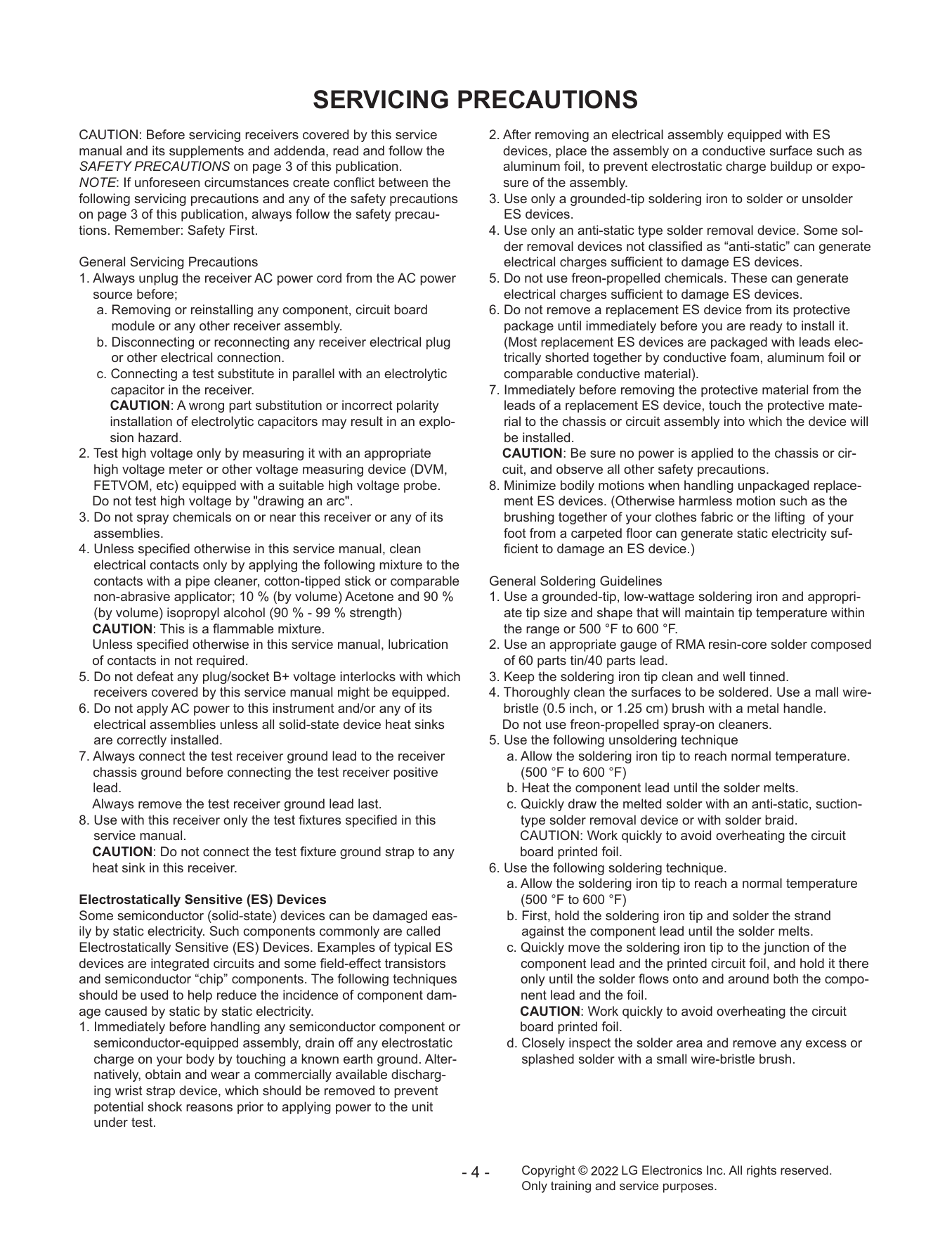
General Guidance Leakage Current Hot Check (See below Figure)
Plug the AC cord directly into the AC outlet.
An isolation Transformer should always be used during the
servicing of a receiver whose chassis is not isolated from the AC Do not use a line Isolation Transformer during this check.
power line. Use a transformer of adequate power rating as this Connect 1.5 K / 10 watt resistor in parallel with a 0.15 uF capacitor
protects the technician from accidents resulting in personal injury between a known good earth ground (Water Pipe, Conduit, etc.)
from electrical shocks. and the exposed metallic parts.
Measure the AC voltage across the resistor using AC voltmeter
It will also protect the receiver and it's components from being with 1000 ohms/volt or more sensitivity.
damaged by accidental shorts of the circuitry that may be Reverse plug the AC cord into the AC outlet and repeat AC voltage
inadvertently introduced during the service operation. measurements for each exposed metallic part. Any voltage
measured must not exceed 0.75 volt RMS which is corresponds to
If any fuse (or Fusible Resistor) in this TV receiver is blown, 0.5 mA.
replace it with the specified. In case any measurement is out of the limits specified, there is
possibility of shock hazard and the set must be checked and
When replacing a high wattage resistor (Oxide Metal Film Resistor, repaired before it is returned to the customer.
over 1 W), keep the resistor 10 mm away from PCB.
Leakage Current Hot Check circuit
Keep wires away from high voltage or high temperature parts.
Before returning the receiver to the customer,
always perform an AC leakage current check on the exposed
metallic parts of the cabinet, such as antennas, terminals, etc., to
be sure the set is safe to operate without damage of electrical
shock.
Leakage Current Cold Check(Antenna Cold Check)
With the instrument AC plug removed from AC source, connect an
electrical jumper across the two AC plug prongs. Place the AC
switch in the on position, connect one lead of ohm-meter to the AC
plug prongs tied together and touch other ohm-meter lead in turn to
each exposed metallic parts such as antenna terminals, phone
jacks, etc.
If the exposed metallic part has a return path to the chassis, the
measured resistance should be between 1 MΩ and 5.2 MΩ.
When the exposed metal has no return path to the chassis the
reading must be infinite.
An other abnormality exists that must be corrected before the
receiver is returned to the customer.
-3- Copyright © LG Electronics Inc. All rights reserved.
Only training and service purposes.
SERVICING PRECAUTIONS
CAUTION: Before servicing receivers covered by this service 2. After removing an electrical assembly equipped with ES
manual and its supplements and addenda, read and follow the devices, place the assembly on a conductive surface such as
SAFETY PRECAUTIONS on page 3 of this publication. aluminum foil, to prevent electrostatic charge buildup or expo-
NOTE: If unforeseen circumstances create conflict between the sure of the assembly.
following servicing precautions and any of the safety precautions 3. Use only a grounded-tip soldering iron to solder or unsolder
on page 3 of this publication, always follow the safety precau- ES devices.
tions. Remember: Safety First. 4. Use only an anti-static type solder removal device. Some sol-
der removal devices not classified as “anti-static” can generate
General Servicing Precautions electrical charges sufficient to damage ES devices.
1. Always unplug the receiver AC power cord from the AC power 5. Do not use freon-propelled chemicals. These can generate
source before; electrical charges sufficient to damage ES devices.
a. Removing or reinstalling any component, circuit board 6. Do not remove a replacement ES device from its protective
module or any other receiver assembly. package until immediately before you are ready to install it.
b. Disconnecting or reconnecting any receiver electrical plug (Most replacement ES devices are packaged with leads elec-
or other electrical connection. trically shorted together by conductive foam, aluminum foil or
c. Connecting a test substitute in parallel with an electrolytic comparable conductive material).
capacitor in the receiver. 7. Immediately before removing the protective material from the
CAUTION: A wrong part substitution or incorrect polarity leads of a replacement ES device, touch the protective mate-
installation of electrolytic capacitors may result in an explo- rial to the chassis or circuit assembly into which the device will
sion hazard. be installed.
2. Test high voltage only by measuring it with an appropriate CAUTION: Be sure no power is applied to the chassis or cir-
high voltage meter or other voltage measuring device (DVM, cuit, and observe all other safety precautions.
FETVOM, etc) equipped with a suitable high voltage probe. 8. Minimize bodily motions when handling unpackaged replace-
Do not test high voltage by "drawing an arc". ment ES devices. (Otherwise harmless motion such as the
3. Do not spray chemicals on or near this receiver or any of its brushing together of your clothes fabric or the lifting of your
assemblies. foot from a carpeted floor can generate static electricity suf-
4. Unless specified otherwise in this service manual, clean ficient to damage an ES device.)
electrical contacts only by applying the following mixture to the
contacts with a pipe cleaner, cotton-tipped stick or comparable General Soldering Guidelines
non-abrasive applicator; 10 % (by volume) Acetone and 90 % 1. Use a grounded-tip, low-wattage soldering iron and appropri-
(by volume) isopropyl alcohol (90 % - 99 % strength) ate tip size and shape that will maintain tip temperature within
CAUTION: This is a flammable mixture. the range or 500 °F to 600 °F.
Unless specified otherwise in this service manual, lubrication 2. Use an appropriate gauge of RMA resin-core solder composed
of contacts in not required. of 60 parts tin/40 parts lead.
5. Do not defeat any plug/socket B+ voltage interlocks with which 3. Keep the soldering iron tip clean and well tinned.
receivers covered by this service manual might be equipped. 4. Thoroughly clean the surfaces to be soldered. Use a mall wire-
6. Do not apply AC power to this instrument and/or any of its bristle (0.5 inch, or 1.25 cm) brush with a metal handle.
electrical assemblies unless all solid-state device heat sinks Do not use freon-propelled spray-on cleaners.
are correctly installed. 5. Use the following unsoldering technique
7. Always connect the test receiver ground lead to the receiver a. Allow the soldering iron tip to reach normal temperature.
chassis ground before connecting the test receiver positive (500 °F to 600 °F)
lead. b. Heat the component lead until the solder melts.
Always remove the test receiver ground lead last. c. Quickly draw the melted solder with an anti-static, suction-
8. Use with this receiver only the test fixtures specified in this type solder removal device or with solder braid.
service manual. CAUTION: Work quickly to avoid overheating the circuit
CAUTION: Do not connect the test fixture ground strap to any board printed foil.
heat sink in this receiver. 6. Use the following soldering technique.
a. Allow the soldering iron tip to reach a normal temperature
Electrostatically Sensitive (ES) Devices (500 °F to 600 °F)
Some semiconductor (solid-state) devices can be damaged eas- b. First, hold the soldering iron tip and solder the strand
ily by static electricity. Such components commonly are called against the component lead until the solder melts.
Electrostatically Sensitive (ES) Devices. Examples of typical ES c. Quickly move the soldering iron tip to the junction of the
devices are integrated circuits and some field-effect transistors component lead and the printed circuit foil, and hold it there
and semiconductor “chip” components. The following techniques only until the solder flows onto and around both the compo-
should be used to help reduce the incidence of component dam- nent lead and the foil.
age caused by static by static electricity. CAUTION: Work quickly to avoid overheating the circuit
1. Immediately before handling any semiconductor component or board printed foil.
semiconductor-equipped assembly, drain off any electrostatic d. Closely inspect the solder area and remove any excess or
charge on your body by touching a known earth ground. Alter- splashed solder with a small wire-bristle brush.
natively, obtain and wear a commercially available discharg-
ing wrist strap device, which should be removed to prevent
potential shock reasons prior to applying power to the unit
under test.
-4- Copyright © LG Electronics Inc. All rights reserved.
Only training and service purposes.
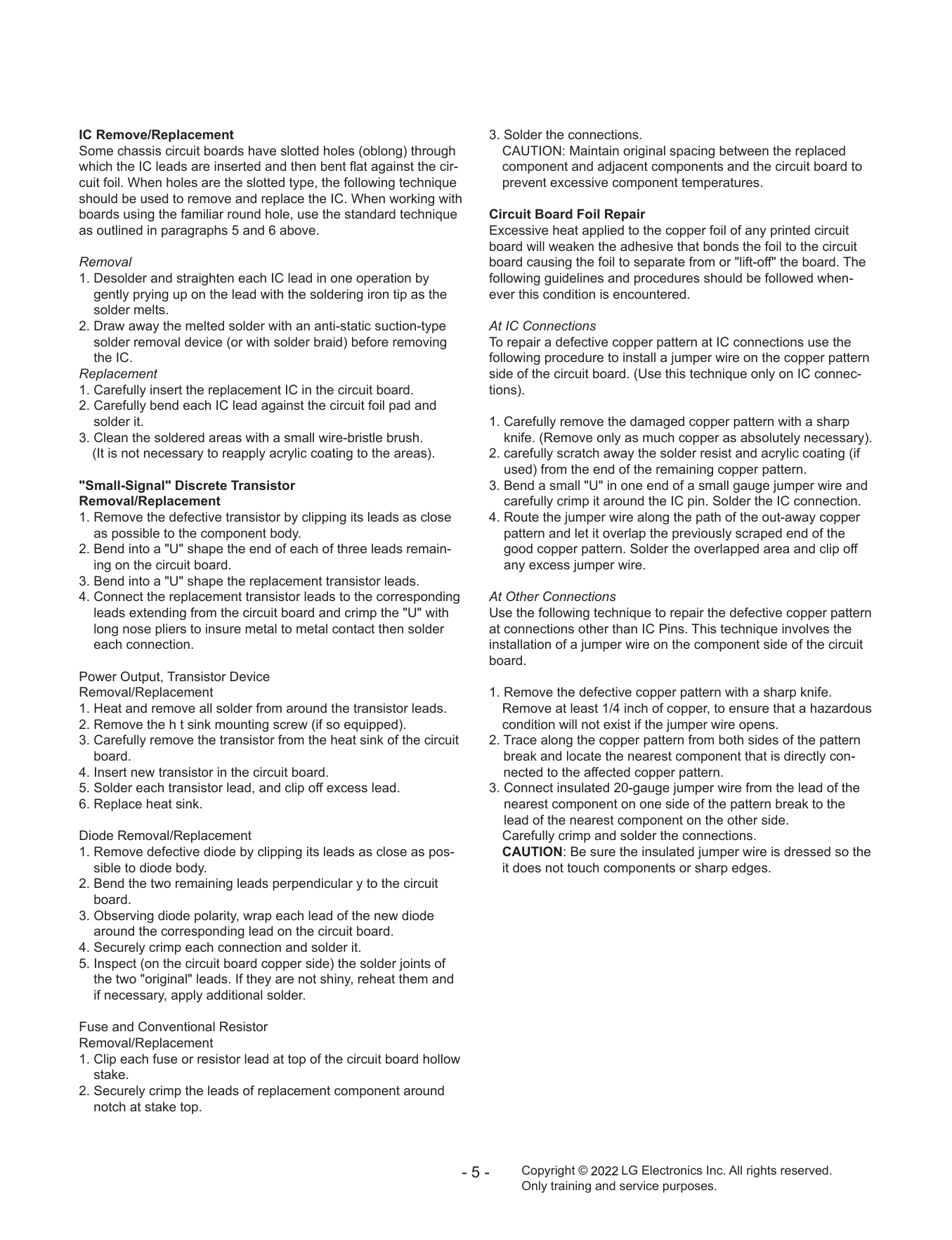
IC Remove/Replacement 3. Solder the connections.
Some chassis circuit boards have slotted holes (oblong) through CAUTION: Maintain original spacing between the replaced
which the IC leads are inserted and then bent flat against the cir- component and adjacent components and the circuit board to
cuit foil. When holes are the slotted type, the following technique prevent excessive component temperatures.
should be used to remove and replace the IC. When working with
boards using the familiar round hole, use the standard technique Circuit Board Foil Repair
as outlined in paragraphs 5 and 6 above. Excessive heat applied to the copper foil of any printed circuit
board will weaken the adhesive that bonds the foil to the circuit
Removal board causing the foil to separate from or "lift-off" the board. The
1. Desolder and straighten each IC lead in one operation by following guidelines and procedures should be followed when-
gently prying up on the lead with the soldering iron tip as the ever this condition is encountered.
solder melts.
2. Draw away the melted solder with an anti-static suction-type At IC Connections
solder removal device (or with solder braid) before removing To repair a defective copper pattern at IC connections use the
the IC. following procedure to install a jumper wire on the copper pattern
Replacement side of the circuit board. (Use this technique only on IC connec-
1. Carefully insert the replacement IC in the circuit board. tions).
2. Carefully bend each IC lead against the circuit foil pad and
solder it. 1. Carefully remove the damaged copper pattern with a sharp
3. Clean the soldered areas with a small wire-bristle brush. knife. (Remove only as much copper as absolutely necessary).
(It is not necessary to reapply acrylic coating to the areas). 2. carefully scratch away the solder resist and acrylic coating (if
used) from the end of the remaining copper pattern.
"Small-Signal" Discrete Transistor 3. Bend a small "U" in one end of a small gauge jumper wire and
Removal/Replacement carefully crimp it around the IC pin. Solder the IC connection.
1. Remove the defective transistor by clipping its leads as close 4. Route the jumper wire along the path of the out-away copper
as possible to the component body. pattern and let it overlap the previously scraped end of the
2. Bend into a "U" shape the end of each of three leads remain- good copper pattern. Solder the overlapped area and clip off
ing on the circuit board. any excess jumper wire.
3. Bend into a "U" shape the replacement transistor leads.
4. Connect the replacement transistor leads to the corresponding At Other Connections
leads extending from the circuit board and crimp the "U" with Use the following technique to repair the defective copper pattern
long nose pliers to insure metal to metal contact then solder at connections other than IC Pins. This technique involves the
each connection. installation of a jumper wire on the component side of the circuit
board.
Power Output, Transistor Device
Removal/Replacement 1. Remove the defective copper pattern with a sharp knife.
1. Heat and remove all solder from around the transistor leads. Remove at least 1/4 inch of copper, to ensure that a hazardous
2. Remove the h t sink mounting screw (if so equipped). condition will not exist if the jumper wire opens.
3. Carefully remove the transistor from the heat sink of the circuit 2. Trace along the copper pattern from both sides of the pattern
board. break and locate the nearest component that is directly con-
4. Insert new transistor in the circuit board. nected to the affected copper pattern.
5. Solder each transistor lead, and clip off excess lead. 3. Connect insulated 20-gauge jumper wire from the lead of the
6. Replace heat sink. nearest component on one side of the pattern break to the
lead of the nearest component on the other side.
Diode Removal/Replacement Carefully crimp and solder the connections.
1. Remove defective diode by clipping its leads as close as pos- CAUTION: Be sure the insulated jumper wire is dressed so the
sible to diode body. it does not touch components or sharp edges.
2. Bend the two remaining leads perpendicular y to the circuit
board.
3. Observing diode polarity, wrap each lead of the new diode
around the corresponding lead on the circuit board.
4. Securely crimp each connection and solder it.
5. Inspect (on the circuit board copper side) the solder joints of
the two "original" leads. If they are not shiny, reheat them and
if necessary, apply additional solder.
Fuse and Conventional Resistor
Removal/Replacement
1. Clip each fuse or resistor lead at top of the circuit board hollow
stake.
2. Securely crimp the leads of replacement component around
notch at stake top.
-5- Copyright © LG Electronics Inc. All rights reserved.
Only training and service purposes.
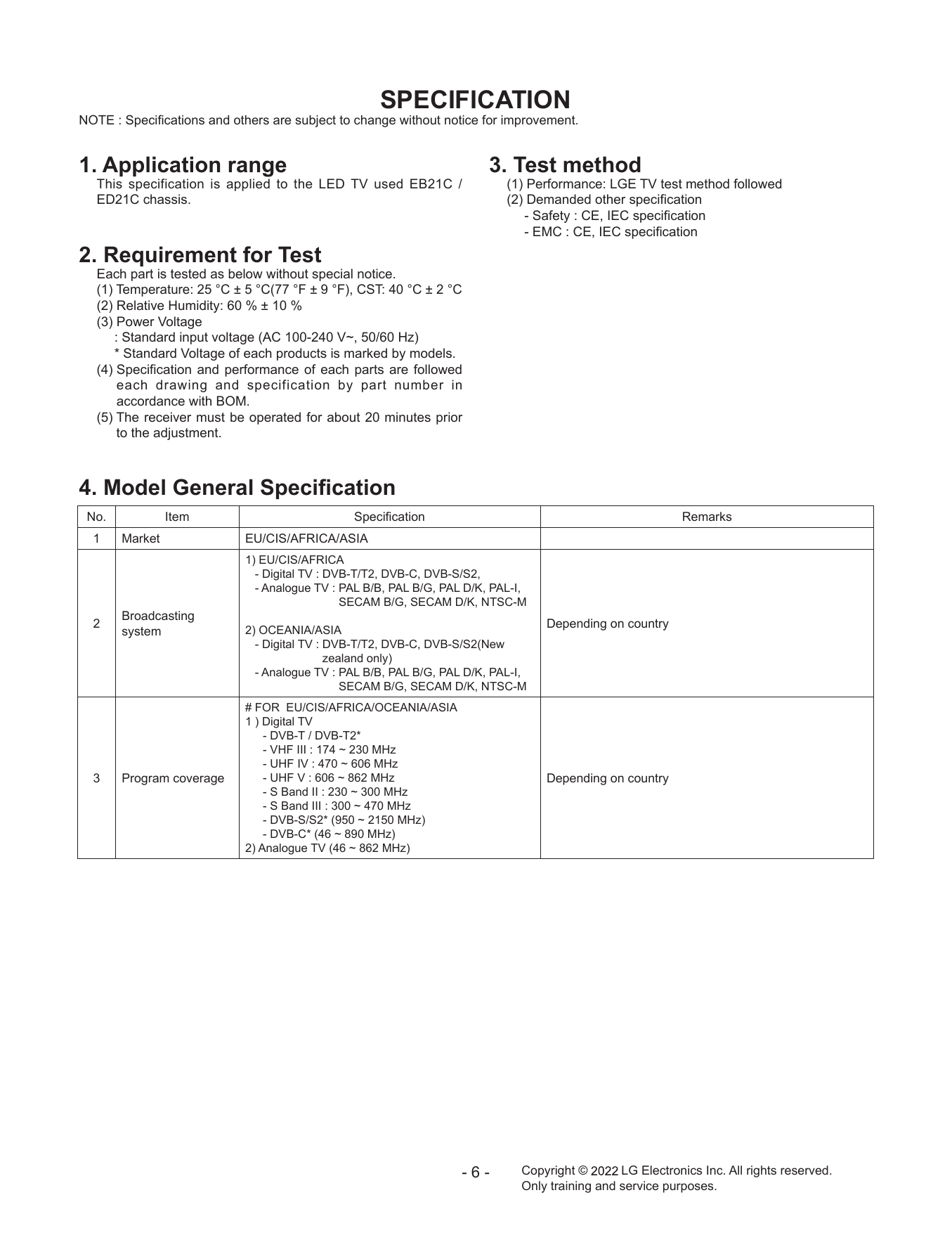
SPECIFICATION
NOTE : Specifications and others are subject to change without notice for improvement.
1. Application range 3. Test method
This specification is applied to the LED TV used EB21C / (1) Performance: LGE TV test method followed
ED21C chassis. (2) Demanded other specification
- Safety : CE, IEC specification
- EMC : CE, IEC specification
2. Requirement for Test
Each part is tested as below without special notice.
(1) Temperature: 25 °C ± 5 °C(77 °F ± 9 °F), CST: 40 °C ± 2 °C
(2) Relative Humidity: 60 % ± 10 %
(3) Power Voltage
: Standard input voltage (AC 100-240 V~, 50/60 Hz)
* Standard Voltage of each products is marked by models.
(4) Specification and performance of each parts are followed
each drawing and specification by part number in
accordance with BOM.
(5) The receiver must be operated for about 20 minutes prior
to the adjustment.
4. Model General Specification
No. Item Specification Remarks
1 Market EU/CIS/AFRICA/ASIA
1) EU/CIS/AFRICA
- Digital TV : DVB-T/T2, DVB-C, DVB-S/S2,
- Analogue TV : P AL B/B, PAL B/G, PAL D/K, PAL-I,
SECAM B/G, SECAM D/K, NTSC-M
Broadcasting
2 Depending on country
system 2) OCEANIA/ASIA
- Digital TV : D
VB-T/T2, DVB-C, DVB-S/S2(New
zealand only)
- Analogue TV : P AL B/B, PAL B/G, PAL D/K, PAL-I,
SECAM B/G, SECAM D/K, NTSC-M
# FOR EU/CIS/AFRICA/OCEANIA/ASIA
1 ) Digital TV
- DVB-T / DVB-T2*
- VHF III : 174 ~ 230 MHz
- UHF IV : 470 ~ 606 MHz
3 Program coverage - UHF V : 606 ~ 862 MHz Depending on country
- S Band II : 230 ~ 300 MHz
- S Band III : 300 ~ 470 MHz
- DVB-S/S2* (950 ~ 2150 MHz)
- DVB-C* (46 ~ 890 MHz)
2) Analogue TV (46 ~ 862 MHz)
-6- Copyright © LG Electronics Inc. All rights reserved.
Only training and service purposes.
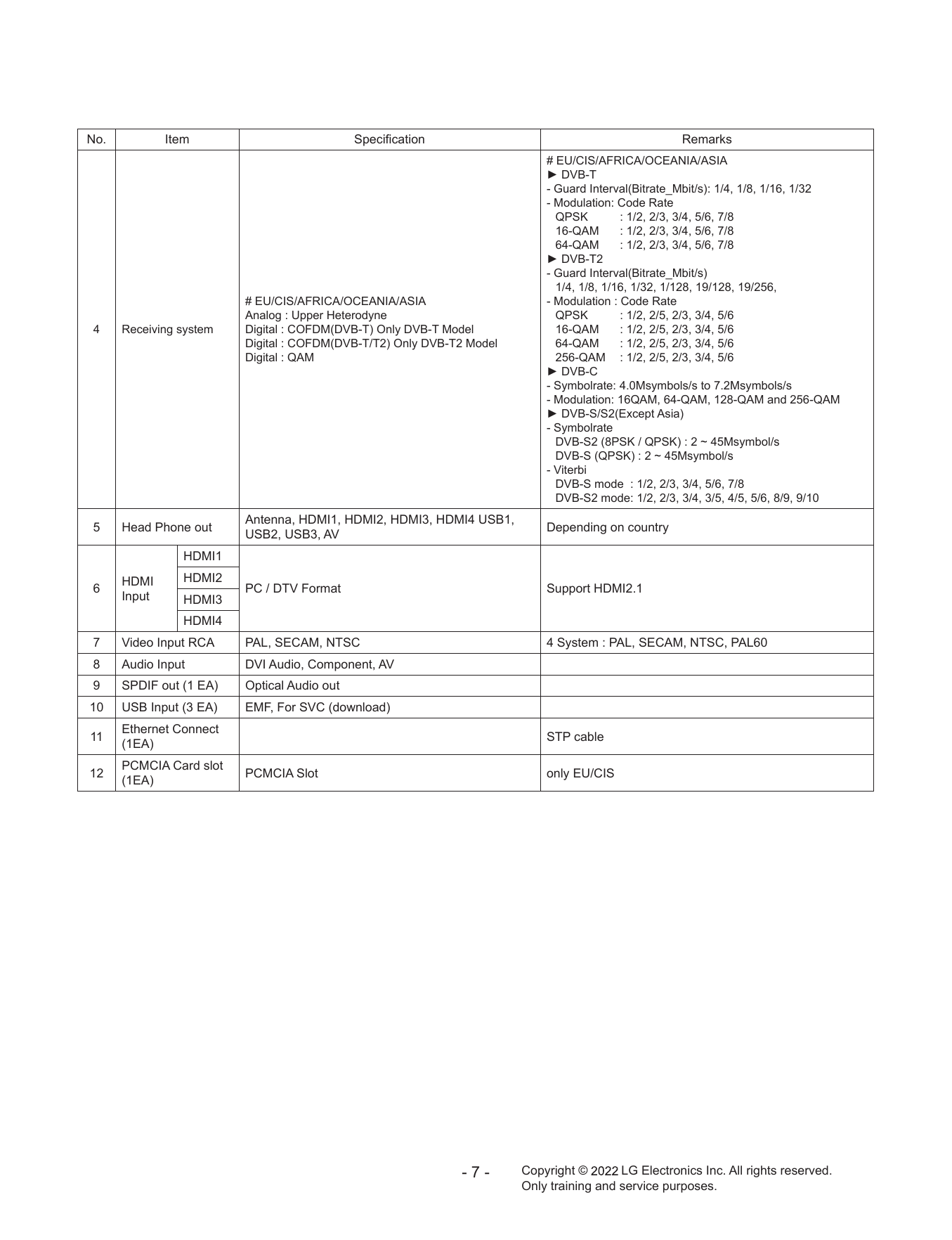
No. Item Specification Remarks
# EU/CIS/AFRICA/OCEANIA/ASIA
► DVB-T
- Guard Interval(Bitrate_Mbit/s): 1/4, 1/8, 1/16, 1/32
- Modulation: Code Rate
QPSK : 1/2, 2/3, 3/4, 5/6, 7/8
16-QAM : 1/2, 2/3, 3/4, 5/6, 7/8
64-QAM : 1/2, 2/3, 3/4, 5/6, 7/8
► DVB-T2
- Guard Interval(Bitrate_Mbit/s)
1/4, 1/8, 1/16, 1/32, 1/128, 19/128, 19/256,
# EU/CIS/AFRICA/OCEANIA/ASIA - Modulation : Code Rate
Analog : Upper Heterodyne QPSK : 1/2, 2/5, 2/3, 3/4, 5/6
4 Receiving system Digital : COFDM(DVB-T) Only DVB-T Model 16-QAM : 1/2, 2/5, 2/3, 3/4, 5/6
Digital : COFDM(DVB-T/T2) Only DVB-T2 Model 64-QAM : 1/2, 2/5, 2/3, 3/4, 5/6
Digital : QAM 256-QAM : 1/2, 2/5, 2/3, 3/4, 5/6
► DVB-C
- Symbolrate: 4.0Msymbols/s to 7.2Msymbols/s
- Modulation: 16QAM, 64-QAM, 128-QAM and 256-QAM
► DVB-S/S2(Except Asia)
- Symbolrate
DVB-S2 (8PSK / QPSK) : 2 ~ 45Msymbol/s
DVB-S (QPSK) : 2 ~ 45Msymbol/s
- Viterbi
DVB-S mode : 1/2, 2/3, 3/4, 5/6, 7/8
DVB-S2 mode: 1/2, 2/3, 3/4, 3/5, 4/5, 5/6, 8/9, 9/10
Antenna, HDMI1, HDMI2, HDMI3, HDMI4 USB1,
5 Head Phone out Depending on country
USB2, USB3, AV
HDMI1
HDMI HDMI2
6 PC / DTV Format Support HDMI2.1
Input HDMI3
HDMI4
7 Video Input RCA PAL, SECAM, NTSC 4 System : PAL, SECAM, NTSC, PAL60
8 Audio Input DVI Audio, Component, AV
9 SPDIF out (1 EA) Optical Audio out
10 USB Input (3 EA) EMF, For SVC (download)
Ethernet Connect
11 STP cable
(1EA)
PCMCIA Card slot
12 PCMCIA Slot only EU/CIS
(1EA)
-7- Copyright © LG Electronics Inc. All rights reserved.
Only training and service purposes.
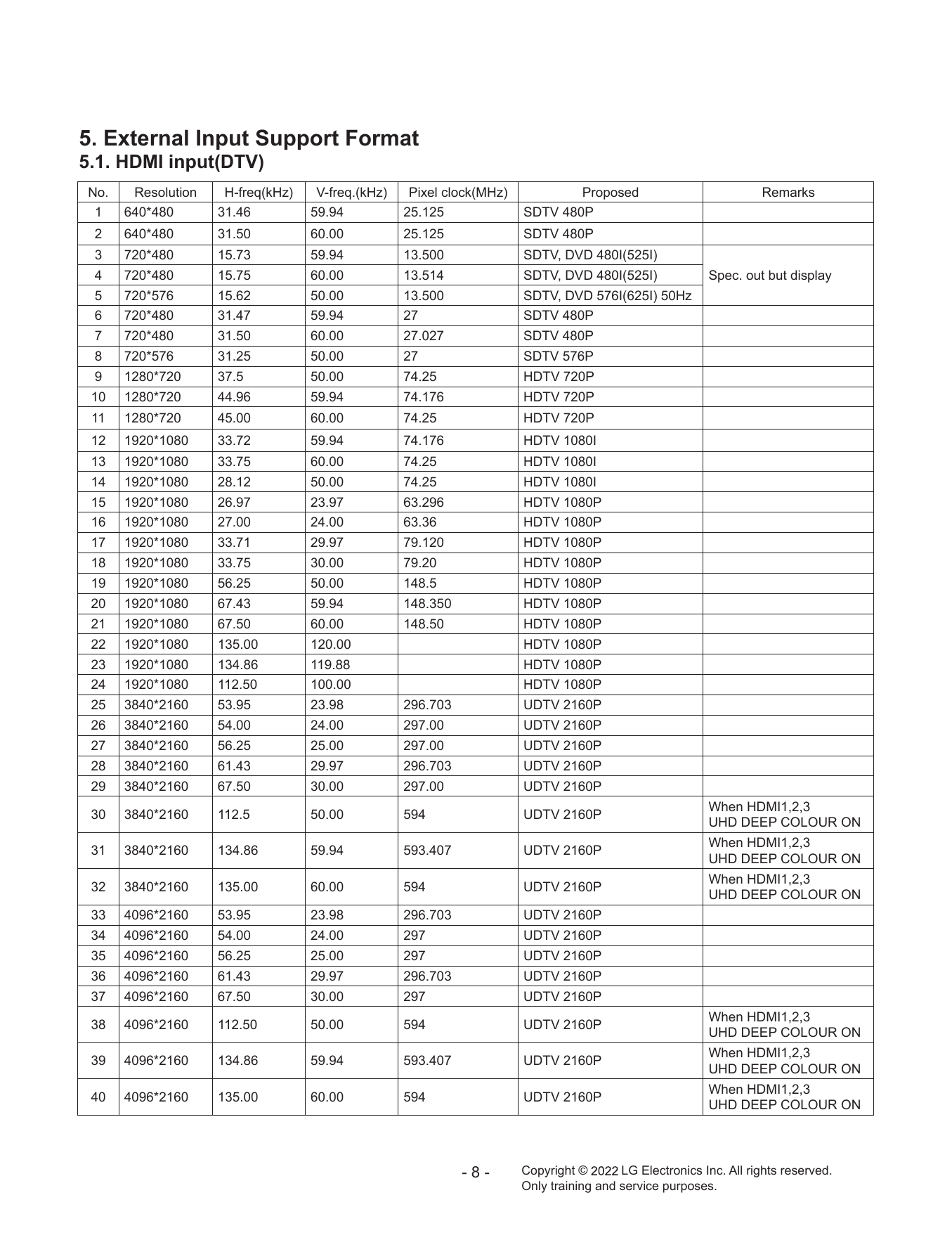
5. External Input Support Format
5.1. HDMI input(DTV)
No. Resolution H-freq(kHz) V-freq.(kHz) Pixel clock(MHz) Proposed Remarks
1 640*480 31.46 59.94 25.125 SDTV 480P
2 640*480 31.50 60.00 25.125 SDTV 480P
3 720*480 15.73 59.94 13.500 SDTV, DVD 480I(525I)
4 720*480 15.75 60.00 13.514 SDTV, DVD 480I(525I) Spec. out but display
5 720*576 15.62 50.00 13.500 SDTV, DVD 576I(625I) 50Hz
6 720*480 31.47 59.94 27 SDTV 480P
7 720*480 31.50 60.00 27.027 SDTV 480P
8 720*576 31.25 50.00 27 SDTV 576P
9 1280*720 37.5 50.00 74.25 HDTV 720P
10 1280*720 44.96 59.94 74.176 HDTV 720P
11 1280*720 45.00 60.00 74.25 HDTV 720P
12 1920*1080 33.72 59.94 74.176 HDTV 1080I
13 1920*1080 33.75 60.00 74.25 HDTV 1080I
14 1920*1080 28.12 50.00 74.25 HDTV 1080I
15 1920*1080 26.97 23.97 63.296 HDTV 1080P
16 1920*1080 27.00 24.00 63.36 HDTV 1080P
17 1920*1080 33.71 29.97 79.120 HDTV 1080P
18 1920*1080 33.75 30.00 79.20 HDTV 1080P
19 1920*1080 56.25 50.00 148.5 HDTV 1080P
20 1920*1080 67.43 59.94 148.350 HDTV 1080P
21 1920*1080 67.50 60.00 148.50 HDTV 1080P
22 1920*1080 135.00 120.00 HDTV 1080P
23 1920*1080 134.86 119.88 HDTV 1080P
24 1920*1080 112.50 100.00 HDTV 1080P
25 3840*2160 53.95 23.98 296.703 UDTV 2160P
26 3840*2160 54.00 24.00 297.00 UDTV 2160P
27 3840*2160 56.25 25.00 297.00 UDTV 2160P
28 3840*2160 61.43 29.97 296.703 UDTV 2160P
29 3840*2160 67.50 30.00 297.00 UDTV 2160P
When HDMI1,2,3
30 3840*2160 112.5 50.00 594 UDTV 2160P
UHD DEEP COLOUR ON
When HDMI1,2,3
31 3840*2160 134.86 59.94 593.407 UDTV 2160P
UHD DEEP COLOUR ON
When HDMI1,2,3
32 3840*2160 135.00 60.00 594 UDTV 2160P
UHD DEEP COLOUR ON
33 4096*2160 53.95 23.98 296.703 UDTV 2160P
34 4096*2160 54.00 24.00 297 UDTV 2160P
35 4096*2160 56.25 25.00 297 UDTV 2160P
36 4096*2160 61.43 29.97 296.703 UDTV 2160P
37 4096*2160 67.50 30.00 297 UDTV 2160P
When HDMI1,2,3
38 4096*2160 112.50 50.00 594 UDTV 2160P
UHD DEEP COLOUR ON
When HDMI1,2,3
39 4096*2160 134.86 59.94 593.407 UDTV 2160P
UHD DEEP COLOUR ON
When HDMI1,2,3
40 4096*2160 135.00 60.00 594 UDTV 2160P
UHD DEEP COLOUR ON
-8- Copyright © LG Electronics Inc. All rights reserved.
Only training and service purposes.
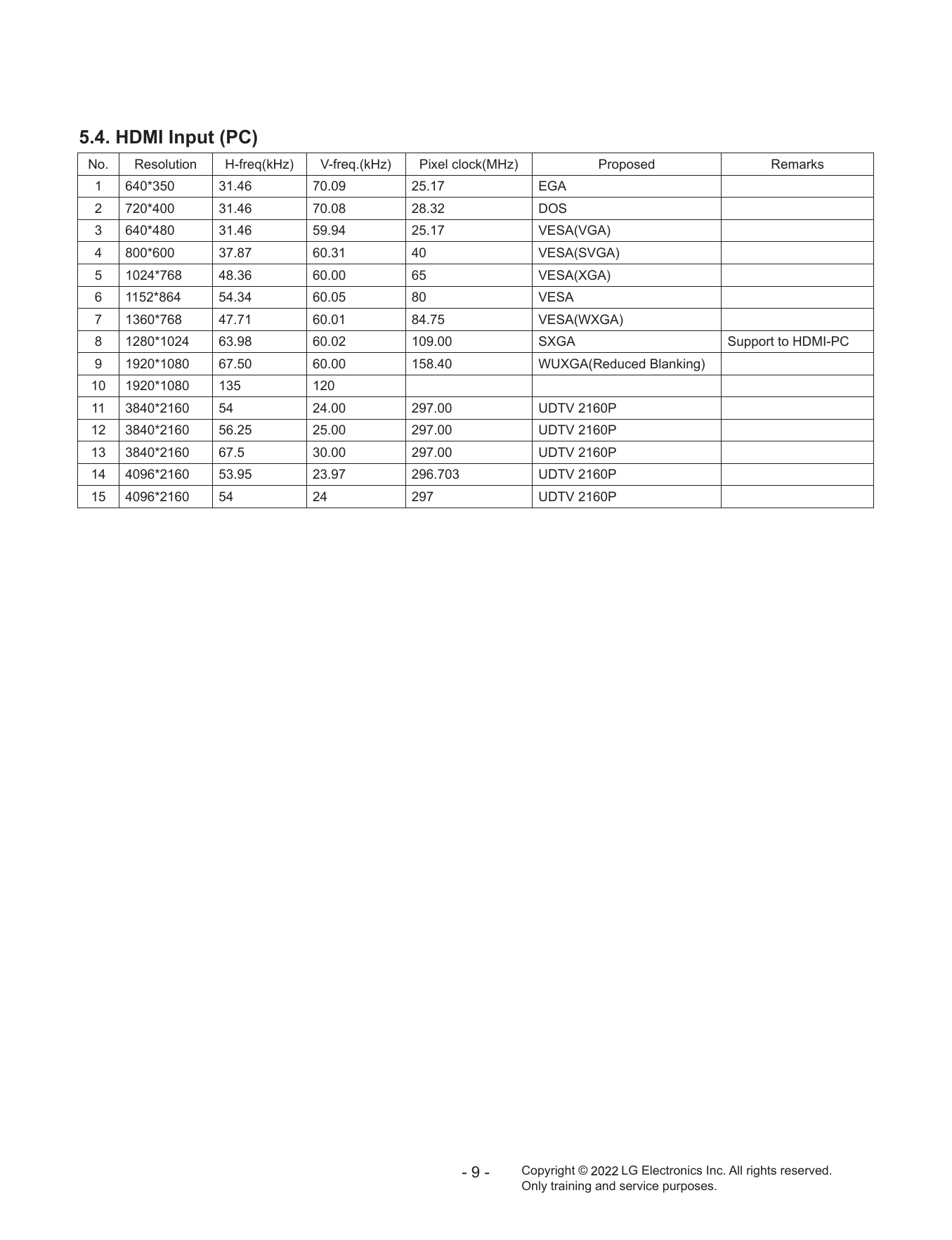
5.4. HDMI Input (PC)
No. Resolution H-freq(kHz) V-freq.(kHz) Pixel clock(MHz) Proposed Remarks
1 640*350 31.46 70.09 25.17 EGA
2 720*400 31.46 70.08 28.32 DOS
3 640*480 31.46 59.94 25.17 VESA(VGA)
4 800*600 37.87 60.31 40 VESA(SVGA)
5 1024*768 48.36 60.00 65 VESA(XGA)
6 1152*864 54.34 60.05 80 VESA
7 1360*768 47.71 60.01 84.75 VESA(WXGA)
8 1280*1024 63.98 60.02 109.00 SXGA Support to HDMI-PC
9 1920*1080 67.50 60.00 158.40 WUXGA(Reduced Blanking)
10 1920*1080 135 120
11 3840*2160 54 24.00 297.00 UDTV 2160P
12 3840*2160 56.25 25.00 297.00 UDTV 2160P
13 3840*2160 67.5 30.00 297.00 UDTV 2160P
14 4096*2160 53.95 23.97 296.703 UDTV 2160P
15 4096*2160 54 24 297 UDTV 2160P
-9- Copyright © LG Electronics Inc. All rights reserved.
Only training and service purposes.
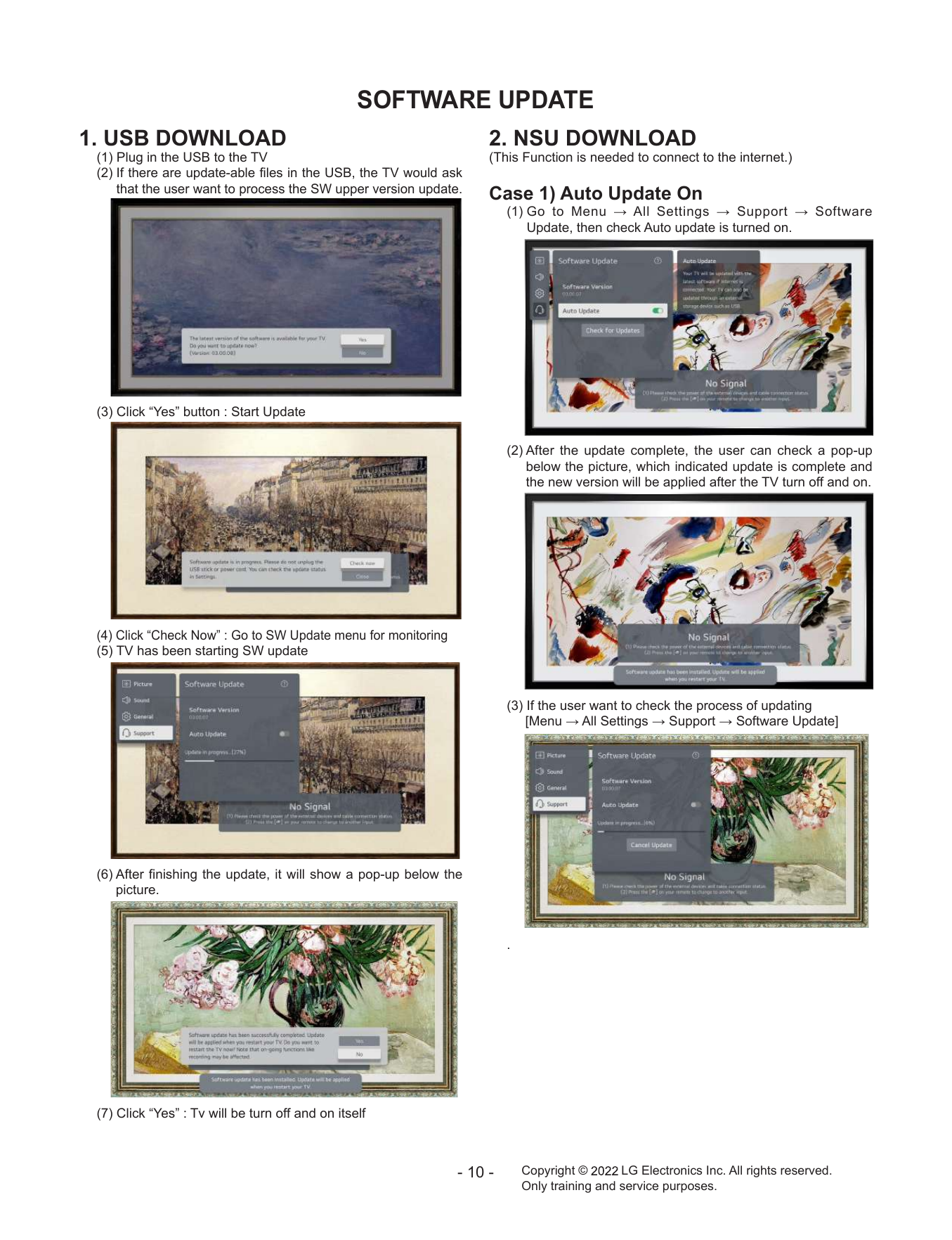
SOFTWARE UPDATE
1. USB DOWNLOAD 2. NSU DOWNLOAD
(1) Plug in the USB to the TV (This Function is needed to connect to the internet.)
(2) If there are update-able files in the USB, the TV would ask
that the user want to process the SW upper version update. Case 1) Auto Update On
(1) G o to Menu → All Settings → Support → Software
Update, then check Auto update is turned on.
(3) Click “Yes” button : Start Update
(2) After the update complete, the user can check a pop-up
below the picture, which indicated update is complete and
the new version will be applied after the TV turn off and on.
(4) Click “Check Now” : Go to SW Update menu for monitoring
(5) TV has been starting SW update
(3) If the user want to check the process of updating
[Menu → All Settings → Support → Software Update]
(6) After finishing the update, it will show a pop-up below the
picture.
.
(7) Click “Yes” : Tv will be turn off and on itself
- 10 - Copyright © LG Electronics Inc. All rights reserved.
Only training and service purposes.
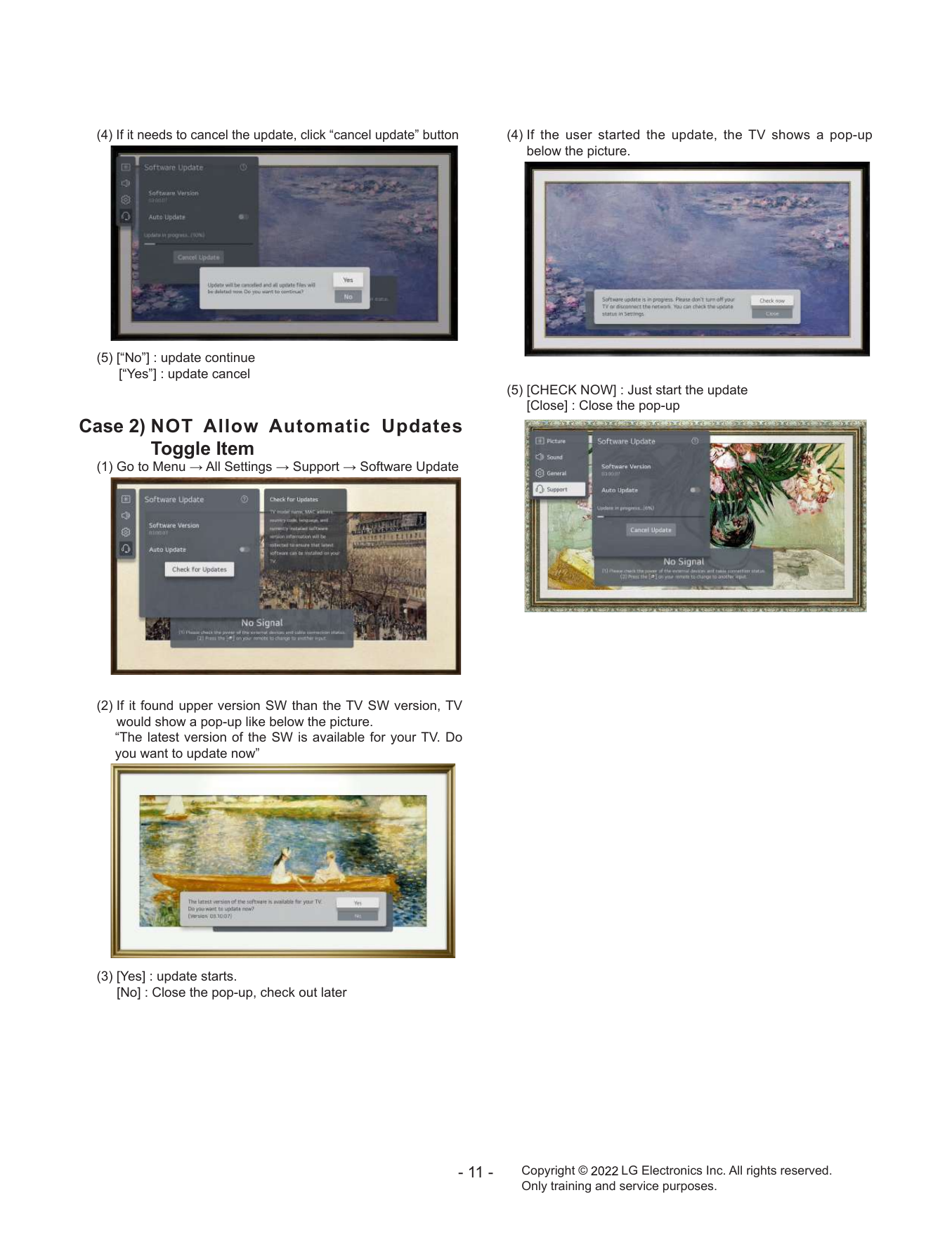
(4) If it needs to cancel the update, click “cancel update” button (4) If the user started the update, the TV shows a pop-up
below the picture.
(5) [“No”] : update continue
[“Yes”] : update cancel
(5) [CHECK NOW] : Just start the update
[Close] : Close the pop-up
Case 2) N
OT Allow Automatic Updates
Toggle Item
(1) Go to Menu → All Settings → Support → Software Update
(2) If it found upper version SW than the TV SW version, TV
would show a pop-up like below the picture.
“The latest version of the SW is available for your TV. Do
you want to update now”
(3) [Yes] : update starts.
[No] : Close the pop-up, check out later
- 11 - Copyright © LG Electronics Inc. All rights reserved.
Only training and service purposes.
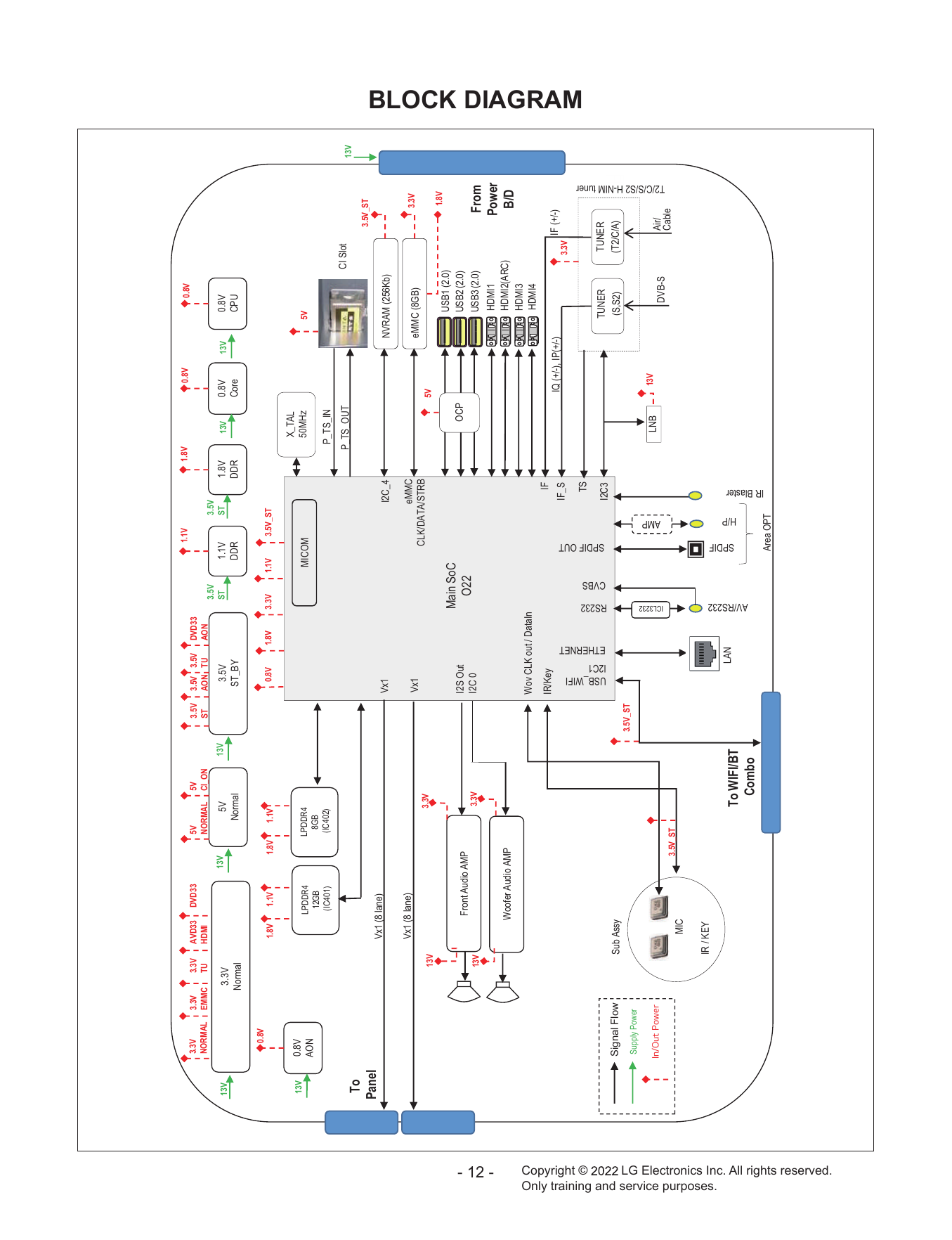
1.1V 1.8V 0.8V 0.8V
3.3V 3.3V 3.3V AVD33 DVD33 5V 5V 3.5V 3.5V 3.5V DVD33
NORMAL EMMC TU HDMI NORMAL CI_ON ST AON TU AON
3.5V 3.5V
13V 13V 5V 13V 3.5V ST 1.1V ST 1.8V 13V 0.8V 13V 0.8V
3.3V
Normal Normal ST_BY DDR DDR Core CPU
0.8V
1.8V 1.1V 1.8V 1.1V 0.8V 1.8V 3.3V 1.1V 3.5V_ST
X_TAL
13V 0.8V
LPDDR4 LPDDR4 MICOM 50MHz 5V
AON 8GB
12GB
(IC401) (IC402) P_TS_IN
P_TS_OUT CI Slot 13V
To
3.5V_ST
Panel Vx1 (8 lane)
Vx1 I2C_4 NVRAM (256Kb)
Vx1 (8 lane) eMMC 3.3V
Vx1 eMMC (8GB)
3.3V CLK/DATA/STRB
13V 5V
1.8V
USB1 (2.0)
Main SoC
Front Audio AMP I2S Out OCP USB2 (2.0)
3.3V I2C 0
O22
13V USB3 (2.0) From
- 12 -
HDMI1 Power
Woofer Audio AMP HDMI2(ARC)
B/D
HDMI3
Wov CLK out / DataIn HDMI4
IR/Key IF
IQ (+/-), IP(+/-) IF (+/-)
IF_S 3.3V
BLOCK DIAGRAM
Copyright ©
TS
tuner
SPDIF OUT
ETHERNET
CVBS
USB_WIFI
I2C1
RS232 I2C3 TUNER TUNER
Signal Flow Sub Assy (S,S2) (T2/C/A)
H-
3.5V_ST
Supply Power
LNB 13V
AMP
,Q2XW3RZHU
ICL3232
Air/
T2/C/S/S2 H-NIM
DVB-S
3.5V_ST Cable
MIC
IR / KEY
Only training and service purposes.
LAN
SPDIF
H/P
To WIFI/BT
AV/RS232
Combo
IR Blaster
Area OPT
LG Electronics Inc. All rights reserved.
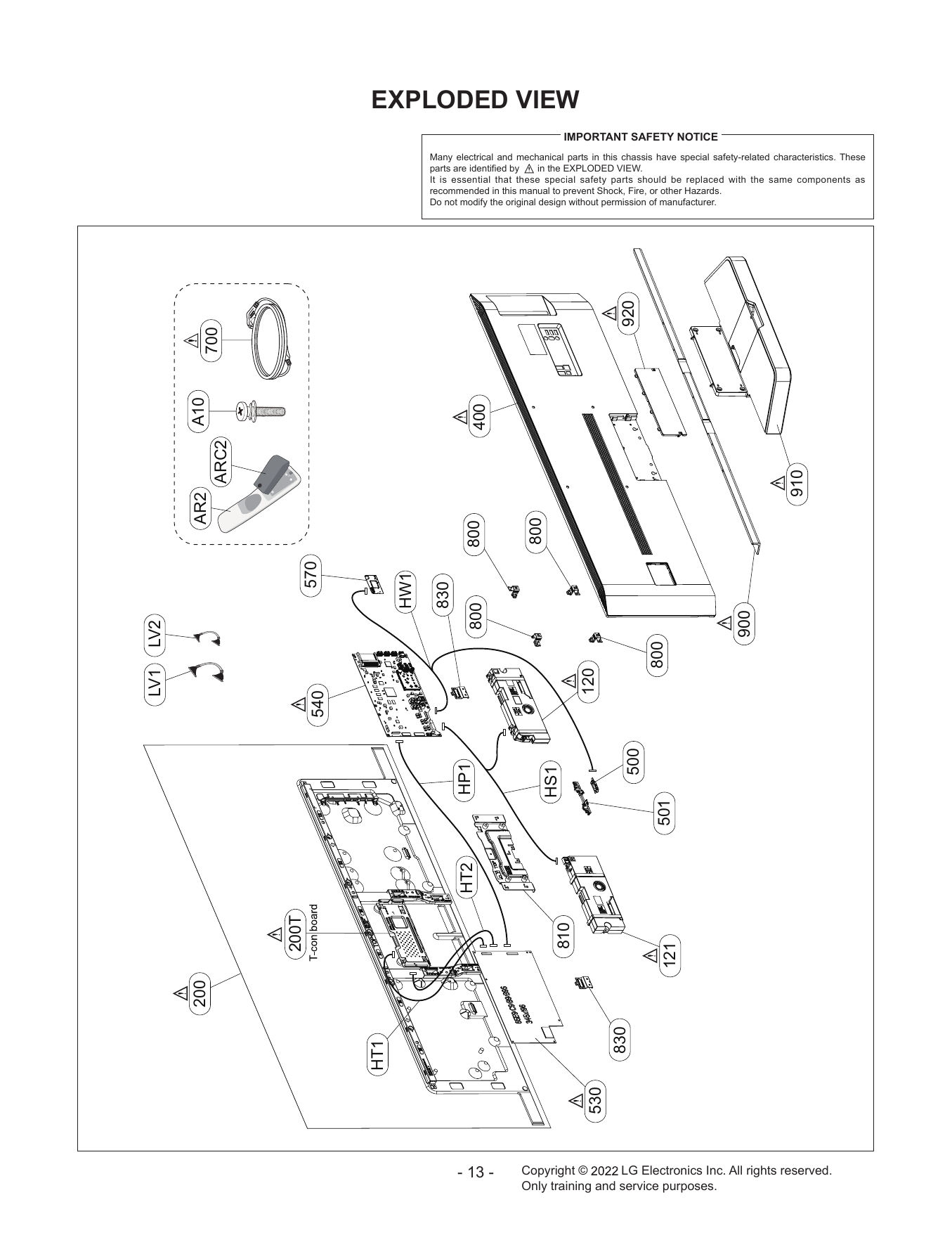
EXPLODED VIEW
IMPORTANT SAFETY NOTICE
Many electrical and mechanical parts in this chassis have special safety-related characteristics. These
parts are identified by in the EXPLODED VIEW.
It is essential that these special safety parts should be replaced with the same components as
recommended in this manual to prevent Shock, Fire, or other Hazards.
Do not modify the original design without permission of manufacturer.
920
700
A10
400
ARC2
910
AR2
800
800
570
HW1
830
800
900
LV2
800
120
LV1
540
500
HP1
HS1
501
HT2
200T
810
121
200
830
HT1
530
- 13 - Copyright © LG Electronics Inc. All rights reserved.
Only training and service purposes.
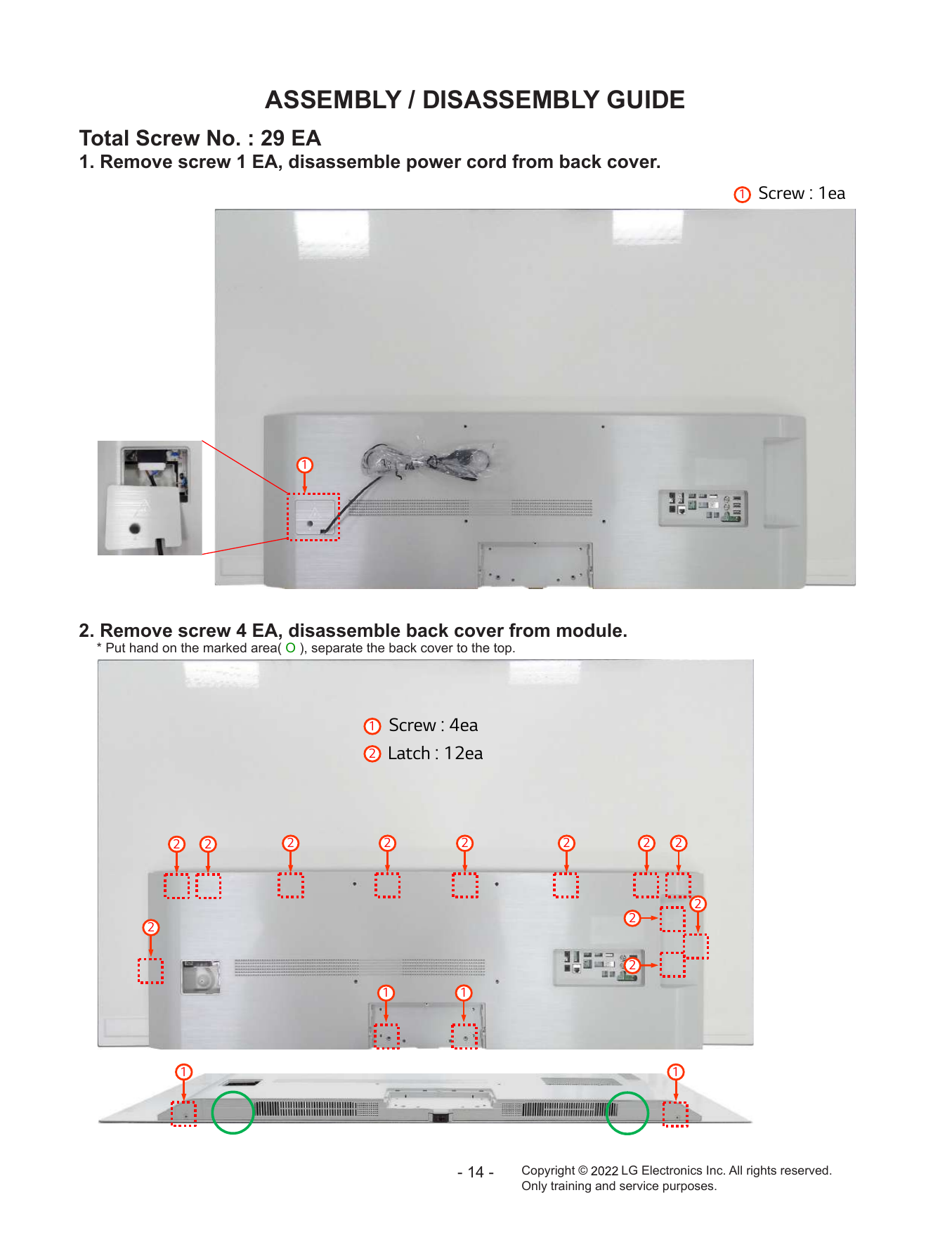
ASSEMBLY / DISASSEMBLY GUIDE
Total Screw No. : 29 EA
1. Remove screw 1 EA, disassemble power cord from back cover.
1 Screw : 1ea
`
1
2. Remove screw 4 EA, disassemble back cover from module.
* Put hand on the marked area( O ), separate the back cover to the top.
1 Screw : 4ea
2 Latch : 12ea
2 2 2 2 2 2 2 2
2
2
2
2
1 1
1 1
- 14 - Copyright © LG Electronics Inc. All rights reserved.
Only training and service purposes.
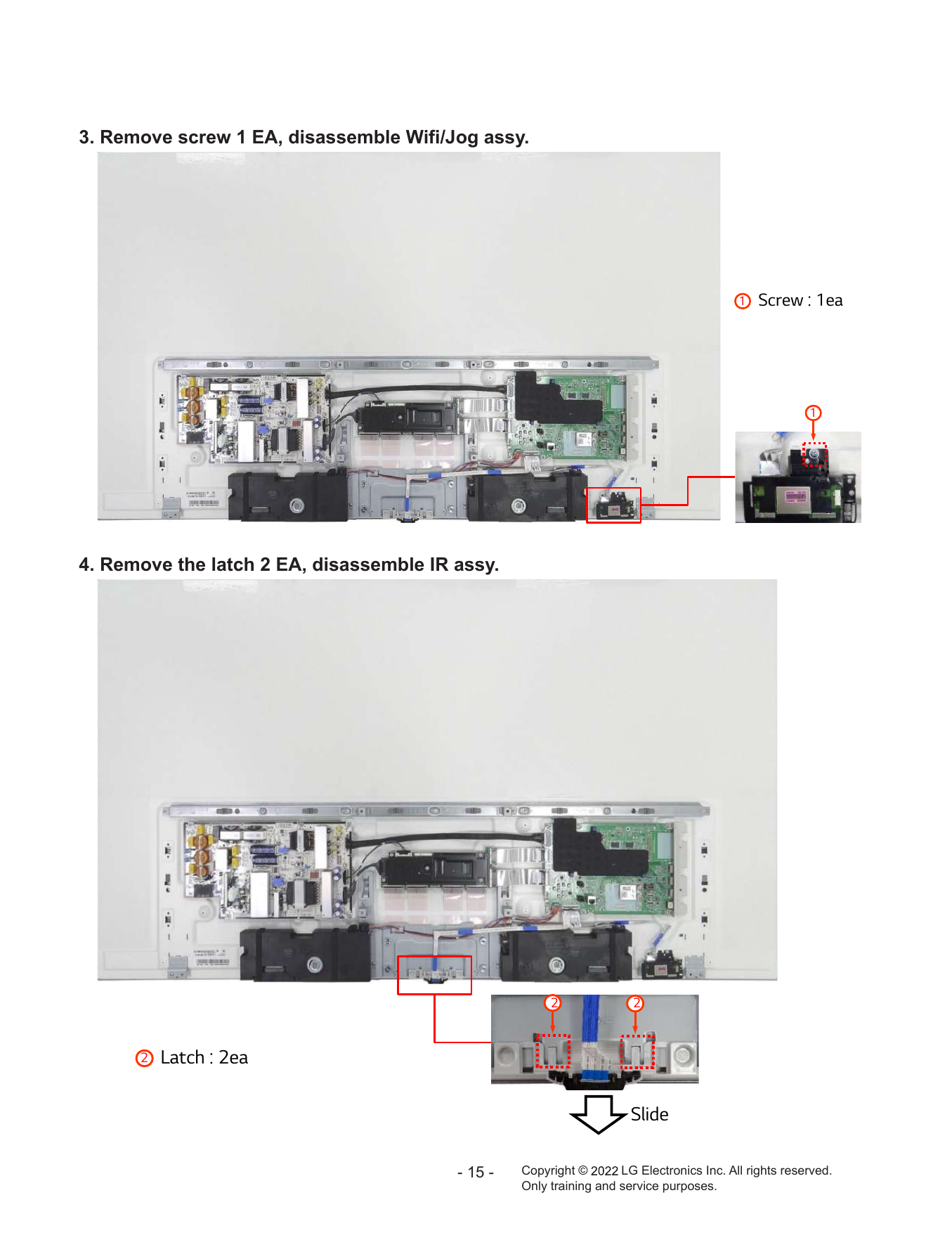
3. Remove screw 1 EA, disassemble Wifi/Jog assy.
1 Screw : 1ea
1
4. Remove the latch 2 EA, disassemble IR assy.
2 2
2 Latch : 2ea
Slide
- 15 - Copyright © LG Electronics Inc. All rights reserved.
Only training and service purposes.
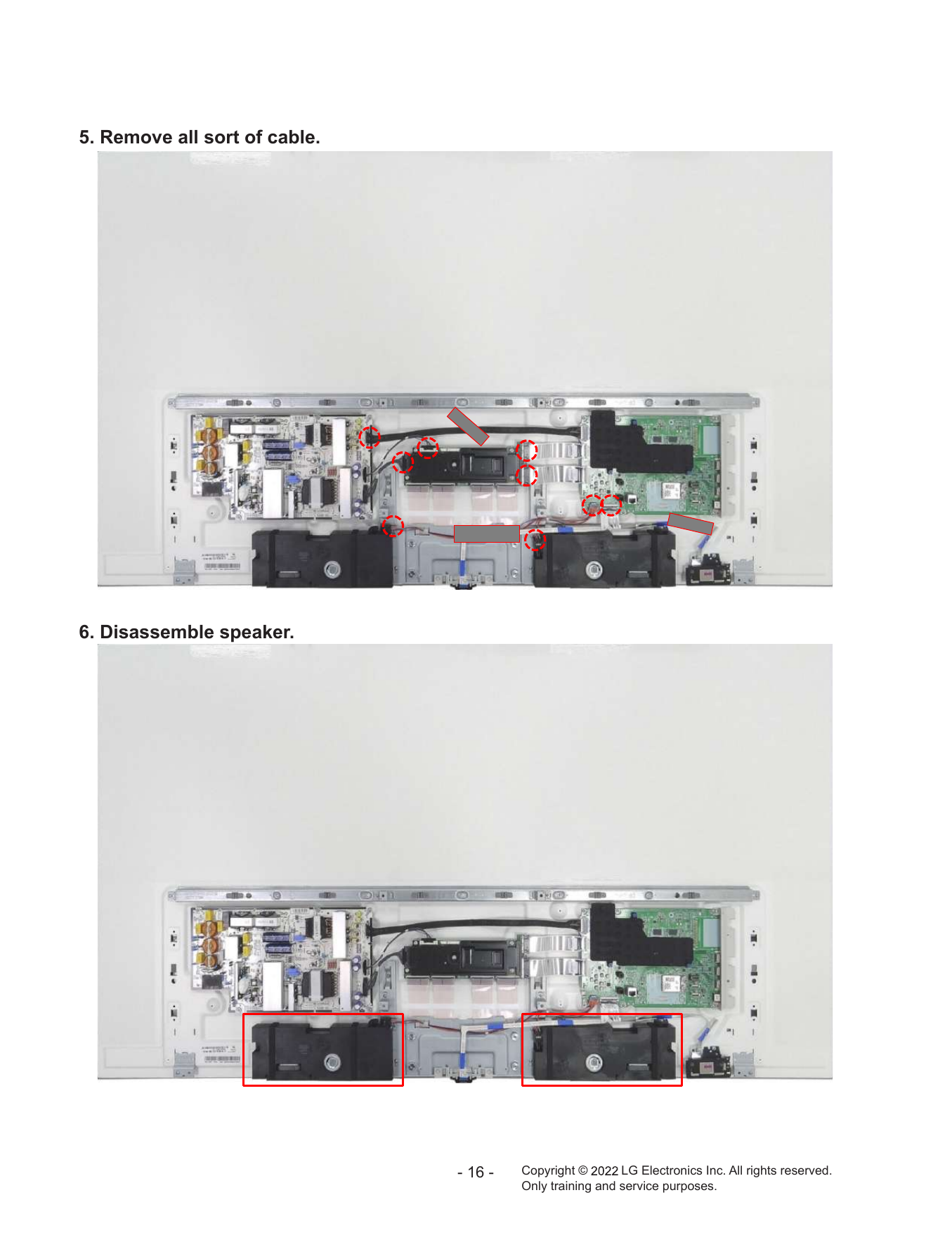
5. Remove all sort of cable.
6. Disassemble speaker.
- 16 - Copyright © LG Electronics Inc. All rights reserved.
Only training and service purposes.
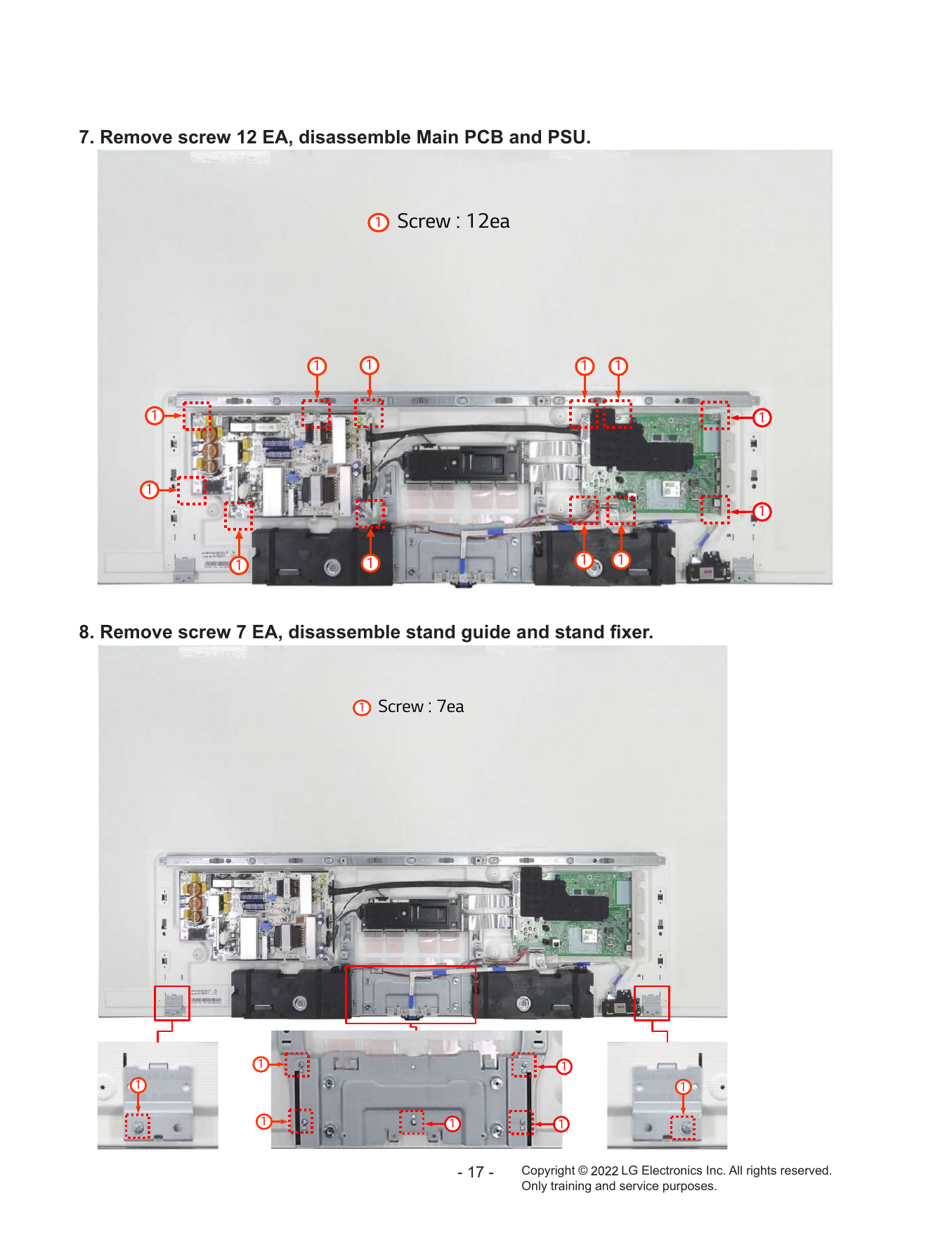
7. Remove screw 12 EA, disassemble Main PCB and PSU.
1 Screw : 12ea
1 1 1 1
1 1
1
1
1 1 1 1
8. Remove screw 7 EA, disassemble stand guide and stand fixer.
1 Screw : 7ea
1 1
1 1
1 1 1
- 17 - Copyright © LG Electronics Inc. All rights reserved.
Only training and service purposes.
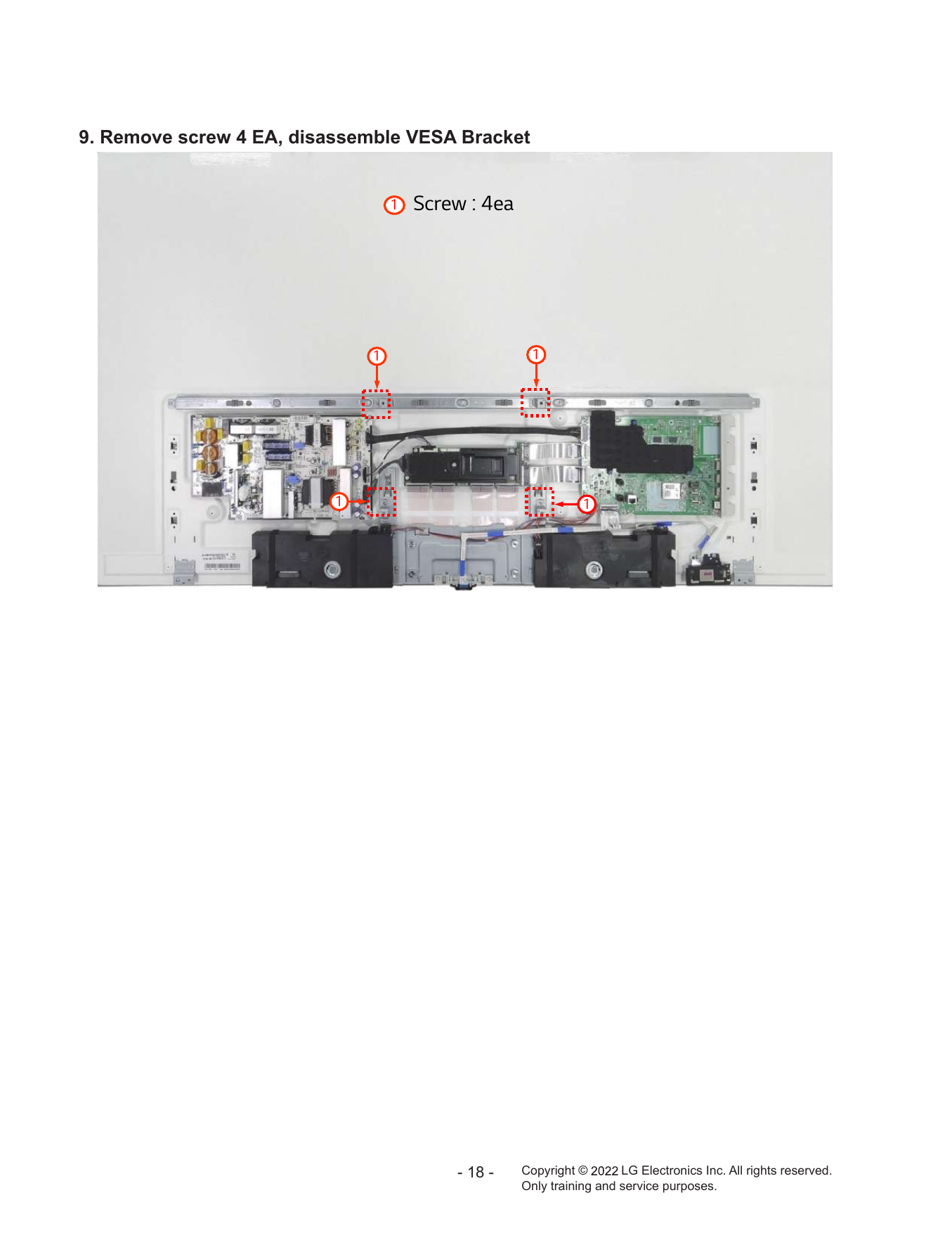
9. Remove screw 4 EA, disassemble VESA Bracket
1 Screw : 4ea
1 1
1 1
- 18 - Copyright © LG Electronics Inc. All rights reserved.
Only training and service purposes.
TROUBLE SHOOTING GUIDE
Copyright © 2022 LG Electronics. Inc. All rights reserved.
Only for training and service purposes.
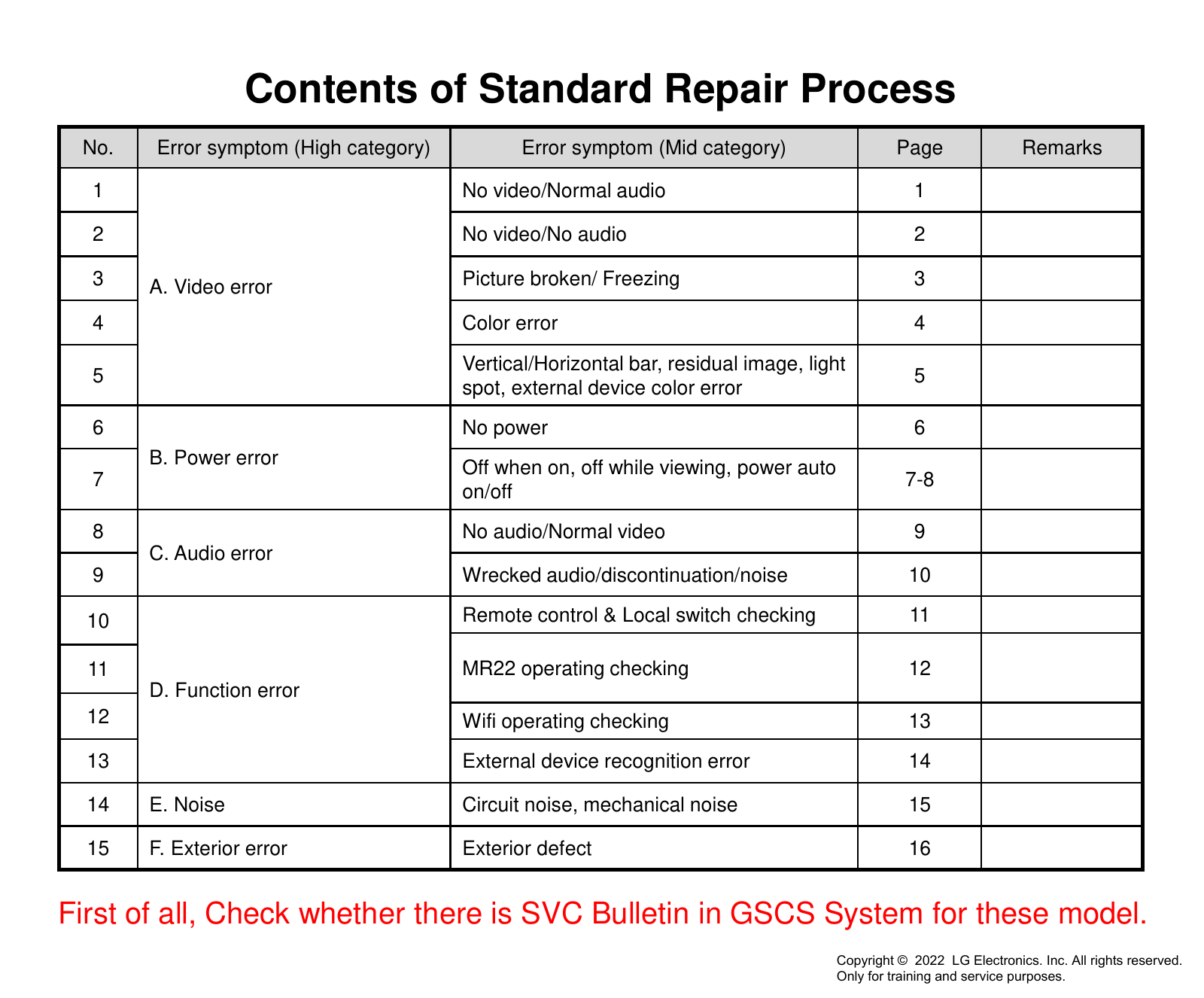
Contents of Standard Repair Process
No. Error symptom (High category) Error symptom (Mid category) Page Remarks
1 No video/Normal audio 1
2 No video/No audio 2
3 A. Video error Picture broken/ Freezing 3
4 Color error 4
Vertical/Horizontal bar, residual image, light
5 5
spot, external device color error
6 No power 6
B. Power error Off when on, off while viewing, power auto
7 7-8
on/off
8 No audio/Normal video 9
C. Audio error
9 Wrecked audio/discontinuation/noise 10
10 Remote control & Local switch checking 11
11 MR22 operating checking 12
D. Function error
12 Wifi operating checking 13
13 External device recognition error 14
14 E. Noise Circuit noise, mechanical noise 15
15 F. Exterior error Exterior defect 16
First of all, Check whether there is SVC Bulletin in GSCS System for these model.
Copyright © 2022 LG Electronics. Inc. All rights reserved.
Only for training and service purposes.
Standard Repair Process
Established
Error A. Video error date
symptom
No video/ Normal audio Revised date 1/16
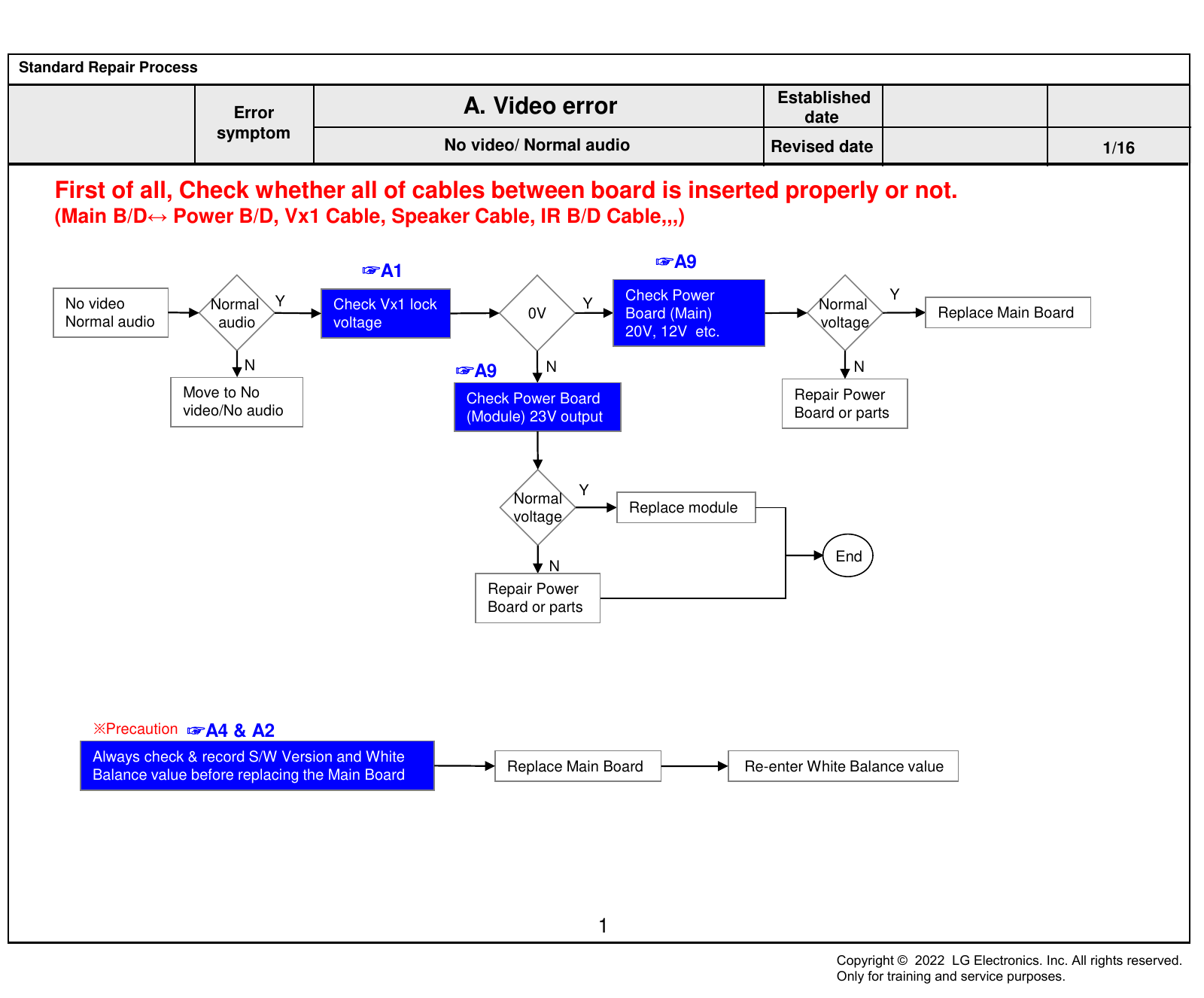
First of all, Check whether all of cables between board is inserted properly or not.
(Main B/D↔ Power B/D, Vx1 Cable, Speaker Cable, IR B/D Cable,,,)
☞A1 ☞A9
Y Check Power Y
No video Normal Check Vx1 lock Y Normal
0V Board (Main) Replace Main Board
Normal audio audio voltage voltage
20V, 12V etc.
N ☞A9 N N
Move to No Check Power Board Repair Power
video/No audio (Module) 23V output Board or parts
Y
Normal
Replace module
voltage
End
N
Repair Power
Board or parts
※Precaution ☞A4 & A2
Always check & record S/W Version and White
Replace Main Board Re-enter White Balance value
Balance value before replacing the Main Board
1
Copyright © 2022 LG Electronics. Inc. All rights reserved.
Only for training and service purposes.
Standard Repair Process
Established
Error A. Video error date
symptom
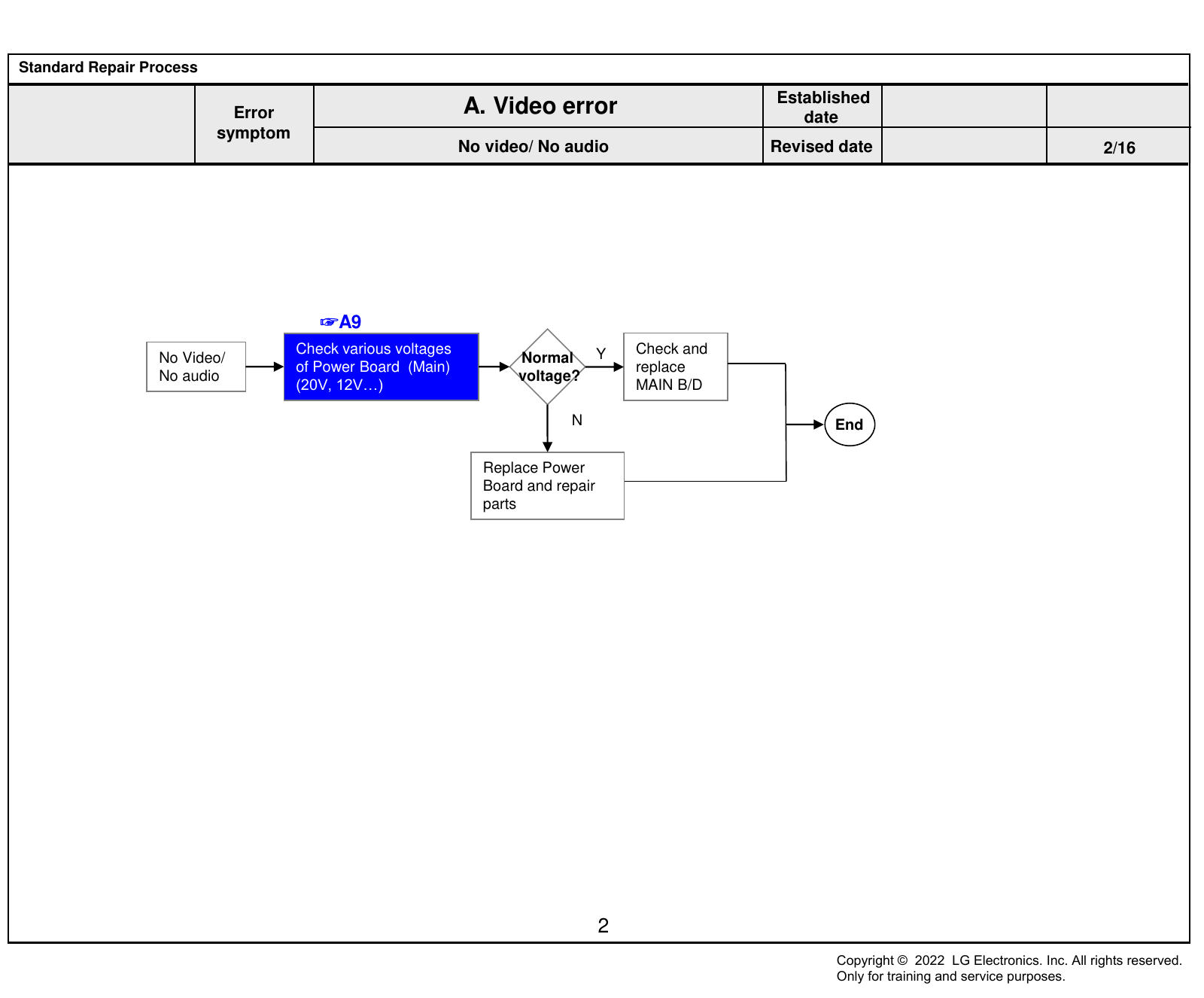
No video/ No audio Revised date 2/16
☞A9
Check various voltages Y Check and
No Video/ Normal
of Power Board (Main) replace
No audio voltage?
(20V, 12V…) MAIN B/D
N End
Replace Power
Board and repair
parts
2
Copyright © 2022 LG Electronics. Inc. All rights reserved.
Only for training and service purposes.
Standard Repair Process
Established
Error A. Video error date
symptom
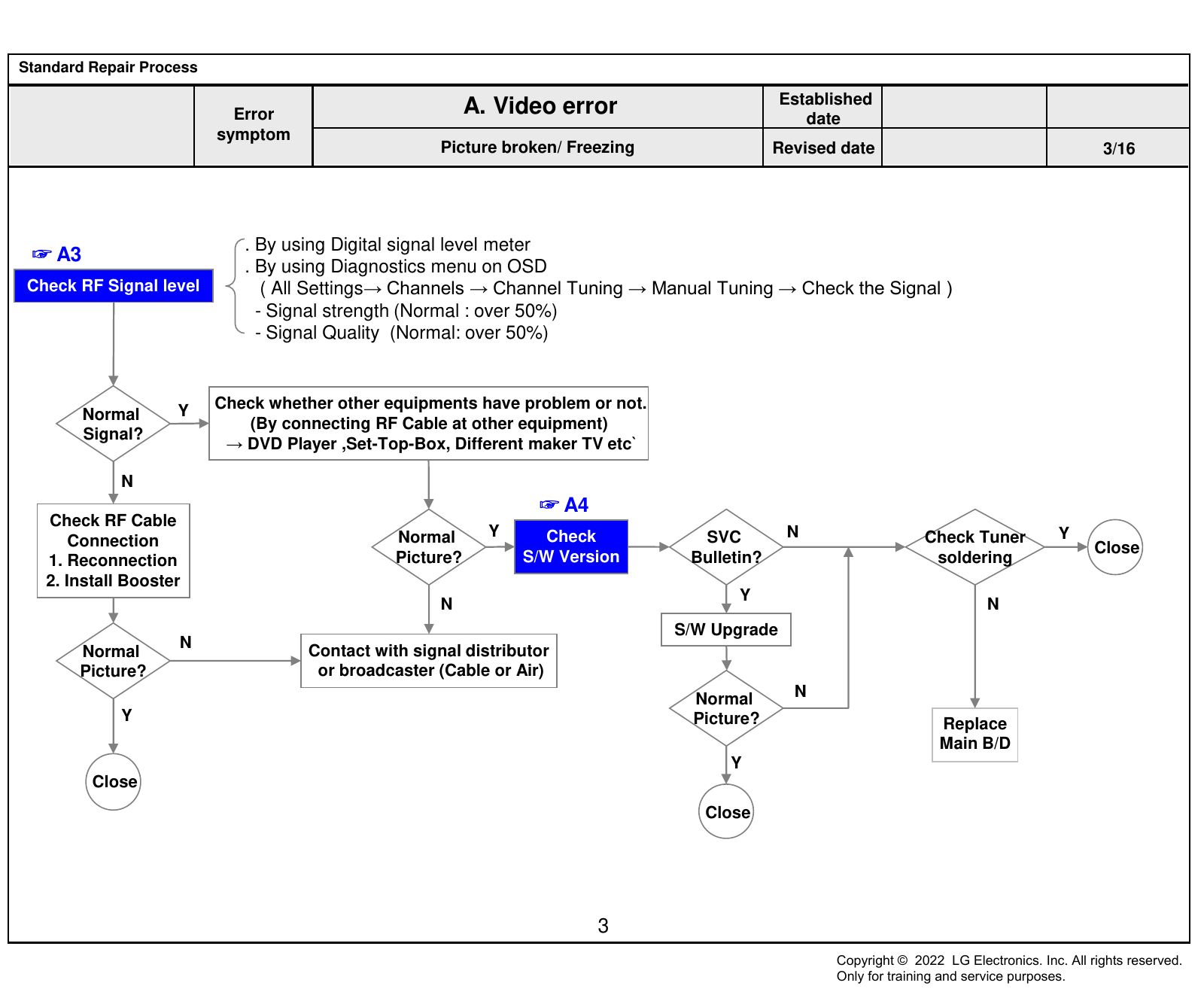
Picture broken/ Freezing Revised date 3/16
. By using Digital signal level meter
☞ A3
. By using Diagnostics menu on OSD
Check RF Signal level ( All Settings→ Channels → Channel Tuning → Manual Tuning → Check the Signal )
- Signal strength (Normal : over 50%)
- Signal Quality (Normal: over 50%)
Y Check whether other equipments have problem or not.
Normal
(By connecting RF Cable at other equipment)
Signal?
→ DVD Player ,Set-Top-Box, Different maker TV etc`
N
☞ A4
Check RF Cable
Normal Y Check SVC N Check Tuner Y
Connection Close
1. Reconnection Picture? S/W Version Bulletin? soldering
2. Install Booster
Y
N N
S/W Upgrade
N Contact with signal distributor
Normal
Picture? or broadcaster (Cable or Air)
Normal N
Y Picture? Replace
Main B/D
Y
Close
Close
3
Copyright © 2022 LG Electronics. Inc. All rights reserved.
Only for training and service purposes.
Standard Repair Process
Established
Error A. Video error date
symptom
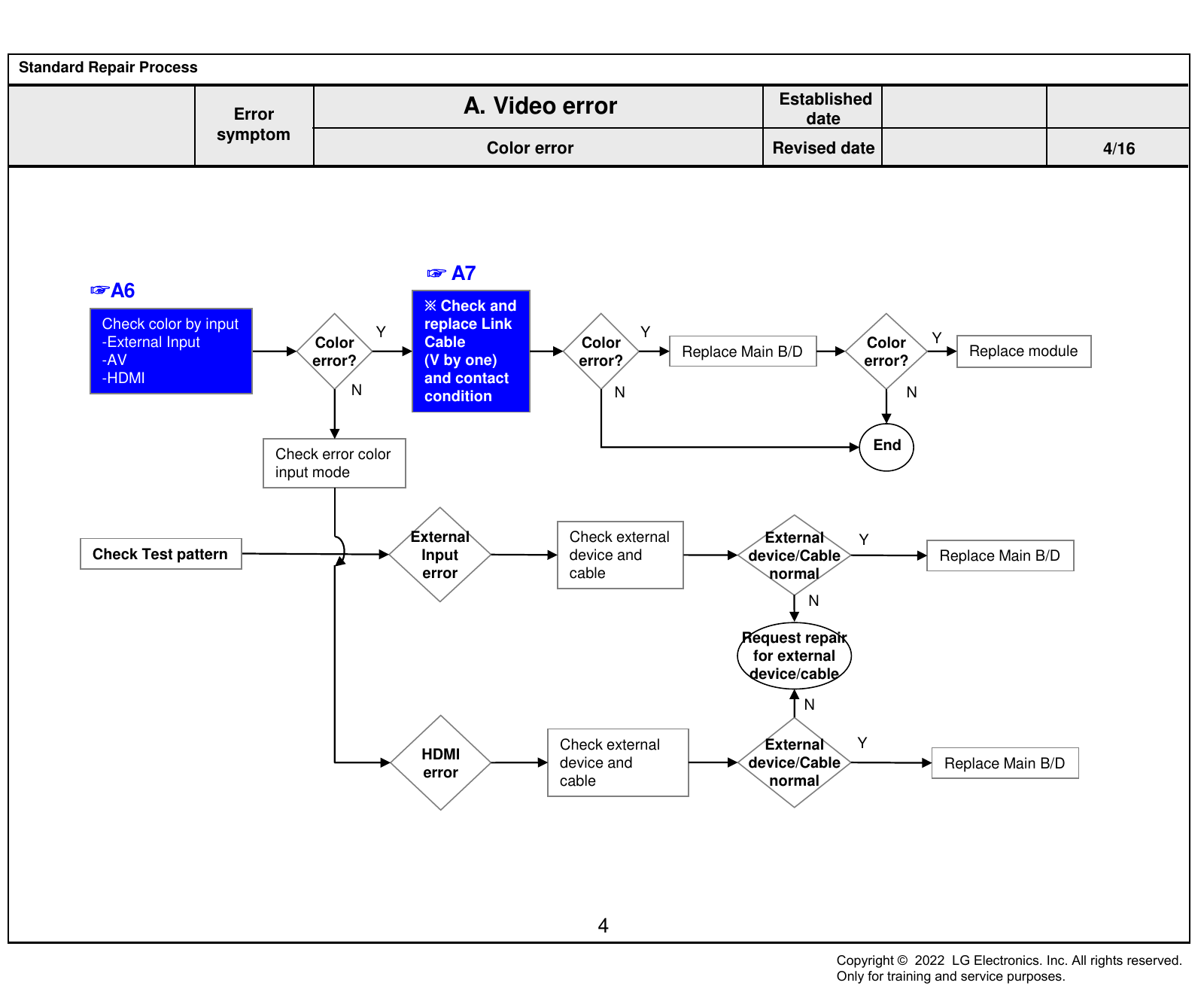
Color error Revised date 4/16
☞ A7
☞A6
※ Check and
Check color by input replace Link
Y Y Y
-External Input Color Cable Color Color
Replace Main B/D Replace module
-AV error? (V by one) error? error?
-HDMI and contact
N condition N N
End
Check error color
input mode
External Check external External Y
Check Test pattern Input device and device/Cable Replace Main B/D
error cable normal
N
Request repair
for external
device/cable
N
Check external External Y
HDMI
device and device/Cable Replace Main B/D
error
cable normal
4
Copyright © 2022 LG Electronics. Inc. All rights reserved.
Only for training and service purposes.
Standard Repair Process
Established
Error A. Video error date
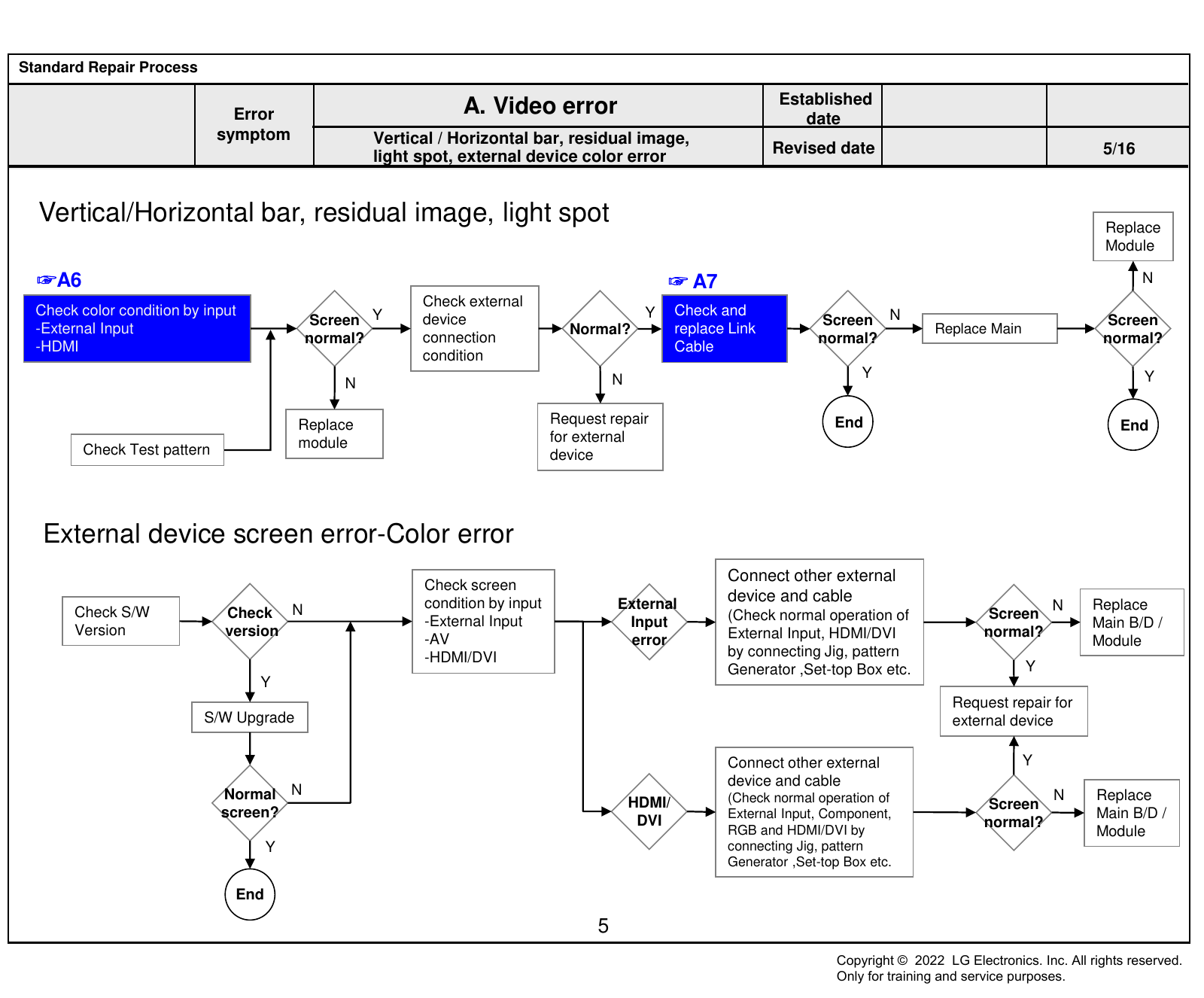
symptom Vertical / Horizontal bar, residual image,
light spot, external device color error Revised date 5/16
Vertical/Horizontal bar, residual image, light spot Replace
Module
☞A6 ☞ A7 N
Check external
Check color condition by input Y Check and
Screen Y device Screen N Screen
-External Input Normal? replace Link Replace Main
normal? connection normal? normal?
-HDMI Cable
condition
N Y Y
N
Replace Request repair End End
module for external
Check Test pattern device
External device screen error-Color error
Connect other external
Check screen
condition by input External
device and cable Replace
Check S/W Check N N
(Check normal operation of Screen
-External Input Input Main B/D /
Version version External Input, HDMI/DVI normal?
-AV error Module
-HDMI/DVI by connecting Jig, pattern
Generator ,Set-top Box etc. Y
Y
Request repair for
S/W Upgrade external device
Connect other external Y
device and cable
Normal N (Check normal operation of N Replace
HDMI/ Screen
screen? External Input, Component, Main B/D /
DVI normal?
RGB and HDMI/DVI by Module
Y connecting Jig, pattern
Generator ,Set-top Box etc.
End
5
Copyright © 2022 LG Electronics. Inc. All rights reserved.
Only for training and service purposes.
Standard Repair Process
Established
Error B. Power error date
symptom
No power Revised date 6/16
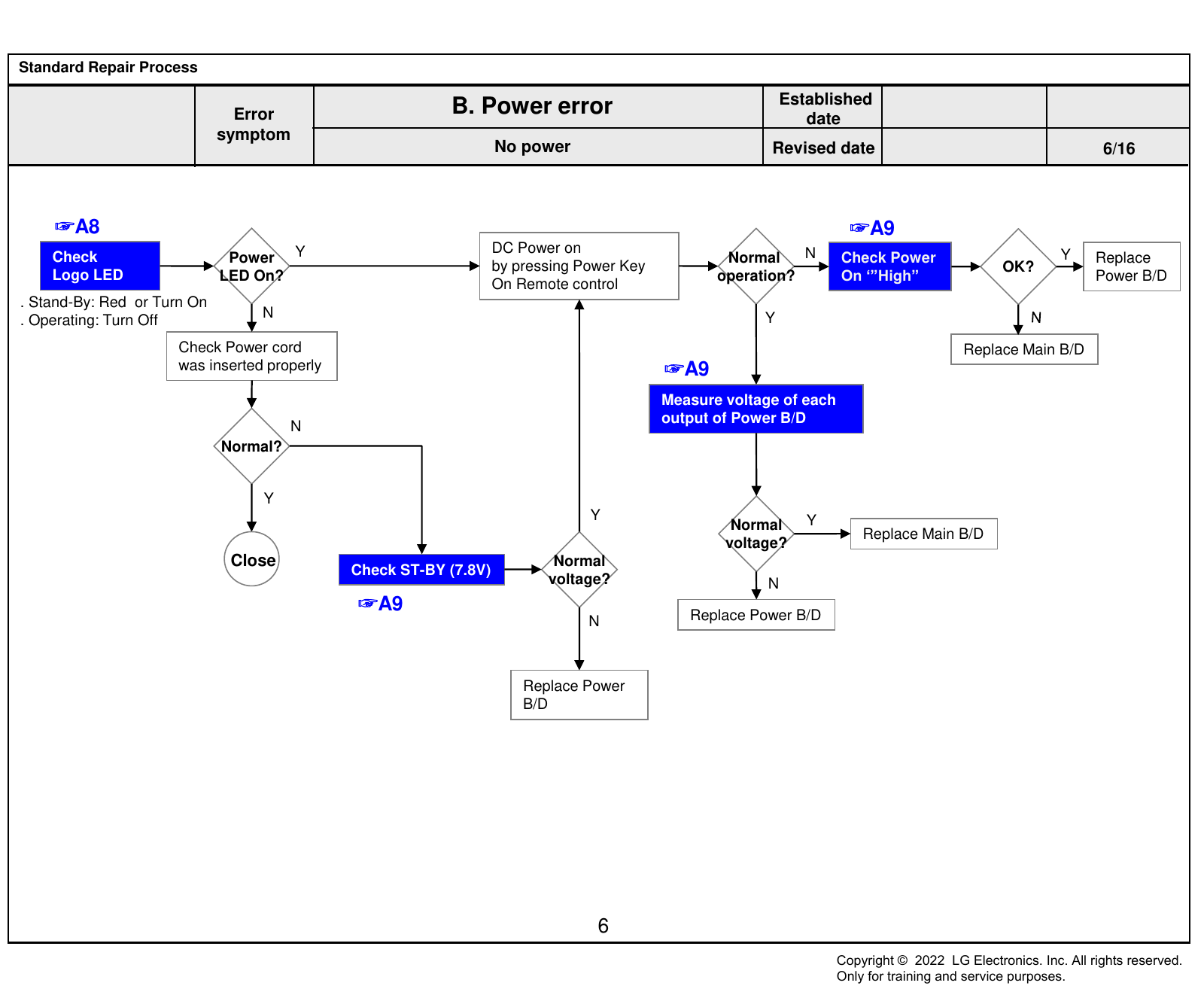
☞A8 ☞A9
Y DC Power on N Y
Check Power Normal Check Power Replace
by pressing Power Key OK?
Logo LED LED On? operation? On ‘”High” Power B/D
On Remote control
. Stand-By: Red or Turn On
N Y
. Operating: Turn Off
Check Power cord Replace Main B/D
was inserted properly ☞A9
Measure voltage of each
output of Power B/D
N
Normal?
Y
Y Y
Normal
Replace Main B/D
voltage?
Close Normal
Check ST-BY (7.8V)
voltage? N
☞A9 Replace Power B/D
N
Replace Power
B/D
6
Copyright © 2022 LG Electronics. Inc. All rights reserved.
Only for training and service purposes.
Standard Repair Process
Established
Error B. Power error date
symptom
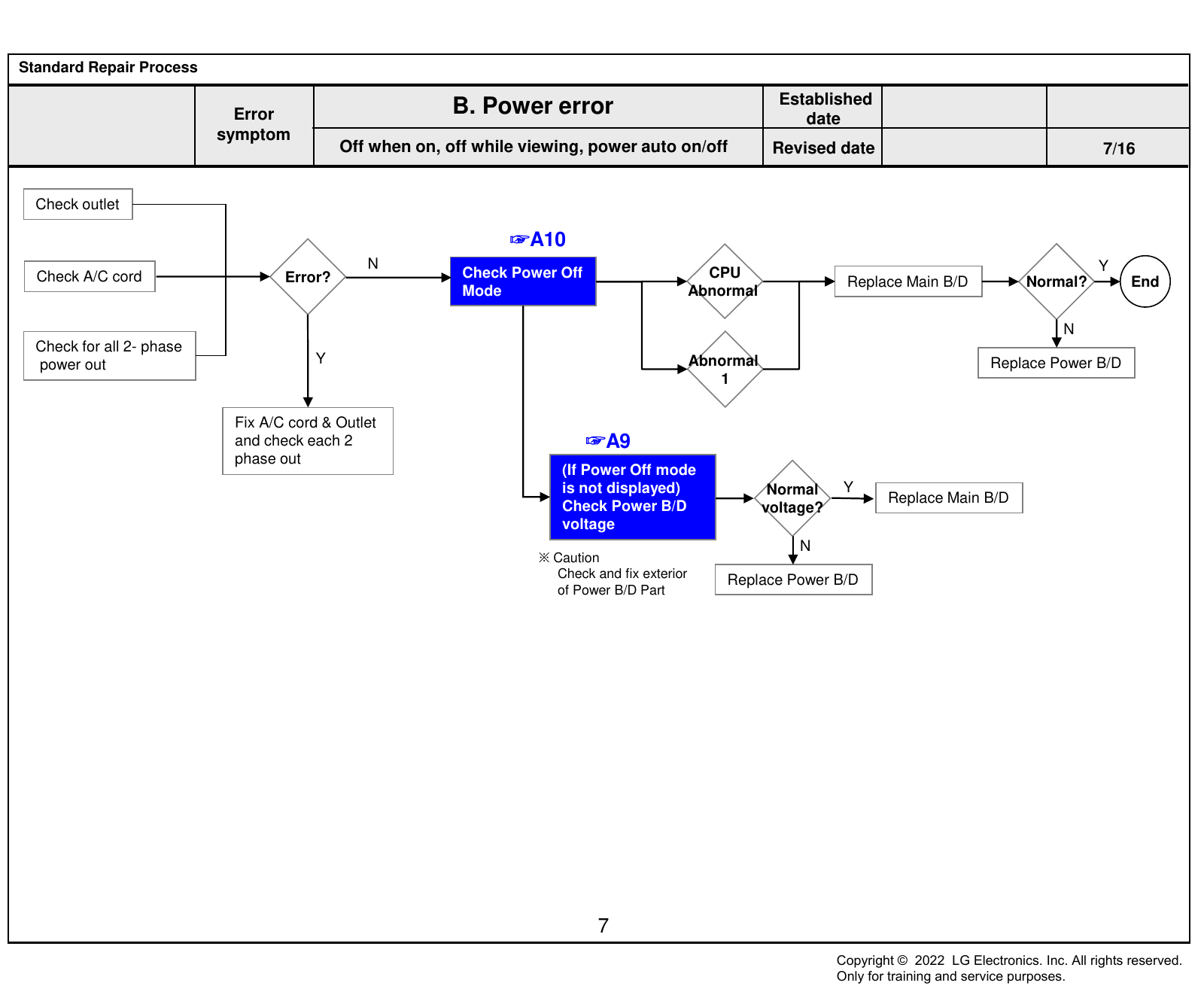
Off when on, off while viewing, power auto on/off Revised date 7/16
Check outlet
☞A10
N Y
Check A/C cord Error? Check Power Off CPU
Replace Main B/D Normal? End
Mode Abnormal
N
Check for all 2- phase
power out Y Abnormal Replace Power B/D
1
Fix A/C cord & Outlet
and check each 2 ☞A9
phase out
(If Power Off mode
is not displayed) Normal Y
Replace Main B/D
Check Power B/D voltage?
voltage
N
※ Caution
Check and fix exterior Replace Power B/D
of Power B/D Part
7
Copyright © 2022 LG Electronics. Inc. All rights reserved.
Only for training and service purposes.
Standard Repair Process
Established
Error B. Power error date
symptom
Off when on, off while viewing, power auto on/off Revised date 8/16
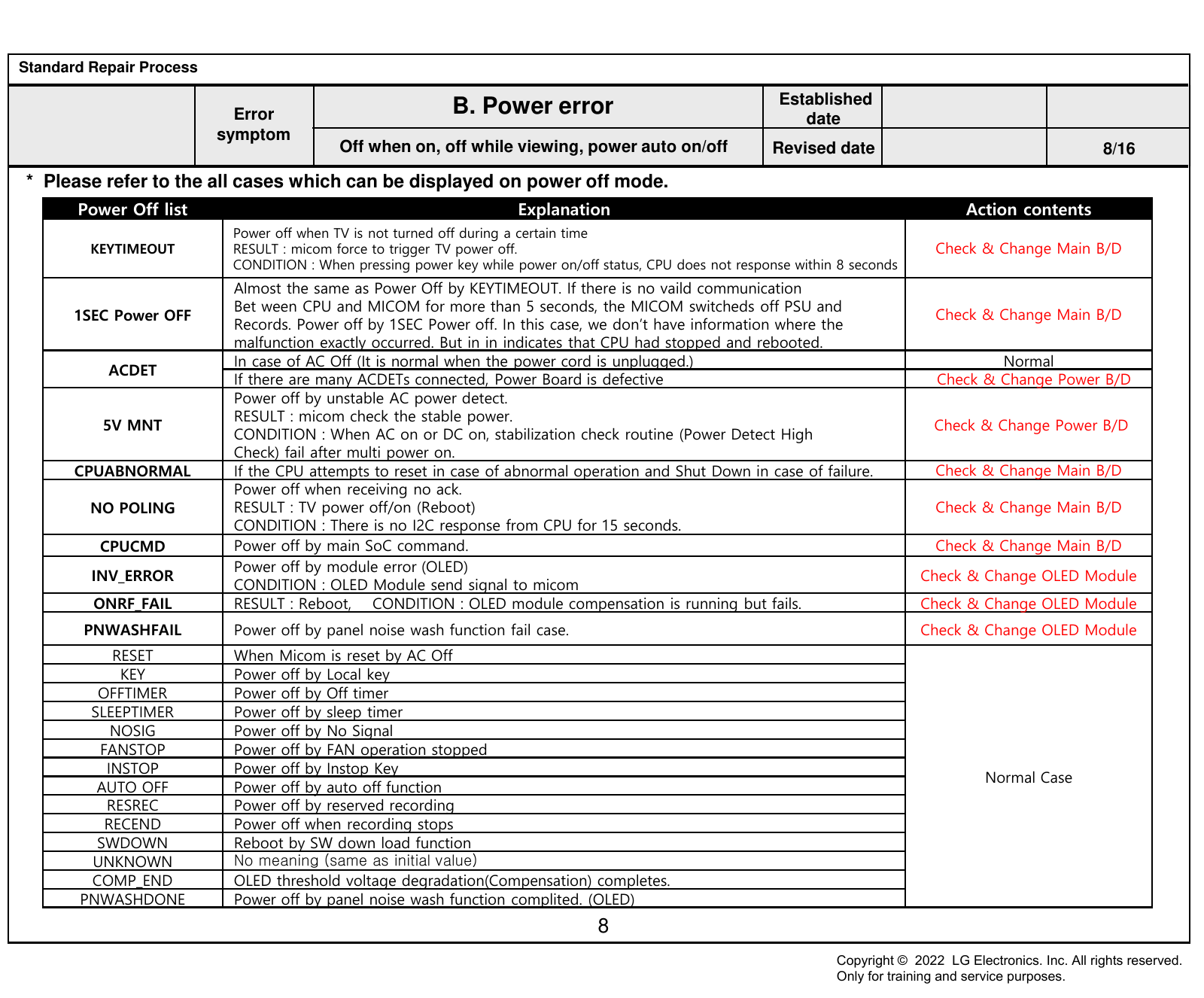
* Please refer to the all cases which can be displayed on power off mode.
Power Off list Explanation Action contents
Power off when TV is not turned off during a certain time
KEYTIMEOUT RESULT : micom force to trigger TV power off. Check & Change Main B/D
CONDITION : When pressing power key while power on/off status, CPU does not response within 8 seconds
Almost the same as Power Off by KEYTIMEOUT. If there is no vaild communication
Bet ween CPU and MICOM for more than 5 seconds, the MICOM switcheds off PSU and
1SEC Power OFF Check & Change Main B/D
Records. Power off by 1SEC Power off. In this case, we don’t have information where the
malfunction exactly occurred. But in in indicates that CPU had stopped and rebooted.
In case of AC Off (It is normal when the power cord is unplugged.) Normal
ACDET
If there are many ACDETs connected, Power Board is defective Check & Change Power B/D
Power off by unstable AC power detect.
RESULT : micom check the stable power.
5V MNT Check & Change Power B/D
CONDITION : When AC on or DC on, stabilization check routine (Power Detect High
Check) fail after multi power on.
CPUABNORMAL If the CPU attempts to reset in case of abnormal operation and Shut Down in case of failure. Check & Change Main B/D
Power off when receiving no ack.
NO POLING RESULT : TV power off/on (Reboot) Check & Change Main B/D
CONDITION : There is no I2C response from CPU for 15 seconds.
CPUCMD Power off by main SoC command. Check & Change Main B/D
Power off by module error (OLED)
INV_ERROR Check & Change OLED Module
CONDITION : OLED Module send signal to micom
ONRF_FAIL RESULT : Reboot, CONDITION : OLED module compensation is running but fails. Check & Change OLED Module
PNWASHFAIL Power off by panel noise wash function fail case. Check & Change OLED Module
RESET When Micom is reset by AC Off
KEY Power off by Local key
OFFTIMER Power off by Off timer
SLEEPTIMER Power off by sleep timer
NOSIG Power off by No Signal
FANSTOP Power off by FAN operation stopped
INSTOP Power off by Instop Key
Normal Case
AUTO OFF Power off by auto off function
RESREC Power off by reserved recording
RECEND Power off when recording stops
SWDOWN Reboot by SW down load function
UNKNOWN No meaning (same as initial value)
COMP_END OLED threshold voltage degradation(Compensation) completes.
PNWASHDONE Power off by panel noise wash function complited. (OLED)
8
Copyright © 2022 LG Electronics. Inc. All rights reserved.
Only for training and service purposes.
Standard Repair Process
Established
Error C. Audio error date
symptom
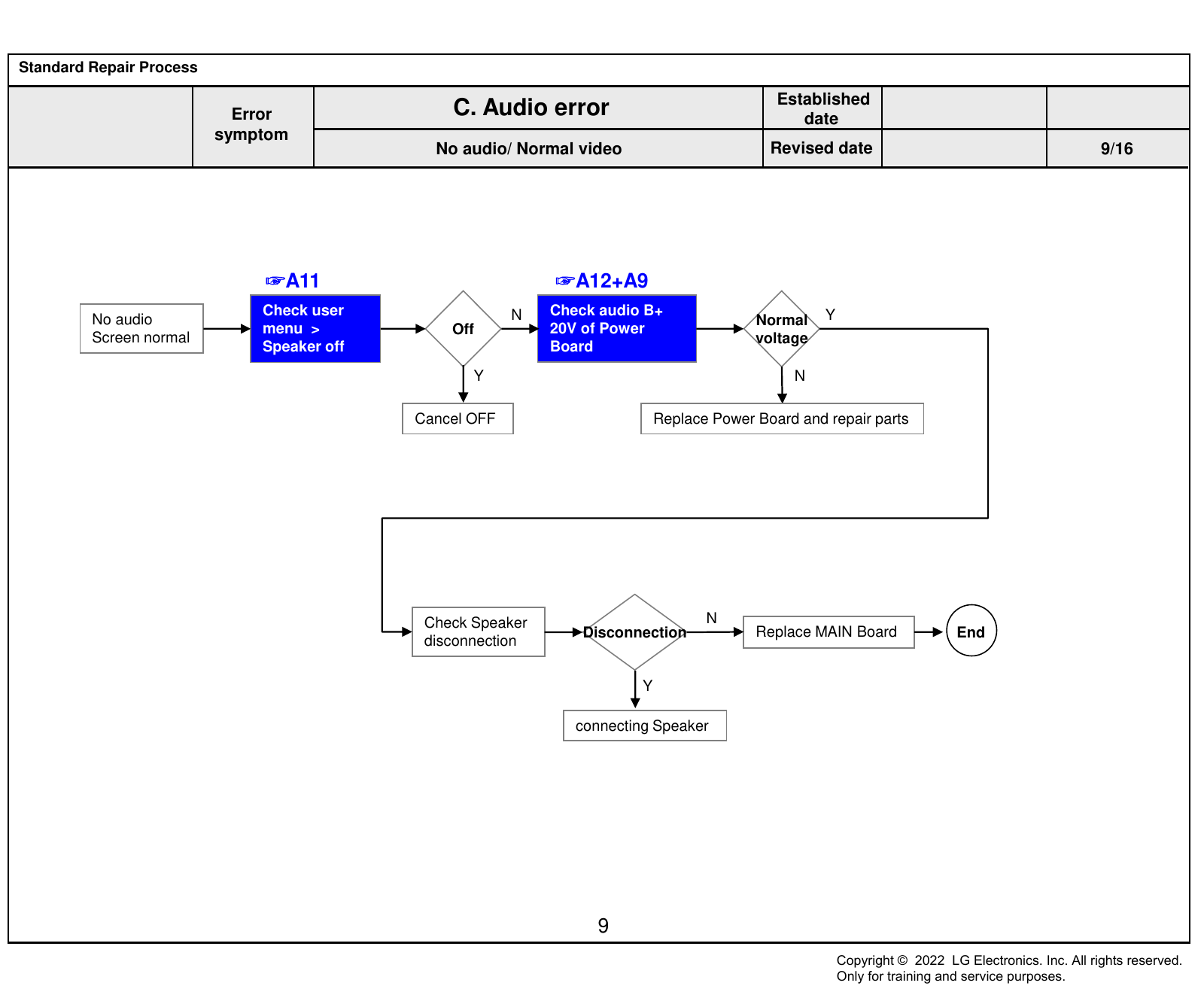
No audio/ Normal video Revised date 9/16
☞A11 ☞A12+A9
Check user N Check audio B+ Y
No audio Normal
menu > Off 20V of Power
Screen normal voltage
Speaker off Board
Y N
Cancel OFF Replace Power Board and repair parts
Check Speaker N
Disconnection Replace MAIN Board End
disconnection
Y
connecting Speaker
9
Copyright © 2022 LG Electronics. Inc. All rights reserved.
Only for training and service purposes.
Standard Repair Process
Established
Error C. Audio error date
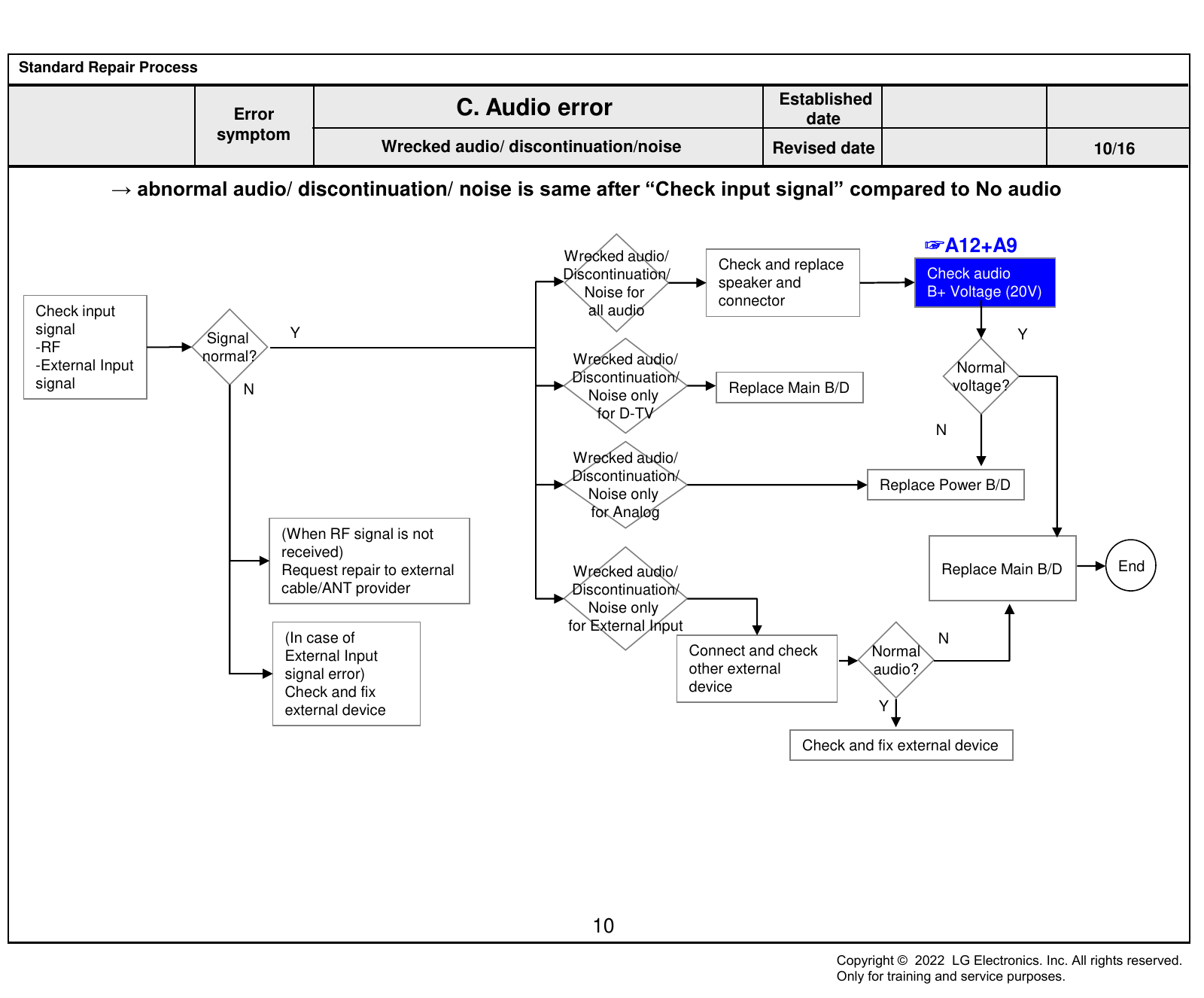
symptom
Wrecked audio/ discontinuation/noise Revised date 10/16
→ abnormal audio/ discontinuation/ noise is same after “Check input signal” compared to No audio
Wrecked audio/
☞A12+A9
Check and replace
Discontinuation/ Check audio
speaker and
Noise for B+ Voltage (20V)
connector
Check input all audio
signal Y Y
Signal
-RF
normal? Wrecked audio/
-External Input Normal
signal Discontinuation/
N Replace Main B/D voltage?
Noise only
for D-TV
N
Wrecked audio/
Discontinuation/
Replace Power B/D
Noise only
for Analog
(When RF signal is not
received)
Request repair to external Wrecked audio/ Replace Main B/D End
cable/ANT provider Discontinuation/
Noise only
for External Input
(In case of N
External Input Connect and check Normal
signal error) other external audio?
Check and fix device
external device Y
Check and fix external device
10
Copyright © 2022 LG Electronics. Inc. All rights reserved.
Only for training and service purposes.
Standard Repair Process
Established
Error D. Function error date
symptom
Remote control & Local switch checking Revised date 11/16
1. Remote control(R/C) operating error Replace
Main B/D
☞A13 ☞A13 ☞A13
Check & Repair N Check B+ Y Y
Check R/C itself Normal Y Normal Normal Check IR Normal
operating? Cable connection operating? 3.5V Voltage? Signal?
Operation Output signal
Connector solder On Main B/D
N Y N N
☞A9
Check R/C Operating Check & Replace Close Check 7.8V on Power B/D Repair/Replace
When turn off light Baterry of R/C Replace Power B/D or IR B/D
in room Replace Main B/D
(Power B/D don’t have problem)
Y
If R/C operate, Normal
Close
Explain the customer operating?
cause is interference
from light in room. N
Replace R/C
11
Copyright © 2022 LG Electronics. Inc. All rights reserved.
Only for training and service purposes.
Standard Repair Process
Established
Error D. Function error date
symptom
MR22 operating checking Revised date 12/16
2. MR22 (Magic Remote control) operating error
☞A4
Check the N Check MR22
RF Receiver ver Normal Y Press the Is show ok N Turn off/on the
INSTART menu is “00.00”? itself Operation operating? wheel message? set and press
the wheel
N Y
Y
☞A14
Check & Replace
Check & Repair Battery of MR22 Close
RF assy
connection
Normal Y
☞A4 operating? Close
Is show ok N Press the back
RF Receiver ver N N
message? key about 5sec
is “00.00”? Close
Y
Replace
MR22
Y Close
Down load the Firmware
* INSTART MENU •If you conduct the loop at 3times,
12.RF Remote control Test change the MR22.
Receiver Firmware download
12
Copyright © 2022 LG Electronics. Inc. All rights reserved.
Only for training and service purposes.
Standard Repair Process
Established
Error D. Function error date
symptom
Wifi operating checking Revised date 13/16
3. Wifi operating error
☞A4 ☞A14
Check the Wi-Fi Mac value N Check the Wifi wafer Normal N Replace
INSTART menu is “NG”? 1pin Voltage? Main B/D
Y
☞A14 Y
Close
Check & Repair
Wifi cable
connection
☞A4
Wi-Fi Mac value N
is “NG”? Close
Y
Change the Wifi
assy
13
Copyright © 2022 LG Electronics. Inc. All rights reserved.
Only for training and service purposes.
Standard Repair Process
Established
Error D. Function error date
symptom
External device recognition error Revised date 14/16
Check technical
Check Y N
Signal information Technical External Input
input Replace Main B/D
input? - Fix information information? Recognition error
signal
- S/W Version
N Y
HDMI/
Check and fix DVI, Optical
Fix in Replace Main B/D
external device/cable Recognition
accordance error
with technical
information
14
Copyright © 2022 LG Electronics. Inc. All rights reserved.
Only for training and service purposes.
Standard Repair Process
Established
Error E. Noise date
symptom
Circuit noise, mechanical noise Revised date 15/16
Identify Circuit Check location
Replace PSU
nose type noise of noise
Mechanical Check location
noise of noise
※ When the nose is severe, replace the module
※ Mechanical noise is a natural
(For models with fix information, upgrade the
phenomenon, and apply the 1st level
S/W or provide the description)
description. When the customer does not
OR
agree, apply the process by stage.
※ Describe the basis of the description in ※ If there is a “Tak Tak” noise from the
“Part related to nose” in the Owner’s cabinet, refer to the KMS fix information and
Manual. then proceed as shown in the solution manual
(For models without any fix information,
provide the description)
15
Copyright © 2022 LG Electronics. Inc. All rights reserved.
Only for training and service purposes.
Standard Repair Process
Established
Error F. Exterior defect date
symptom
Exterior defect Revised date 16/16
Zoom part with Module
Replace module
exterior damage damage
Cabinet
Replace cabinet
damage
Remote
control Replace remote control
damage
Stand
Replace stand
dent
16
Copyright © 2022 LG Electronics. Inc. All rights reserved.
Only for training and service purposes.
Contents of Standard Repair Process Detail Technical Manual
No. Error symptom Content Page Remarks
1 Check Vx1 lock A1
A. Video error_ No video/Normal audio
2 Check White Balance value A2
TUNER input signal strength checking
3 A3
method
A. Video error_ video error /Video
4 lag/stop Version checking method A4
5 Tuner Checking Part A5
A. Video error _Vertical/Horizontal bar,
6 Connection diagram A6
residual image, light spot
Check Link Cable (Vx1) reconnection
7 A. Video error_ Color error A7
condition
Exchange Main Board (1) A-1/5
Exchange Main Board (2) A-2/5
8 Defected Type caused by T-Con/ Power Exchange Power Board (PSU) A-3/5
/ Module
Exchange Module (1) A-4/5
Exchange Module (2) A-5/5
Copyright © 2022 LG Electronics. Inc. All rights reserved.
Only for training and service purposes.
Contents of Standard Repair Process Detail Technical Manual
Continued from previous page
No. Error symptom Content Page Remarks
9 Check front display LED A8
B. Power error_ No power
10 Check power input Voltage & ST-BY 3.5V A9
B. Power error_Off when on, off
11 POWER OFF MODE checking method A10
while viewing
Checking method in menu when there is no
12 A11
audio
C. Audio error_ No audio/Normal video
Voltage and speaker checking method when
13 A12
there is no audio
14 Remote control operation checking method A13
15 D. Function error Motion Remote operation checking method A14
16 Wifi operation checking method A14
17 How to use the Service remote control A15-A17
E. Etc
18 Check items after Main B/D replacement A18
Copyright © 2022 LG Electronics. Inc. All rights reserved.
Only for training and service purposes.
Standard Repair Process Detail Technical Manual
Established
Error symptom A. Video error_No video/Normal audio date
Content Check Vx1 lock Revised A1
date
- Check a voltage of R7624(Red) after turn on the TV. * Refer : Burnt Detect Check Point In the state of TV
If the voltage is low, Vx1 is locked.(OK) on, Check the voltage of R7632 (Blue).
- Low (0V) : Normal, High (3.3V) : Burnt Detect
A1
Copyright © 2022 LG Electronics. Inc. All rights reserved.
Only for training and service purposes.
Standard Repair Process Detail Technical Manual
Error Established
Error symptom symptom A. Video error_No video/Normal audio date
Content Revised A2
Check White Balance value date
Entry method
1. Press the ADJ button on the remote control for adjustment.
2. Enter into White Balance of item 12.
3. After recording the R, G, B (GAIN, Cut) value of Color Temp (Cool/Medium/Warm),
re-enter the value after replacing the MAIN BOARD.
A2
Copyright © 2022 LG Electronics. Inc. All rights reserved.
Only for training and service purposes.
Standard Repair Process Detail Technical Manual
Error symptom Established
A. Video error_Video error, video lag/stop date
Content Revised A3
TUNER input signal strength checking method
date
All Settings Programmes Programme Tuning & setting
Manual Tuning Antenna DTV
When the signal is strong, use the
attenuator (-10dB, -15dB, -20dB etc.)
A3
Copyright © 2022 LG Electronics. Inc. All rights reserved.
Only for training and service purposes.
Standard Repair Process Detail Technical Manual
Established
Error symptom A. Video error_Video error, video lag/stop date
Content OLED TV Version checking method Revised A4
date
Version
Press the IN-START with the remote
control for adjustment
A4
Copyright © 2022 LG Electronics. Inc. All rights reserved.
Only for training and service purposes.
Standard Repair Process Detail Technical Manual
Established
Error symptom A. Video error_Video error, video lag/stop date
Content TUNER checking part Revised A5
date
Checking method:
1. Check the signal strength or check whether the screen is normal when the external device is connected.
2. After measuring each voltage from power supply, finally replace the MAIN BOARD.
A5
Copyright © 2022 LG Electronics. Inc. All rights reserved.
Only for training and service purposes.
Standard Repair Process Detail Technical Manual
Error symptom
A. Video error _Vertical/Horizontal bar, Established
residual image, light spot date
Revised
Content OLED TV Connection diagram A6
date
As the part connecting to the external input, check the
screen condition by signal
A6
Copyright © 2022 LG Electronics. Inc. All rights reserved.
Only for training and service purposes.
Standard Repair Process Detail Technical Manual
Established
Error symptom A. Video error_Color error date
Content Check Link Cable (Vx1) reconnection condition Revised A7
date
Check the contact condition of the Link Cable, especially dust or mis insertion.
A7
Copyright © 2022 LG Electronics. Inc. All rights reserved.
Only for training and service purposes.
Appendix. Examples of Symptoms(Image error) Check for poor cable contact
Symptom
Item Cause Symptom Image
Name
CABLE Color smear Poor broken pin of FFC cable
Color is Excessive due to FFC Cable
CABLE R Color Excessive
Contact.
screen is dark due to poor contact due
CABLE Screen darkness to disconnection of the FFC cable pin.
G color transient due to poor FFC cable
CABLE G Color Excessive connection
A - 1/10
Copyright © 2022 LG Electronics. Inc. All rights reserved.
Only for training and service purposes.
Appendix. Examples of Symptoms(Image error) Check for poor cable contact
Symptom
Item Cause Symptom Image
Name
CABLE Color spread LVDS cable connection problem
Due to foreign substance withi nLVDS
CABLE Screen stop cable PIN
A - 2/10
Copyright © 2022 LG Electronics. Inc. All rights reserved.
Only for training and service purposes.
Appendix. Examples of Symptoms(Main) Check parts by symptom
Symptom
Item Cause Symptom Image
Name
Main Screen noise Bit noise from horizontal screen
Broken screen due to
Main Screen noise
Main IC problem
Main Dark picture Dark left-side screen
Top/bottom screen part
Main Broken picture
Picture problem due to tuner
Inner side quality problem
A - 3/10
Copyright © 2022 LG Electronics. Inc. All rights reserved.
Only for training and service purposes.
Appendix. Examples of Symptoms(Main) Check parts by symptom
Symptom
Item Cause Symptom Image
Name
Main Broken screen Broken screen in a horizontal manner
Main Screen spread Screen corner appears blurry
Main Color Spread Color spread on the screen
Main Blurry Screen Blurry picture on the screen
A - 4/10
Copyright © 2022 LG Electronics. Inc. All rights reserved.
Only for training and service purposes.
Appendix. Examples of Symptoms(Main) Check parts by symptom
Symptom
Item Cause Symptom Image
Name
No problem at the initial stage,
Main Broken picture G-color spread after 10 minutes
Right-side
Main
Screen Right-side screen problem
problem
LG logo
Main Screen picture spread problem
Screen problem
No problem at the initial stage.
Right-side
Main During Heat run, right-side picture
picture problem
problem
A - 5/10
Copyright © 2022 LG Electronics. Inc. All rights reserved.
Only for training and service purposes.
Appendix. Examples of Symptoms(Module) Check parts by symptom
Symptom
Item Cause Symptom Image
Name
Un-repairable Cases
Module Vertical bar
In this case please exchange the module
Module image broken Source Driver issue
Module White dot White dot cause by panel issue
Module Line Dim Vertical Line cause by source drive IC
A - 6/10
Copyright © 2022 LG Electronics. Inc. All rights reserved.
Only for training and service purposes.
Appendix. Examples of Symptoms(Module) Check parts by symptom
Symptom
Item Cause Symptom Image
Name
Module Burnt Module burnt
Module Horizon line Module has damaged
Module has damaged
Module Line Defect
Un-repairable Cases
Module Press damage
In this case please exchange the module
A - 7/10
Copyright © 2022 LG Electronics. Inc. All rights reserved.
Only for training and service purposes.
Appendix. Examples of Symptoms(Module) Check parts by symptom
Symptom
Item Cause Symptom Image
Name
Module Vertical bar Vertical Bar cause by source drive IC
Vertical Noise Un-repairable Cases
Module Brightness
In this case please exchange the module
difference
Module Green light Compensation error when Power On/off
Color difference between screen cause
Module Color difference by compensation error
A - 8/10
Copyright © 2022 LG Electronics. Inc. All rights reserved.
Only for training and service purposes.
Appendix. Examples of Symptoms(Module) Check parts by symptom
Symptom
Item Cause Symptom Image
Name
Module has damaged
Module No image
(Can’t fix it)
Burnt
Module Burnt
(Can’t fix it)
Screen Mura
Module Mura
(Can’t fix it)
A - 9/10
Copyright © 2022 LG Electronics. Inc. All rights reserved.
Only for training and service purposes.
Appendix : Exchange Power Board (PSU)
No Light No picture/Sound Ok
A – 10/10
Copyright © 2022 LG Electronics. Inc. All rights reserved.
Only for training and service purposes.
Standard Repair Process Detail Technical Manual
Established
Error symptom B. Power error _No power date
Content Check front Power Indicator Revised A8
date
LED
ST-BY condition : On or Off
Power ON condition : Turn Off
A8
Copyright © 2022 LG Electronics. Inc. All rights reserved.
Only for training and service purposes.
Standard Repair Process Detail Technical Manual
Error symptom B. Power error _No power Established
date
Content Check power input voltage and ST-BY 3.5V Revised A9
date
Check the DC 12VT line for ST-BY Voltage Power To Main B’d
55/65CS (ST-BY : 7.8V, Normal : 12V)
P201
P252
P251
Power To Module
A9
Copyright © 2022 LG Electronics. Inc. All rights reserved.
Only for training and service purposes.
Standard Repair Process Detail Technical Manual
Established
Error symptom B. Power error_Off (when on, whiling viewing) date
Content POWER OFF MODE checking method Revised A10
date
Entry method
1. Press the IN-START button of the remote control for adjustment.
2. Check the entry into adjustment item 3 (Power On/Off Status).
A10
Copyright © 2022 LG Electronics. Inc. All rights reserved.
Only for training and service purposes.
Standard Repair Process Detail Technical Manual
Error symptom C. Audio error_No audio/Normal video Established
date
Content Revised A11
Checking method in menu when there is no audio
date
Checking method
1. Press the Setting button on the remote control.
2. Select the Sound function of the Menu.
3. Select the Sound Out.
4. Select TV Speaker.
A11
Copyright © 2022 LG Electronics. Inc. All rights reserved.
Only for training and service purposes.
Standard Repair Process Detail Technical Manual
Error symptom Established
C. Audio error_No audio/Normal video date
Content Voltage and speaker checking method Revised A12
when there is no audio date
P201
② ①
1 SPK_R-_CT 2 SPK_R-_FT
3 SPK_R+_CT 4 SPK_R+_FT
Checking order when there is no audio
① Check the contact condition of or 20V connector of Main Board.
② Measure the 20V input voltage supplied from Power Board.
(If there is no input voltage, remove and check the connector.)
③ Connect the tester RX1 to the speaker terminal and if you hear the Chik Chik sound
when you touch the GND and output terminal, the speaker is normal.
A12
Copyright © 2022 LG Electronics. Inc. All rights reserved.
Only for training and service purposes.
Standard Repair Process Detail Technical Manual
Error symptom D. Function error Established
date
Revised A13
Content Remote control operation checking method
date
55/65CS
① IR & EYE Sensor Pin Pin name
1 3.5V_WIFI
2 WIFI_DM
3 WIFI_DP
4 GND
5 WOL/WIFI_POWER_ON
6 3.5V_WIFI
7 WIFI_SUSPEND/RESUME
8 GND
9 COMBO_RESET
10 BT_WAKEUP_HOST
Eye 11 GND
12 3.5V_WIFI
13 N/C
IR LED 14 N/C
15 N/C
16 EYE_SDA
17 EYE_SCL
18 GND
② 19 IR
20 LED_R
③ 21 GND
22 +3.5V_ST
Checking order to check remote control 23 KEY2
24 WOV_PDM0_DATAIN
1. Check IR cable condition between IR & Main board.(Check picture number① and ②.) 25 WOV_PDM_CLKOUT
2. Check the Pin 22, Standby Power 3.5V. (③)
3. AS checking the Pre-Amp(IR LED light) , the power is in ON condition, an Analog
Tester needle should move slowly, otherwise, it’s defective.
A13
Copyright © 2022 LG Electronics. Inc. All rights reserved.
Only for training and service purposes.
Standard Repair Process Detail Technical Manual
D. Function error Established
Error symptom
date
Content Revised A14
Motion Remote operation checking method
date
① Wifi & BT Front Pin Pin name
1 3.5V_WIFI
2 WIFI_DM
3 WIFI_DP
4 GND
5 WOL/WIFI_POWER_ON
③
6 3.5V_WIFI
7 WIFI_SUSPEND/RESUME
8 GND
9 COMBO_RESET
10 BT_WAKEUP_HOST
11 GND
Wifi & BT Rear
12 3.5V_WIFI
13 N/C
14 N/C
15 N/C
16 EYE_SDA
17 EYE_SCL
18 GND
② 19 IR
20 LED_R
21 GND
22 +3.5V_ST
23 KEY2
24 WOV_PDM0_DATAIN
Checking order 25 WOV_PDM_CLKOUT
1. Check BT/Wifi cable condition between BT/Wifi assy & Main board.
2. Terminal Pin 1, Pin 6, Pin12, Check 3.5V Power. (No. ③)
A14
Copyright © 2022 LG Electronics. Inc. All rights reserved.
Only for training and service purposes.
Standard Repair Process Detail Technical Manual
Established
Error symptom E. Etc
date
Content Revised A15
How to use the Service remote control
date
How to access the remote control
0 4 1 3
0 4 1 3
A15
Copyright © 2022 LG Electronics. Inc. All rights reserved.
Only for training and service purposes.
Standard Repair Process Detail Technical Manual
Established
Error symptom E. Etc
date
Content How to use the Service remote control Revised A16
date
Remote Control Part Definition
POWER Power On/Off
[ETC] Each time pressing the KEY button, Mode gets changed to ETC and P-ONLY each time
ETC (Added Function) All KEY function [PIP PR-][PIP PR+][SWAP]
[PIP INPUT][DVI] KEY Function
P-ONLY (Added Changed to factory mode
Function) All KEY function &[INFO][STILL][HDMI HOT][USB HOT][HDMI4] KEY Action
INPUT Change to the external device mode
Change in the order of 16:9=>Zoom1=>Zoom2=>Cinema Zoom=>Aucto
ARC
Screen=>4:3=>16:9
Changes in the order of Bright Picture=>Easy Picture=>Cinema=>Spots=>Game=>
PSM
Custom PIcture1=>Custom Picture2=>Bright Picture
SSM (Added Function) Standard(user)=>music=>cinema=>sports=>game=>standard(user)
PIP Picture In Picture is activated
TEXT Access to the Power Only mode
CAP Broadcasting caption(on/off)
MPX Stereo mode (mono, stereo, foreign language) access
Used when in factory mode
Simplink (Added
Access to the Simplink-connected device
Function)
Digital EYE function ON/OFF
EYE
For some Model, access to the Test Pattern
TILT Used for screen tilting change (Access to the old PDP control mode)
A16
Copyright © 2022 LG Electronics. Inc. All rights reserved.
Only for training and service purposes.
Standard Repair Process Detail Technical Manual
Established
Error symptom E. Etc
date
Content How to use the Service remote control Revised A17
date
Explaining the button name of the Remote control
B-TOOTH
Connected to Blue-Tooth
(Added function)
Model Nam ex) 42PG60D-NA Current Model Name S/W Version ex)
IN-START V03.11.0 Current S/W version
MICOM Version ex) V3.05.0 current Mi-Com version UTT ex) User TV total usage time
POWER OFF STATUS ex) Shows power-off status
ADJ
Test Pattern (Off=>White=>Red=>Green=>Blue=>Black=>Pattern=>Off) Change
X-STUDIO (Added
HDD,USB, external device’s HDD screen is activated
function)
MENU User function gets activated
EXIT Exit from the current mode
TIME SHIFT (Added
Moves forward/backward of recorded contents
function)
MUTE Mute function (0 Volume)
IN-STOP SET to factory mode
VOL + - Volume Up/Down
CH + - Channel Up/Down
AV1,2,3 (Added function) Connects to external input 1,2,3
COMP1,2 (Added
Connects to Component 1,2
function)
HDMI1,2,3,4
Connects to HDMI 1,2,3,4
(Add function)
DVI (Add function) Connects to DVI
A17
Copyright © 2022 LG Electronics. Inc. All rights reserved.
Only for training and service purposes.
Standard Repair Process Detail Technical Manual
Established
Error symptom E. Etc
date
Content How to use the Service remote control Revised A18
date
Check items afer Main B/D (Model Number D/L, White Balance)
1. Press the Service remote control In-Start Key.
No.7 Select Model Number D/L
- Key in the model name and serial number
after checking the ID label on the back cover.
2. Press the Service remote control ADJ Key.
No.13 Select White Balance
- Record the R, G, B (GAIN, Cut) value of the
color temperature before main board
replacement.
After replacing the main board, key in the
recorded value.
A14
A18
Copyright © 2022 LG Electronics. Inc. All rights reserved.
Only for training and service purposes.
webOS22 new features & Usability
Copyright © 2022 LG Electronics. Inc. All rights reserved.
Only for training and service purposes.
Quick Customer Service Guide for webOS22 TV Usability Issues
To respond to usability related issues that commonly occur on WebOS TV
- Quick customer service guide for issues that can be resolved by changing settings
and providing explanations
- [Remote Control] webOS5.0 (2020) vs. webOS6.0 (2021) vs. webOS22
- [Home screen] webOS6.0 (2021) vs. webOS22
- [Homeboard] webOS4.5 (2019) ~ webOS22 dashboard supported products
- WebOS22 new features & usability
Copyright © 2022 LG Electronics. Inc. All rights reserved.
Only for training and service purposes.
[Remote control] webOS5.0 (2020) vs. webOS6.0 (2021) vs. webOS22
webOS5.0 webOS6.0 webOS22
(2020) (2021) (2022)
Voice “-/LIST” (webOS6.0) changed to
recognition “GUIDE/-”
(Short key-Long key changed)
Voice
Magic recognition ▷Guide short press: [Broadcast
(Artificial Intelligence) External input guide] Launch
▷Guide long press: Check saved
OK ▲ channel
Settings
(Wheel) ◀ ▶
Remote Control OK (Wheel) ▼
Not printed.
Settings The wheel (OK) controls
Up/Down/Left/Right arrow keys
External input CP
CP (Netflix, Amazon ,
(Netflix, Amazon, etc.) etc.)
Settings
Region External input
Regio
n
-/LIST changed to GUIDE/-
General External input Settings
Remote Control CP Screen
TV Icon printed
(Netflix, Amazon, etc.) ratio
CP
(Netflix, Amazon etc.)
Screen
ratio OK
OK
Copyright © 2022 LG Electronics. Inc. All rights reserved.
Only for training and service purposes.
[Home screen] webOS6.0 (2021 ) vs. webOS22
webOS5.0 webOS6.0 webOS22
(2020) (2021) (2022)
1
Sign into Search
account
Search
Recently watched screen
Home Magic remote control wheel ↕
screen ▲
◀ ▶
▼
Magic remote control
2 arrow keys Top/bottom/left/right
.
.
.
3
◀Bottom of the screen
Choose an account
Created Home Bar at the bottom Easy to find OTT content/ programs 1 Quick verification and account switching
of the screen Easy access to Recent Input (including live TV)
Improved 2 The selected row is located at the center of
- The category can’t be edited.
- The layout is full of content. the screen and other rows becomes blurred.
- I can’t watch live TV while using Home.
- There is not much useful content in the top category. 3 Added the category list editing function
→ The order of the top/ bottom of the list has been changed
Copyright © 2022 LG Electronics. Inc. All rights reserved.
Only for training and service purposes.
[Homeboard] List of LG products that can be registered on webOS4.5 ~ webOS22 Home Dashboard
* Push Compatibility
Products notification
supported webOS 4.5 (2019) webOS 5.0 (2020) 2021 webOS 6.0 2022 webOS22
Refrigerator O O O O O
Available after SW update
Wine refrigerator X O O O
in March, 2022
Available after SW update
Kimchi refrigerator O O O O
in March, 2022
Washing machine O O O O O
Dryer O O O O O
Air conditioner O O O O O
Air purifier O O O O O
Robot vacuum O O O O O
Oven O O O O O
Dish washer O O O O O
Styler O O O O O
Humidifier O O O O O
Available after SW update
Cook top X O O O
in March, 2022
Available after SW update
Hood X O O O
in March, 2022
Microwave oven X - O O O
Available after SW update
Heater X O O O
in March, 2022
Available after SW update
Ceiling pan X O O O
in March, 2022
Wash tower- Washing machine Available after SW update
X O O O
/ Wash tower-Dryer in March, 2022
Available after SW update
Aqara Sensor- Door sensor O O O O
in March, 2022
Aqara Sensor-Motion sensor O - O O O
Available after SW update
Aqara Sensor-Plug O O O O
in March, 2022
Aqara Sensor-Temperature Available after SW update
X O O O
/humidity sensor in March, 2022
SW to be updated
A9 Stick vacuum X Undecided Undecided Undecided
in June, 2022
* A notification message sent from the device registered on Homeboard appears on the TV screen while watching TV
E.g.) The air purifier filter needs to be cleaned. The oven is done preheating.
※ For products that are compatible with WebOS, but do not provide the push notification function, only the status information of the product is
displayed. The status information differs by each product.
Copyright © 2022 LG Electronics. Inc. All rights reserved.
Only for training and service purposes.
[New function] Explanation on webOS22 TV New function (Features)
• Home NEW • Always Ready (AOD)
• AI Recommendation & Sports Alert NEW • Room to Room Share (Screen link)
• LG ThinQ NEW • Multi View
NEW • Family Care NEW • Remote Desktop PC
• Game Dashboard & Game Optimizer • Magic Remote
■ Family Care: You can set up a TV screen environment for your children
- Setting up screen time: Set up the start and end time of the TV screen
- For vision protection: A function that blocks blue light
- For hearing protection: Limit the maximum volume of the TV to protect your children's hearing
- Screen time analysis: TV Monitoring total TV screen time and app usage list
■ Always Ready: It provides various everyday life services even when you are not watching TV
: This function allows a screen to switch to standby mode when the TV is turned off when not in use and provides art frames on the screen. It also enables to
play music from a smartphone through a Bluetooth connection. Even when the background screen is off, you can use the voice recognition function when you
say, “Hi LG”.
■ Multi View: Two screens at the same time
: You can watch a workout video on the main screen and observe yourself exercising using the camera app on the other screen at the same time.
■ Room to Room Share (Screen link): After connecting your LG TVs at home, you can watch the video that was only connected to the set-top box in the living
room with the TV in your room. For example, even when the set-top box is installed only in the living room, you can use the screen link function to bring up
the living room TV screen directly to your bedroom TV to watch the drama. The TV that transmits the screen automatically turns off. With the TV that receives
the screen, you can easily watch the programs of your choice by controlling it with remote control.
■ Remotely connected to the PC in the office (Remote Desktop PC)
: By accessing to the PC in the office, you can work from home more efficiently with the big TV screen at home.
Copyright © 2022 LG Electronics. Inc. All rights reserved.
Only for training and service purposes.
◎ Access: Settings> General> Family Car
WebOS22 New feature: Family Care
※ All functions on the Family Care app operate on a device-by-device basis regardless of login status
Set screen time Eye protection
mode
- You can only watch TV for the available screen time. - This is a function that reduces blue light to prevent eye fatigue and
- After the screen time is over, the password window will pop up, making it unable vision loss when watching TV.
to watch TV.
(If you don’t enter the password within 2 minutes, the power will turn off) * This is not function that automatically turns off TV when you get close to the screen
Ear protection Screen time
mode analysis
- It sets a maximum volume limit to protect your hearing. - The usage of screen time shows in a bar graph
- Even if your child presses the remote control mistakenly, the - It provides not only total TV screen time, but also daily/ weekly
volume won’t go above 60. screen time for each app.
Copyright © 2022 LG Electronics. Inc. All rights reserved.
Only for training and service purposes.
◎ Access: Settings> General> Standby Mode
WebOS22 New Feature: Always Ready Initial settings: Off: When power OFF after an initial installation, a message pops up three times
(After that, no message appears)
Use your TV as AI speaker and art frame when not in use
※ To enter Background Mode, the TV must be
Background Mode
turned on using Artificial Intelligence (AI)
Art gallery
remote control
1 (7 themes)
2 Movements
How it operates (Video Clips)
Photo (at least 16 photos Option
3 need to be registered)
(USB/ LG ThinQ app)
TV ON
4 Music
(USB, BT sharing)
5 Clock
(Time & Weather)
Use the wheel or top/bottom arrow keys to switch themes
Back Standby Mode: Voice recognition available
Here is the latest trending content.
Background
Mode
Or Voice recognition : Hi LG, what is trending now?
when the background OK
mode is over
Standby Q1. How much electricity does my TV consume in Background Mode or
Mode
Standby Mode?
Q2. Are there any required formats for image file size and extensions?
Q3. Is it possible to change the settings for the standby mode timer?
* The standby mode can be turned off in General Q4. The screen brightness in the standby mode is too bright at night
Copyright © 2022 LG Electronics. Inc. All rights reserved.
Only for training and service purposes.
◎ Access: Settings> ???
WebOS22 New Feature: Room to Room
Connecting your TV at other room through Wi-Fi and watch content wirelessly
Living room Bedroom
Move to
bedroom
Watching a soccer game Continue watching it in the bedroom
in the living room
1) TV On
2) Get screen from the
living room TV
* TV screen will be turned off after
Bring the screen
• sending the screen
The living room TV is connected to The bedroom TV has neither RF nor HDMI
RF and HDMI cable
What TV models support this “ Send Screen” available TV : Z2, G2, C2, QNED99/95
function? “ Get Screen” available TV : All LG TV models launched in 2022
During the screen transmission process, the original image is
compressed and then data is transmitted through a wireless network.
There is a possibility that the quality of some images may be degraded
The screen quality on the TV is during the process. In addition, there may be differences in image
not good. quality depending on the quality settings and panel specifications of
the receiving TV. In the process of video data being transmitted
through the network, poor video quality and corrupted video screens
may occur when there is network traffic.
When using Sending Screen or Receiving Screen, a message that says ‘Connect IR Blaster’ pops up.
My OLED TV suddenly turns on and off by itself
* TVs that are connected to the same Wi-Fi AP can When mirroring through the Room to Room app, I can’t see the subtitle or set-top settings menu.
be synced
When using Sending Screen or Receiving Screen, a message that says ‘Set up a remote control’ pops up.
Copyright © 2022 LG Electronics. Inc. All rights reserved.
Only for training and service purposes.
◎ Access: Home> Multi View
WebOS22 New Feature: Multi View
Two screens at the same time
Quick settings– Launch Multi View
Multi View HDMI
HDMI
Camera
Side by Side mode PIP mode
App1 App 2 App 1
App 2 Q1. I can’t open an application using Multi View.
Q2. Unable to run the combination of apps supported by Multi View.
App 2 USB Screen share
Spotify Q3. The app forcibly closes while Multi View is running. / Suddenly released.
App 1 Camera Miracast
※ Resolution/Audio Spec restrictions
Live TV ● ● ○ Q4. I can’t launch Multi View in the game dashboard.
HDMI ● ● ○ Q5. Screen Saver automatically starts when no movement is detected for 30
Gallery - - ● minutes while watching videos using Multi View,
(OLED)
Copyright © 2022 LG Electronics. Inc. All rights reserved.
Only for training and service purposes.
WebOS22 New Feature : ThinQ
Mobile ThinQ App has been updated with most used features
ThinQ app > Home ThinQ app > TV
Basic function
To open other remote control
Trending Now
Recommend contents
functions, click ‘See All’
Share TV ↔ Mobile
Mobile screen mirroring
TV mobile sound
TV mobile content
TV playback sound AI Remote
Control
Pointer/ Arrow
keys operation
TV popular content Recently used app
- TV will be automatically switched to the content
provider screen
- Sending to TV only works if your
mobile device and TV are on the
same network Live TV / Switch input
- Content search is always
supported.
* Supports webOS4.5 or higher version
Copyright © 2022 LG Electronics. Inc. All rights reserved.
Only for training and service purposes.
WebOS22 New Feature: Always Ready FAQ
1) Wallpaper mode: It is difficult to give you the exact number because it depends on each TV inch and
each wallpaper mode functions.
Q1. How much electricity does my TV
When setting up the art gallery wallpaper, the power consumption is similar to when you watch TV. When
consume in Background Mode or Standby
setting up other functions such as clock/music, it consumes less power than watching TV.
Mode?
2) Standby mode: It consumes 5W power. (※For OLED C Series: 10W)
At least 16 photos need to be registered, and they are displayed in order. There is no capacity limit and
Q2. Are there any required formats for
any photos that are displayed normally on TVs/mobile devices can be set. ※ For transferring mobile
image file size and extensions?
photos using the ThinQ app only works for Android. (It will be available for Apple after updating MR)
1) Enter ‘Remote Control Confirmation Key (Wheel)’ on the standby mode
Standby Mode Time-Off: Set 30 minutes 2) Select the arrow in the right center of the screen (Optional)
as default
Q3. Is it possible to change the settings for → Can change to 60 minutes / 120
the standby mode time? minutes 시계
※ For G2 model, it switches on/off by 옵션 >
motion sensor
3) In the upper right corner, Select ‘Settings’
By enabling the illuminance sensor, you
Q4. On the standby mode, the screen is too
can set the settings so the brightness 4) Select ‘Settings’ on the upper right corner
bright at night
automatically becomes darker in darker - Receive notifications
environments. - Turn off screen
- Slide show speed
- Screen on time setting
- Enable Illuminance sensor
Copyright © 2022 LG Electronics. Inc. All rights reserved.
Only for training and service purposes.
CIC Guide
When using Sending Screen or Receiving Screen, a message that says ‘Connect IR
Title Korea( √ ) Overseas(√ ) CIC agent(√ ) Customer( )
Blaster’ pops up
All webOS TV models
Product type TV Product All Model Troubleshooting(√ ) Operation( ) Installation(√ )
launched before 2022
It is difficult to set
the universal I want to send/receive the TV screen connected to the set-top box using the Room-to-Room
Category remote control to Inquiry function.
use the Room-to- 1) I’m not quite sure how to set the universal remote control.
Room function.
■ Inquiry: A customer wanted to send/receive the TV screen connected to the set-top box using the Room-to-Room function, but a
Inquiry &
message that says ‘Set the universal remote control’ pops up. ※ How the universal remote control works with the Room-to-Room function
Reason
■ Reason: It is difficult to understand how to set the universal remote control
1) To send/receive an external device screen using the Room-to-Room function, the universal remote control must be set.
Caution & (Settings-> All settings-> General-> General-> Managing TV & External device-> External device settings-> Universal remote control
Explanation settings)
2) If the universal remote control is not set, you can’t send/receive an external device screen.
■ Connect the external device you wish to use with the universal remote control function to a TV using an HDMI cable. The TV recognizes
the connected device and automatically sets the universal remote control function. (Applicable for some device). After completing the
setting, the below message will be displayed in the upper right corner of the TV screen.
[LGU+ TV] The device is connected. You cant control it with
the AI remote control. .
Customer
■ If the universal remote control function is not automatically set, the below message will pop up in the upper right corner of the screen.
Service
[HDMI 3] You can control the device using an AI remote
Guide control if you set the device on the connected app.
By following the steps below, you can manually set the universal remote control.
※ Settings-> All settings-> General-> General-> Managing TV & External device-> External device settings-> Universal remote control
settings Connecting device Device type Select input terminal Select STB operator or manufacturer (If not in the list, search and
select) Test remote control operation (Follow the guideline on the screen) Completed
Copyright © 2022 LG Electronics. Inc. All rights reserved.
Only for training and service purposes.
IR Remote control
receiver How the universal remote control works
1. How it works
STB
HDMI • Using TV remote control, enter CH Up/Down to TV (1)
• Sender TV transmits the IR data corresponding to STB to IR Blaster (2)
IR TV • IR Blaster sends CH Up/Down signal to STB (IR) (3)
(3) IR • (Note) When setting the universal remote control, the IR data on the remote control
connected to STB can be downloaded to TV.
(2)
IR Blaster • It is to show how STB can be controlled with a TV remote control
(1)
TV Remote control
How the universal remote control works with the Room-to-Room function
STB
HDMI
AV Transmission
Sender TV Receiver TV
(4) IR
(2)
(3)
IR Blaster
(1)
• For Sender TV, an HDMI cable can be connected to watch STB. It is possible to transmit AV to Receiver
TV. (On Receiver TV, It is possible to watch the STB connected to Sender TV).
• Using the remote control connected to Receiver TV, some STB functions can be operated.
• This is how it works. TV Remote control
• Using TV remote control, enter CH Up/Down to TV (1)
• Transmit CH Up/Down signal from Receiver TV to Sender TV (2)
• Sender TV transmits the IR data corresponding to STB to IR Blaster (3)
• Send CH Up/Down signal from IR Blaster to STB (IR) (4)
• Set the universal remote control settings only for Sender TV
• When controlling STB using the TV remote control connected to Sender TV, the Room-to-Room share
function is disconnected. The sender TV screen turns on and it starts to work as a usual TV.
Copyright © 2022 LG Electronics. Inc. All rights reserved.
Only for training and service purposes.
CIC Guide
When Sending/ Receiving TV, a message that says ‘Set the universal remote
Title Korea( √ ) Overseas(√ ) CIC agent(√ ) Customer( )
control’ pops up.
All webOS TV models
Product type TV Product All Model Troubleshooting(√ ) Operation( ) Installation(√ )
launched before 2022
It is difficult to
set the universal I want to send/receive the TV screen connected to the set-top box using the Room-to-Room
Category remote control to Inquiry function.
use the Room-to- 1) I’m not quite sure how to set the universal remote control.
Room function.
■ Inquiry: A customer wanted to send/receive the TV screen connected to the set-top box using the Room-to-Room function, but a
Inquiry & message that says ‘Set the universal remote control’ pops up.
Reason
■ Reason: Unable to install IR Blaster properly.
1) To send/receive an external TV screen using the room-to-room function, IR Blaster must be connected to the TV.
Caution & 2) If IR Blaster is not connected, the set-top TV screen cannot be sent/received.
Explanation
(If there is no IR Blaster available, it is impossible to use other functions such as changing TV channels even after sending the set-top TV
screen.)
■ Connecting IR Blaster and User Guide
Connect the IR Blaster cable to the IR Blaster port on the back of the TV
- Place both ends (one or two) of the IR Blaster in front of the external device remote control receiver (usually located in front of the
device).
Customer
Service
Guide
Copyright © 2022 LG Electronics. Inc. All rights reserved.
Only for training and service purposes.
CIC Guide
Title My OLED TV suddenly turns on and off by itself. Korea( √ ) Overseas(√ ) CIC agent(√ ) Customer( )
All webOS TV models
Product type TV Product All Model Troubleshooting(√ ) Operation( ) Installation(√ )
launched before 2022
My OLED TV
My TV in the living room suddenly turns on and off by itself.
Category suddenly turns on Inquiry 1) My TV in the living room suddenly turns on and off by itself and the screen goes black when watching TV.
and off by itself
■ Inquiry: My TV in the living room suddenly turns on and off by itself and the screen goes black when watching TV.
Inquiry &
■ Reason: The screen of the Sender TV is off during room-to-room mirroring.
Reason
When the receiver TV is off, it may look like the TV turns on and off by itself because the power must be ON first.
1) When the receiver TV is off, it may look like the TV turns on and off by itself because the power must be ON first.
Caution &
Explanation 2) By turning off the ‘Turn on the TV using Wi-Fi’ function, the TV won’t turn off suddenly. However, when the TV is off, you can’t receive
the screen from other TVs.
■ Please don’t be surprised. The TV turns on to do screen mirroring with other TVs in the house.
After the TV turns on, a message indicating that other TVs in the house will do screen mirroring the TV will be displayed.
If you don’t want to send the screen, click ‘Cancel’ in the below message to stop the mirroring.
{Receiver TV} would like to receive the screen.
To send the TV screen, the screen will turn off in a
Customer
Service moment.
Guide
■ If you don’t want other TVs in the house to turn on the TV, please turn OFF the ‘Turn on the TV using Wi-Fi’ function.
Settings-> All settings -> General-> Managing TV and external device-> External device settings-> Turn on the TV using mobile device->
Turn on the TV using Wi-Fi : OFF
※ When [Turn on the TV using Wi-Fi] is OFF, there may be restrictions on other functions.
-Turning on the TV on ThinQ App / AirPlay / Youtube, etc
Copyright © 2022 LG Electronics. Inc. All rights reserved.
Only for training and service purposes.
CIC Guide
I can’t see subtitles or set-top settings menu when mirroring through the room-
Title Korea( √ ) Overseas(√ ) CIC agent(√ ) Customer( )
to-room app.
All webOS TV models
Product type TV Product All Model Troubleshooting(√ ) Operation( ) Installation(√ )
launched before 2022
I can’t see subtitles
or set-top settings There are some missing features after mirroring my TV through the room-to-room app.
menu when 1) Before mirroring my TV, I was able to see subtitles, but after the mirroring, I can’t see any of them on the TV.
Category Inquiry
mirroring through 2) Before mirroring my TV, I was able to see set-up menus, but after the mirroring, I can’t see any of them on
the room-to-room the TV.
app.
■ Inquiry: Before the mirroring, I was able to see subtitles and set-up menus, but after the mirroring, I can’t see any of them on the TV.
Inquiry &
■ Reason: When mirroring, only the video data is transferred through the room-to-room app. If video data doesn’t include subtitles, set-top
Reason
menus, etc., such information won’t be displayed.
Caution & 1) When receiving the TV screen through the room-to-room app, only the video information of the sender TV will be transferred. So, only the
Explanation video screen will be displayed and subtitles or menus aren’t available.
■ When receiving the TV screen through the room-to-room app, only the video information of the sender TV will be transferred.
Subtitles are separated from the video information. Therefore, they aren’t provided.
※ Even if you set the subtitle function on the receiver TV, it won’t show any subtitle.
■ When receiving the TV screen through the room-to-room app, only the video information of the sender TV will be transferred, the menus
Customer won’t be displayed.
Service
Guide ※ Keys that work with Receiver TV
- Power
- Channel Up/Down
- Volume Up/Down
- Number buttons
- (AI remote control) wheel
If you want to change the settings of the connected external device, please change the settings on the TV to which the external device is
connected after exiting the room-to-room function. (mirroring).
Copyright © 2022 LG Electronics. Inc. All rights reserved.
Only for training and service purposes.
CIC Guide_Multi View
Title I can’t open my app on Multi View Korea( √ ) Overseas(√ ) CIC agent(√ ) Customer( )
Product WebOS 22 Multi View support
TV Product LED TV Model Troubleshooting (√ ) Operation ( ) Installation ( )
type models
Multi View
Category Inquiry Apps won’t open on Multi View
function
Many apps installed on the TV (e.g. Netflix, Amazon Prime Video, Disney+, etc.) can’t be launched on Multi View.
Symptom
(I can’t find my apps on Multi View.)
Explanation For webOS 22, only some of the apps that are installed on TV works with Multi View.
Please note that only the combinations of the apps mentioned below work with Multi View.
Split screen mode
App 1 App 2 App1 App 2
(Left-side of split screen mode, the big screen (Right-side of split screen mode, the smaller
on PIP mode) screen on PIP mode )
Live TV
※ Not applicable to China/ Hong Kong
Screenshare(Miracast) PIP mode
Camera
products
Customer App 1
Service Screenshare(Miracast)
Guide HDMI App 2
Camera
Gallery Spotify
Copyright © 2022 LG Electronics. Inc. All rights reserved.
Only for training and service purposes.
CIC Guide_Multi View
List of Multi View support models
SoC O22 + F22 O22 K8Hp
OLEDXXZ2 & its derivative model OLEDXXG2 & its derivative model OLEDXXB2 & its derivative model
XXQNED99 & its derivative model OLEDXXC2 & its derivative model OLEDXXA2 & its derivative model
XXQNED96 & its derivative model OLEDXXCS & its derivative model XXQNED91 & its derivative model
XXQNED95 & its derivative model XXQNED90 & its derivative model
XXQNED87 & its derivative model
XXQNED86 & its derivative model
XXQNED85 & its derivative model
XXQNED82 & its derivative model
XXQNED81 & its derivative model
XXQNED80 & its derivative model
XXNANO79 & its derivative model
Model
XXNANO76 & its derivative model
Name
XXNANO75 & its derivative model
XXUQ91 & its derivative model
Guide XXUQ90 & its derivative model
XXUQ80 & its derivative model
Copyright © 2022 LG Electronics. Inc. All rights reserved.
Only for training and service purposes.
CIC Guide_Multi View
Title The combinations of the apps supported by Multi View won’t work. Korea( √ ) Overseas(√ ) CIC agent(√ ) Customer( )
Product WebOS 22 Multi View support
TV Product LED TV Model Troubleshooting (√ ) Operation ( ) Installation ( )
type models
Multi
Category View Inquiry The combinations of the apps supported by Multi View won’t work.
function
Symptom The combinations of the apps supported by Multi View won’t work and a message indicating that it is unable to launch appears.
Explanation Depending on the content you are watching, there may be some restrictions on launching Multi View
If a user is watching the content below, Multi View cannot be launched.
Apps you want to use on Multi
Apps in use Content being played Guide
View
8K broadcast
4K high frame (HFR) You can’t launch the channel you are watching and Multi
broadcast TVScreenshare(Miracast) View at the same time. Try again after changing to other
Live TV
Data broadcasting is running Camera channels, closing the data broadcast, or turning off the
Customer Audio Description audio description.
Service Video is recording
Guide
You cant run the HDMI input you’re watching and Multi
View at the same time.
Dolby Vision signal
4K High Frame(HFR) signal On HDMI devices, try again after
TVScreenshare(Miracast)
HDMI 8K signal 1) Turning off Dolby Vision,
Camera
Dolby MAT audio signal 2) Turning off the high frame mode
Dolby TrueHD audio signal 3) Setting the output resolution to 4K resolution or
lower,
4) After setting the audio signal to PCM or AC3
Copyright © 2022 LG Electronics. Inc. All rights reserved.
Only for training and service purposes.
CIC Guide_Multi View
Title Multi View is forcibly closed. Korea( √ ) Overseas(√ ) CIC agent(√ ) Customer( )
Product WebOS 22 Multi View support
TV Product LED TV Model Troubleshooting (√ ) Operation ( ) Installation ( )
type models
Multi
Category View Inquiry Multi View is forcibly closed.
function
Symptom When running two apps on Multi View, it suddenly shuts down and only one app takes up full screen.
Explanation Depending on the content you are watching, Multi View may be forcibly closed.
사용자가 멀티뷰 사용중에 아래와 같은 동작을 할 경우 멀티뷰 실행이 강제 종료됩니다.
The combinations of the apps Is forcibly closed when Guide
On Live TV
1. Switch to 8K channels
You can’t launch the channel you are watching and Multi
2. Switch to 4K high frame
TVScreenshare(Miracast) View at the same time. Try again after changing to other
Live TV channels
Camera channels, closing the data broadcast, or turning off the
3. Audio description ON
audio description.
4. Scheduled screen recording
starts
Customer
Service You can’t run the HDMI input you’re watching and Multi
Guide On HDMI devices View at the same time.
1. Dolby Vision signal ON
2. 4K high frame (HFR) signal On HDMI devices, try again after
TVScreenshare(Miracast)
HDMI ON 1) Turning off Dolby Vision,
Camera
3. Change the screen resolution 2) Turning off the high frame mode
to 8K, or Dolby MAT/Dolby 3) Setting the output resolution to 4K resolution or
TrueHD audio signal ON lower,
4) Setting the audio signal to Dolby Digital or AC3
Copyright © 2022 LG Electronics. Inc. All rights reserved.
Only for training and service purposes.
CIC Guide_Multi View
Title Multi View doesn’t work on the game dashboard. Korea( √ ) Overseas(√ ) CIC agent(√ ) Customer( )
Product WebOS 22 Multi View support
TV Product LED TV Model Troubleshooting (√ ) Operation ( ) Installation ( )
type models
Multi
Category View Inquiry Multi View doesn’t work on the game dashboard.
function
Symptom I wanted to run Multi View while playing a game, but it didn’t work.
Explanation Multi View may not run depending on the game controller settings on the latest game controller (Xbox Series X and Playstation 5).
If your game controller settings are set as below, Multi View might not be working.
Type Game controller settings Guide
Dolby Vision On Multi View is not available in the current game controller settings. On the
Video Screen resolution settings: 4K 120Hz settings, you can try again after turning off Dolby Vision, setting the
Variable Refresh Rate : On resolution to 4K 60Hz or lower, or turning off Variable Refresh Rate.
Customer Multi View is not available in the current game controller settings. On the
Service Dolby MAT audio signal
Audio game controller settings, you can try again after setting the audio signal to
Guide Dolby TrueHD audio signal
Dolby Digital or AC3.
Copyright © 2022 LG Electronics. Inc. All rights reserved.
Only for training and service purposes.